EMS
| Català | Castellano | English |
Organising Absences
When a teacher of your department is away, you decide from the guard duty schedule how each of their classes is covered: with a guard teacher, by rearranging the lessons, or with a change of the group’s timetable that the families are told about.
Required role: Department Chief or Seminar Chief, and those above them (Head of Studies or Deputy Head of Studies, Director) and the administrator. How to read the schedule itself (the timetable, the Absences table, the area filter) is explained in Guard Duty Schedule.
Access: Employee Attendances → Guard schedule, its Absences table.
Entering a detected absence
Who can do this: Seminar Chiefs and Department Chiefs, for the teachers of their own department, as well as the Head of Studies or Deputy, Direction and the administrator. They can also do it for a teacher of another department who teaches a group their department manages, or who names their department in the Also managed by the departments field (see Organising an absence).
The normal way is always that the teacher requests the absence themselves. Use this only for the exceptional case of a teacher who phones or writes to warn they will be away and cannot use EMS: entering it puts their classes on the schedule straight away, so you can organise the cover.
- Go to Employee Attendances > Absences > Management > Detected absences and click New.
- Choose the Teacher. Only the teachers of your own department are offered.
- Set From and To, date and time. They start out as today, 08:00 to 15:00. An absence can span several days.
- Optionally, add Notes for your own reference. The teacher can open the entry, but never sees the notes.
- Save.
The absence then appears on the schedule as awaiting approval (lighter italic red), and you can organise it as described below. The teacher’s Head of Studies then reviews it (see Detected absences): the teacher is only asked to request it if the Head of Studies decides so. When the teacher requests the absence, the detected absence is linked to it automatically and whatever you organised stays as it is. If the teacher turns out not to be absent after all, the Head of Studies discards it when reviewing it; only the administrators can delete it altogether.
Organising an absence
Who can do this: the absent teacher’s Seminar Chief or Department Chief, and those above them in the hierarchy (Head of Studies or Deputy, and Direction), as well as the administrator. What counts is the department the teacher teaches in: its chiefs and the manager of the area it belongs to organise the absences of everyone in it, members of the management team (such as the Secretary) included. Everybody else sees the result but cannot change it, and the absent teacher cannot organise their own absence. It makes no difference whether the absence was requested by the teacher or entered by their chief or the Head of Studies as a detected absence: both are handled the same way. When the teacher later requests a detected absence, whatever was already organised stays as it is, and only the extra days or hours of the request appear as new lines to decide on. Teachers shared between departments: besides whoever answers for the teacher, a class can also be organised by whoever answers for the students who lose it: when the group’s study names a department that manages it (the Managed by the department field on the study’s form), that department’s Department Chief and Seminar Chief, and those above them, can organise the classes of its groups, whatever department the teacher belongs to. For example, if a teacher of the Foreign Languages department misses a lesson with a Computer Science group, the Computer Science chiefs can assign the guard; if she misses a lesson with an Administration group, the Administration chiefs can; and in both cases so can her own Department Chief. A reinforcement group follows the studies of its main groups. For a teacher who in practice works for another department or area than their own, their form lets you say so in the Also managed by the departments field (below Manager): the chiefs of those departments, and those above them, can organise everything of theirs, fixed guard duties included (toilets, break), which have no students.
The Managed by the department and Also managed by the departments fields were introduced in version 18.0.0.36.2. Nobody who could already organise an absence has lost that.
Teachers of another area. Some teachers work in more than one area (for example, an ESO / BTX teacher with lessons in VET groups). Only someone of the teacher’s own area can change their timetable or ask them to cover a class: the area of their department, or of the departments named in their Also managed by the departments field. So a VET chief is not offered arrangements that move an ESO / BTX teacher’s lessons, cannot name them in an arrangement described by hand and does not see them among the guard teachers to send, and the same the other way round. To let another area count on a shared teacher, name one of its departments in that field of the teacher’s form. Direction and the administrator can always do it, and a guard teacher can always cover a free class themselves.
Everything is done from the Absences table, and nothing happens on its own: each step waits for you to press its button. A day that is already over can no longer be changed.
Sending a guard to a class
- Click the line of the class to cover (lines you can organise show a hand pointer).
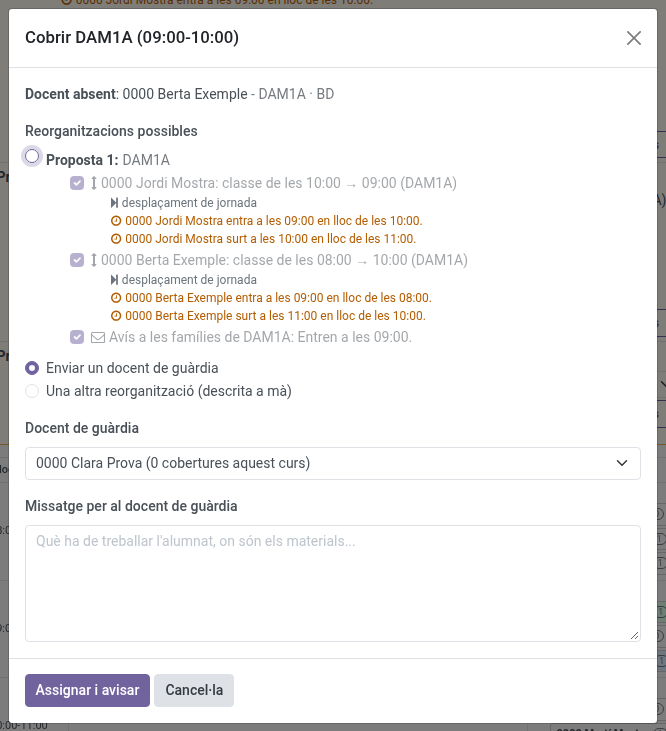
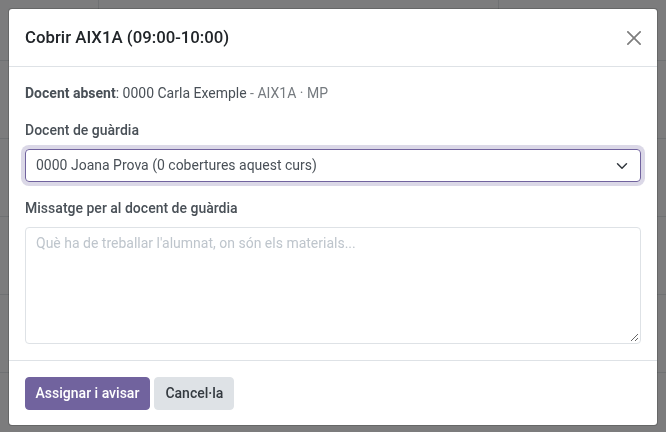
- If the dialog offers possible arrangements (see Rearranging the lessons instead of sending a guard), choose Send a guard teacher. Then choose the Guard teacher. Only the teachers on an ordinary guard duty during the class are offered (never those on a WC or break guard, who are needed at their post), except those who are away themselves. Those who can cover the whole class come first, then those who can only cover part of it, with the part they would cover (see Covering a class between several guards). Next to each name you see how many classes they have covered this course, so you can choose whoever has covered the fewest.
- Optionally, write a message: what the students have to work on, where the materials are…
- Click Assign and notify.
The guard teacher receives an Odoo message (in their inbox, or by email, depending on their own notification preference) with the date, time, group, subject, classroom, the absent teacher and your message. If they reply to that email, the answer reaches you.
The class is then struck through, the guard’s name appears next to it, and the line and the guard’s box in the Guard duty column share the same colour. The colour belongs to the class covered: when several guards cover different classes at the same time, each class has its own colour, so you can see at a glance who is covering what. A guard can cover more than one class: all of them take the same colour. Their box only takes it in the hours they are covering a class: on guard from 10 to 12 and covering a class from 10 to 11, their 11-12 box stays uncoloured.
To change the guard, click the line and then Change or remove the guard (only shown to whoever organises the absence), and choose another one: the previous guard is told they are no longer needed. To write a new message to the same guard, choose them again and click Assign and notify. To take a guard off the class, click Remove assignment next to their name, at the top of the dialog: they are told so.
Covering a class between several guards
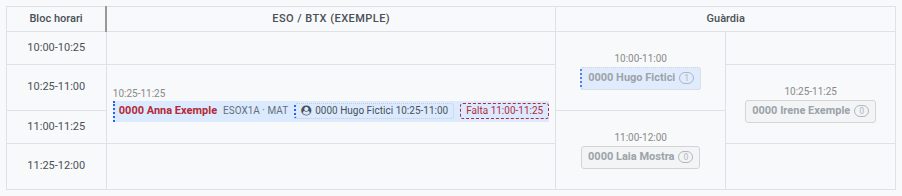
When the areas run different timetables, no guard may coincide with a whole class. For example, an ESO class from 10:25 to 11:25 and two VET guards, one from 10:00 to 11:00 and the other from 11:00 to 12:00. The dialog then also offers those who coincide with part of the class, with the part they would cover (“… - 10:25-11:00, part of the class”), and each guard covers exactly that part.
While a part is still missing, the line is not struck through: it shows the guard with their part and a dashed red tag with what is missing (“Missing 11:00-11:25”), so you can send someone else. Once together they cover the whole class, the line is struck through.
Every guard covering the same class shares its colour. A dotted border (on the line, the tag and the guard’s box) means a partial cover; a solid one, a class covered in full.
Covering a WC or break guard
When the teacher of a WC or break guard is away, their guard duty appears as a line in the Guard duty column of the Absences table, under the guards of its own block, with the guard duty’s name instead of a group. It is covered exactly like a class: click it, choose one of the teachers on an ordinary guard duty in that time block, and click Assign and notify. The message they receive says it is a guard duty to cover. If the absence is cancelled afterwards, the guard is offered for release like any other.
Sending a guard as support
A guard teacher on duty can also be sent to a class whose teacher is there, to support them: a restless group, a practical that needs two people.
- In the Guard duty column of the Absences table, click the box of a free guard teacher (its tooltip says Send as support to a teacher in class).
- Choose the class under Class to support: the dialog lists the classes of that time whose teacher is in the centre and that you organise (the same ones you would organise if their teacher were away). If the guard’s duty only coincides with part of a class, the time shows the part they would cover.
- Write what the support is for in Message for the guard and the teacher, and click Send and notify.
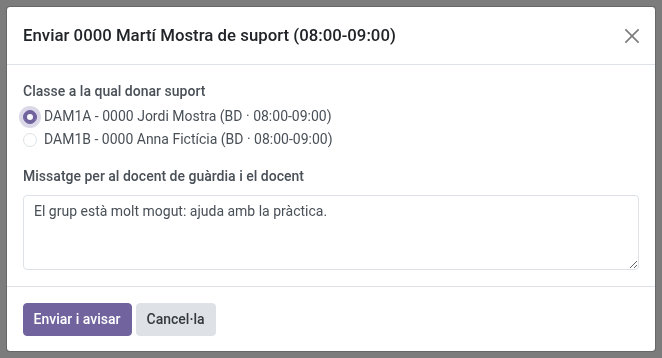
The guard teacher and the teacher they support both receive an Odoo message with the class and your message. While the support lasts, the guard is with that group: their box is struck through and greyed out (its tooltip says with which group), they are no longer offered to cover any absence, and the timetable shows them in the class with a handshake icon. It counts in the number of classes they have covered this course.
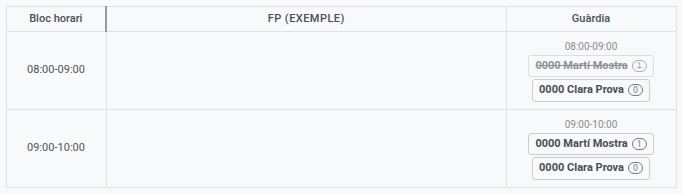
To withdraw it, click the guard’s box again and then Remove support: both are told. A support is not a cover: if the teacher supported falls ill afterwards, their class still has to be covered. Only a guard of your own area can be sent (see Teachers of another area above), and a day already over cannot be changed.
Rearranging the lessons instead of sending a guard
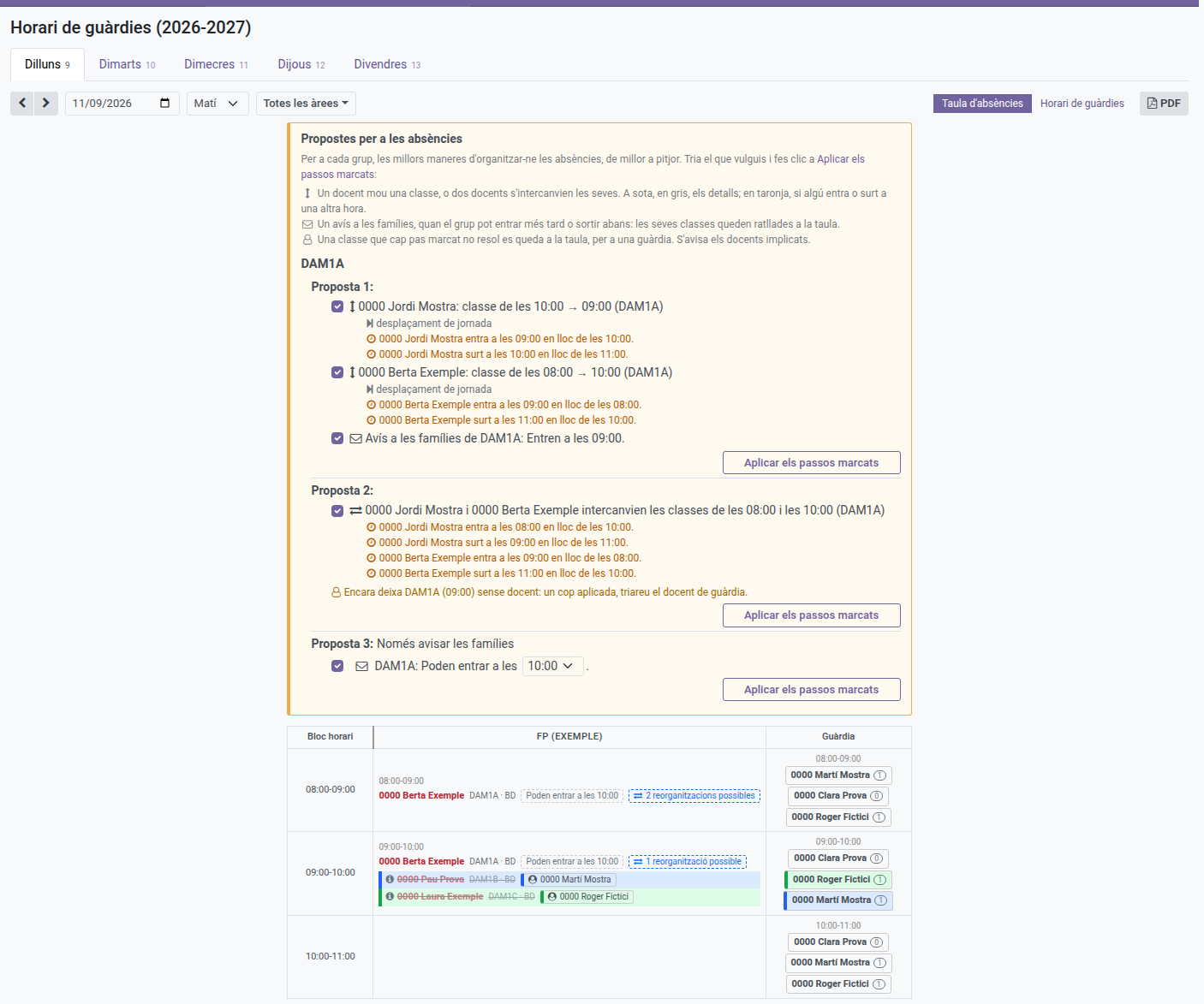
Often no guard is needed, because the teachers can rearrange their lessons that day. The board works this out for every class still left without anybody and proposes it in the Proposals for the absences box, above the table (only visible to whoever can organise the absence); those lines also show a tag such as 3 possible arrangements.
The box has one section per group, headed with its name. Groups that share a lesson that day (two groups taught together) share their section, because rearranging a shared lesson changes all their days. In each section come first what is waiting (an arrangement waiting for its notice), then the proposals, numbered from the best one, and last Only tell the families (see Late entry, early leave or no classes). A proposal only appears if it improves on doing nothing: one that just moves the free lesson to another hour, where it still needs a guard, or that turns coming in later into leaving earlier, is not offered. Nor does a proposal ever touch a class that has already started: it doesn’t move a lesson that is being taught or is over, nor bring one to a free class already under way, which is left to a guard.
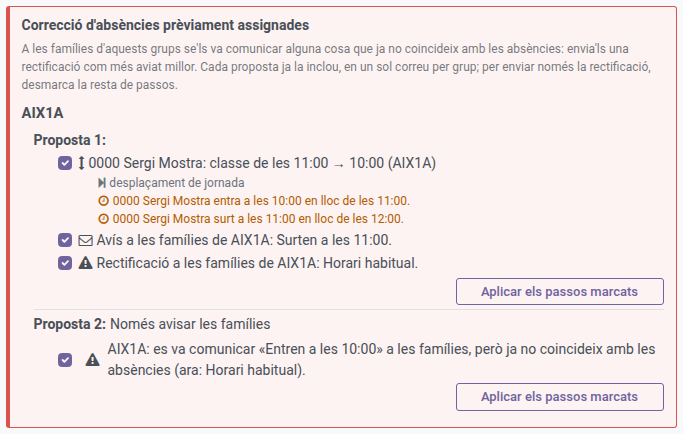
A group whose families must be told a correction is not in this box but in a red one above it: Corrections to absences already organised (see When the absence changes afterwards).
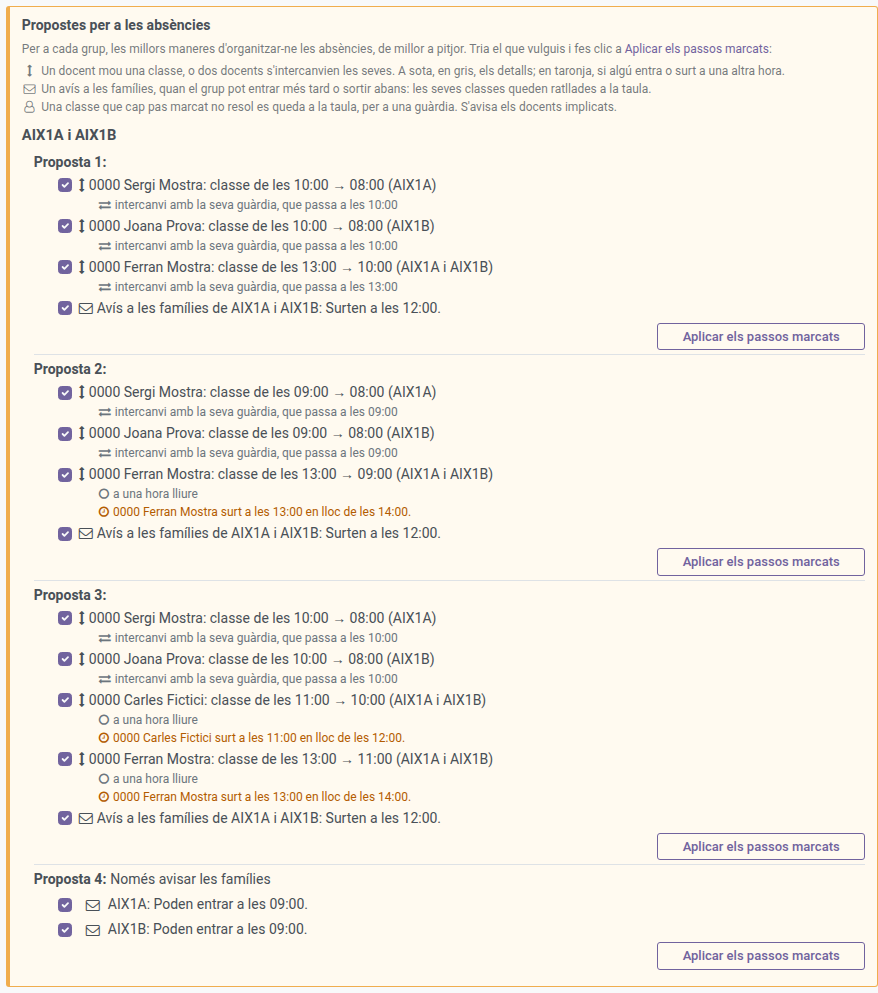
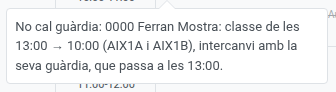
Each proposal is a list of steps, one per line, always between teachers of those groups and within the same day. A step reads as a short line, such as “Ferran: 13:00 lesson → 10:00 (AIX1A and AIX1B)”, and under it, in grey, what kind of move it is for the teacher: swap with their guard, which moves to 13:00, swap with their non-teaching hour (…), to a free hour, working day shifted (they come in and leave later, or earlier) or groups joined with AIX1B. The kinds of step are:
- Moved lesson: a teacher who is free at that time teaches then one of their lessons with the group from another time. The lesson they leave becomes a gap, which another step can fill in turn: one teacher brings a lesson forward, another fills the gap it leaves, and so on, until what is left free is at the start or the end of the day (or next to a break).
- Swap: another teacher of the group teaches then, and the absent teacher, who is in at another time, teaches that teacher’s lesson with the group.
- Joined groups: for the two halves of a split group. The teacher who teaches the same subject to the other half at that time teaches both halves together, in the other half’s room, and the lesson they had with this half at another time is left free, as in a moved lesson. It often lets both halves leave an hour earlier. Two groups are halves when the Joins with field of their form says so (see Groups): sharing a lesson is not enough, since two whole groups can also share some. If the lesson has several teachers, those who are not with the other half at that time stay on guard at its usual time.
- Notice to the families: the group comes in later, leaves earlier or has a longer break, for the lessons left free at the start or the end of the day. A notice that only makes the break longer goes to the students alone.
A lesson shared by several groups is moved for all of them, as long as all of them have the same gap, and the notice then goes to each group.
A lesson given by two teachers together (co-teaching) moves with both of them: they both teach it at the new time. If one of them cannot (they have a class or a duty then, they are away, their working day would get longer, or they belong to another area), the proposal is still offered, after any that moves both, with a warning such as ⚠ Anna cannot follow the lesson (busy then): on guard at 11:00 instead. If you apply it, that teacher has no class at the lesson’s usual time: they appear in the Guard duty column of that time with the tag (lesson moved), and you can send them to cover a class like any other guard teacher. If you remove the arrangement, they go back to their lesson and whatever they had been sent to cover is released. Other arrangement (described by hand) is how to split the two teachers on purpose (one covers a guard while the other stays with the group).
Proposals come in this order: first those where the students lose fewer lessons; among those, the ones where they spend fewer hours in the centre without class (with a guard or in a longer break); then those that need fewer notices and fewer teachers moving lessons, that keep two hours of the same subject together, and that change fewer entry or exit times. Up to three proposals per group are shown.
Nobody’s working day gets longer. A proposal only includes a step if no teacher involved ends up with a longer day (counted from their first period to their last, lessons, guard duties and any other duty alike): whoever would come in earlier must leave earlier, and whoever would leave later must come in later. When a step changes somebody’s entry or exit time, an orange line under it says exactly whose and how (“… leaves at 20:20 instead of 21:20”).
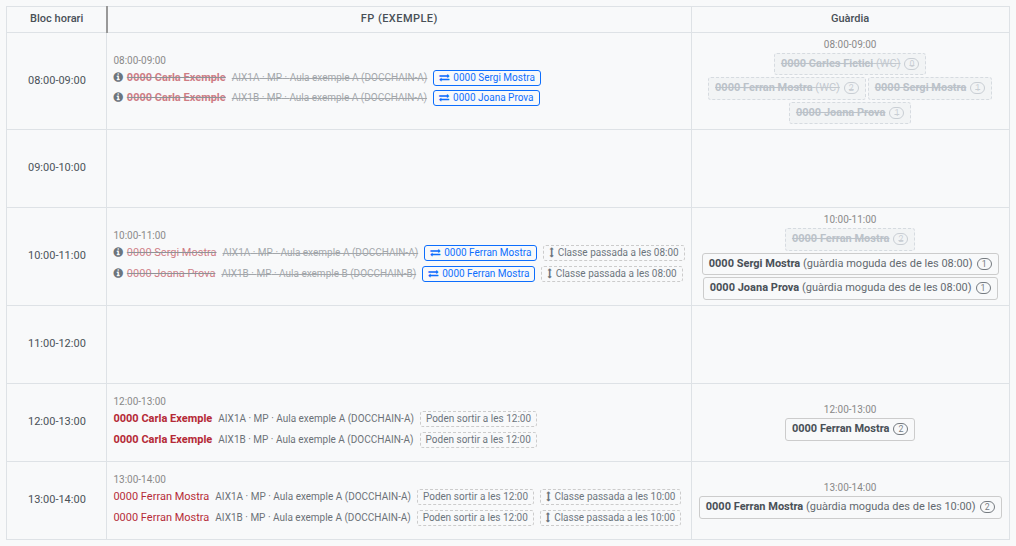
A lesson taken to an hour when the teacher has a guard, a coordination or any other non-teaching duty swaps with it: the duty goes to the hour the lesson leaves, so the teacher comes in and leaves at the usual time and no orange line appears. Only a lesson taken to an hour when the teacher is not in the centre changes their entry or exit time. If the duty is a regular guard, the schedule moves it as well: at the guard’s hour the teacher is struck out of the Guard duty column (they are with the group), and at the lesson’s hour they appear in it with the tag (guard moved from 10:00), so you can send them to cover a class like any other guard teacher. A meeting, a coordination or any other duty shows nowhere.
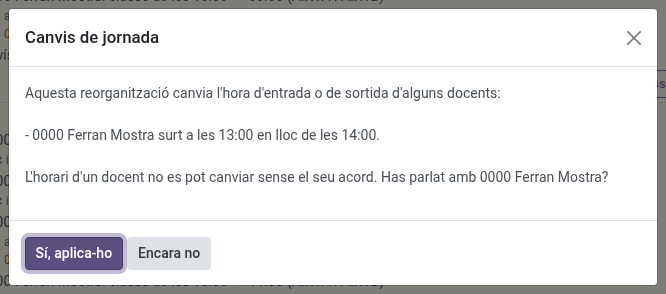
A teacher’s timetable cannot be changed without them. When the steps you apply change somebody’s entry or exit time, the schedule asks first, listing the changes: “Have you talked to …?”. Click Yes, apply it once they have agreed; Not yet applies nothing and leaves the proposal as it was.
Applying a proposal. Click Apply the checked steps on its right, or click the class and choose the proposal in the dialog, where the proposals that solve that class come first, above sending a guard. Every step starts checked: uncheck those you do not want. A step that needs another one is unchecked along with it (a move into the gap another one leaves, a notice that only makes sense because of a move), and checking a step checks what it needs.
If a proposal does not solve every class, it says so under its steps, in orange (“It still leaves 1A (09:00) without a teacher…”). Once you apply it, the guard assignment of each of those classes opens, one after the other, to choose who goes (it only offers sending a guard: the proposal already decided how to organise the day); you can also close it and do it later from the table. The same happens with the classes left without anybody because you unchecked a step.
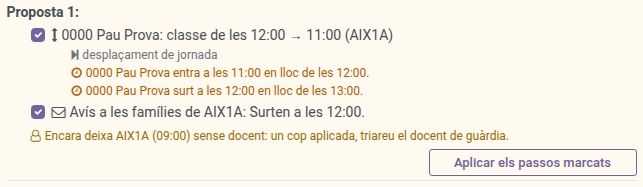
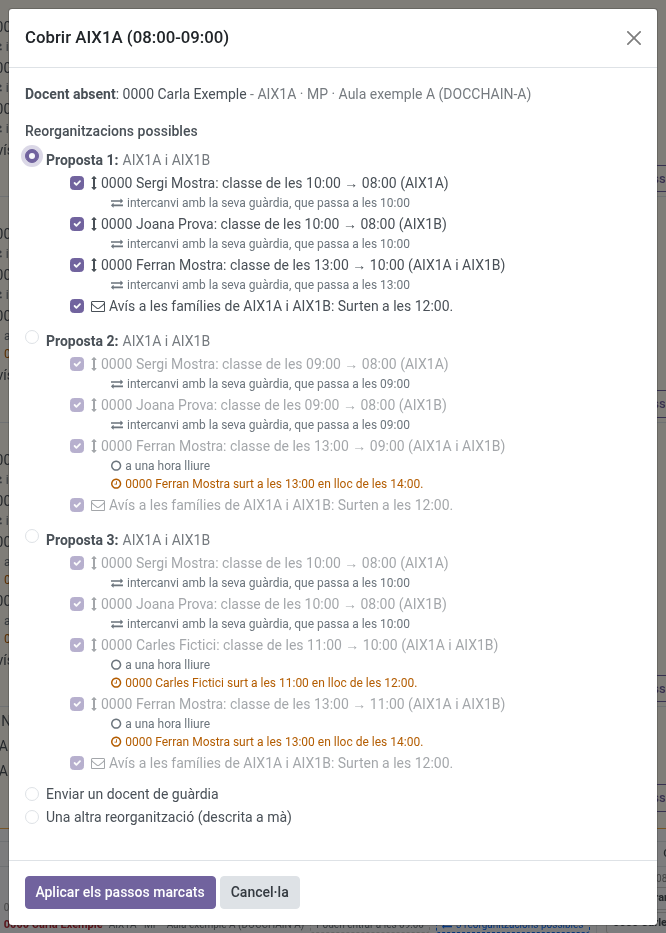
- A swap, and a moved lesson that does not depend on a notice, take effect at once: the class is struck out with the teacher who is with the group, and the teachers involved receive an Odoo message with the change (and their new entry or exit time, if it changes).
- The notices are sent straight away: checking the step is the confirmation, there is no draft to review. Each group gets one single notice for the whole day, with every change the proposal brings to it (for example, that it comes in later and leaves earlier), so its families receive one email instead of one per change. The moves the notice frees the group from take effect as soon as it is sent, and the teachers involved receive their Odoo message then. Once it is sent, the class shows both tags: who is with the group and, in green, what the families were told (“Leaves at 12:25”).
- If a notice cannot be sent (the group has nobody to send it to, for example), it stays as a draft and opens with a message saying why. Check it and send it from that form. Until then, the moves it frees the group from do not count: those classes are not struck out, and the group’s section shows them as waiting for their notice, with Open draft to open it again. The teachers are told when it is sent. If you delete the draft, those moves are discarded and you can apply the proposal again.
- If you leave the notice out, the moves are applied without it, and the lesson a move leaves free appears as one more line of the table, with the tag Lesson moved to 15:00: cover it like any other (with a guard, another arrangement or one described by hand), or send the notice later from Only tell the families. Whoever organises the original absence organises it too.
The students are told which lessons change time. A swap or a moved lesson changes when the group has a subject, which the notice to the families does not say (it only says when the group starts or finishes). So applying one also sends a notice to the group’s students only (never their families), one per group and day, listing every lesson that changes time that day: “Mathematics: from 11:00-12:00 to 08:00-09:00”. It is sent straight away too, and if it cannot be sent it stays as a draft that opens for you to review and send (you also find it in Communications → Notices); the arrangement does not wait for it, it is already in effect. Until it is sent, the board keeps that draft up to date: applying another arrangement for the same group and day adds its lessons, and removing one takes them out (or deletes the draft, if nothing is left). If the notice was already sent and you remove an arrangement afterwards, a new draft starting with Correction: lists the lessons as they are now and those back at their usual time. That correction is not sent on its own: review it and send it from its form.
The group’s tutor gets a copy. When a notice from the board is sent, to the families (comes in later, leaves earlier, longer break, no classes) or to the students (lessons that change time), the group’s tutor receives an Odoo message with a copy of it, so they know how their group’s day changes. For a reinforcement group, which has no tutor, the tutors of its main groups receive it. If a scheduled notice is cancelled before it goes out, they are told too.
Once an arrangement is in effect, the Guard duty schedule shows who really teaches each lesson involved, and a teacher who was on guard duty at a time they now teach is struck out of the Guard duty column there: they cannot be sent to cover anything else then, and nobody can take that class on their own. With joined groups, both halves show Together with and the other one’s name.
Other arrangement (described by hand), the last option of the dialog, is for whatever the board cannot work out, so that it is on record: two groups joined for the same subject, a teacher of another group… Describe it and, if a teacher is involved, choose them (they receive a message). No guard is then needed for that class.
To change your mind, click the line and then Change or remove the arrangement: Remove arrangement takes it back (the teachers are told), and choosing a guard or another arrangement replaces it. A lesson moved for several groups is taken back from all of them.
Late entry, early leave or no classes
The schedule only proposes these changes, and the longer break below, if the administrator has switched them on (each one separately, see Configuring staff absences). With them off, the lessons without a teacher are covered with a guard, as any other. Coming in later and leaving earlier are also only proposed for the groups of the levels the administrator has listed (for example, never for compulsory education); the other groups always get a guard.
When the lessons without a teacher are the first ones of the group’s day (one, two or more in a row), the students could come in later; when they are the last ones, they could leave earlier; when every lesson of the day is without a teacher, the group could have no classes. A lesson where somebody is with the students (a co-teacher who is not away, the other half of a split group, an optional subject or a guard already sent) breaks the run.
Those lines show a dashed tag such as Could start at 10:00, and the group’s section of the Proposals for the absences box, above the table (only visible to whoever can organise the absence), offers that change as its last proposal, Only tell the families. Sending the notice strikes those lessons off the table, so no guard teacher has to cover them.
The hour in the sentence of each step is a selector that lets you tell the families about less than the absences allow: with two lessons without a teacher, Could start at 10:00 can be changed to Could start at 09:00. When the options differ in kind (starting later or having no classes, for example), the selector takes the place of the whole change. Only the first lesson is then struck out; the second still needs a guard, sent as usual. Choosing the smaller change is your decision: nothing will ask you to correct it.
On the current day, the board only proposes changes still to come: from 09:00 on, it no longer offers Starts at 09:00 (the families would find out too late), and a proposal or a correction whose time has passed disappears. Leaving earlier is the exception: if the teacher of the last class leaves once it has started, Leaves at 20:20 is still offered until that class ends, so the group can go home. If the board has been open for a while, reload it to see the current proposals.
Each change is a step with its checkbox, checked by default, like those of an arrangement: uncheck the ones you do not want and click Apply the checked steps. One notice per group goes to its students and families straight away, with the text the board suggests: applying the steps is the confirmation. If it cannot be sent (the group has nobody to send it to, for example), it stays as a draft and opens with a message saying why: check it and send it from that form as any other notice (the groups of a timetable change notice cannot be changed). While it stays a draft, the step shows an Open draft button.
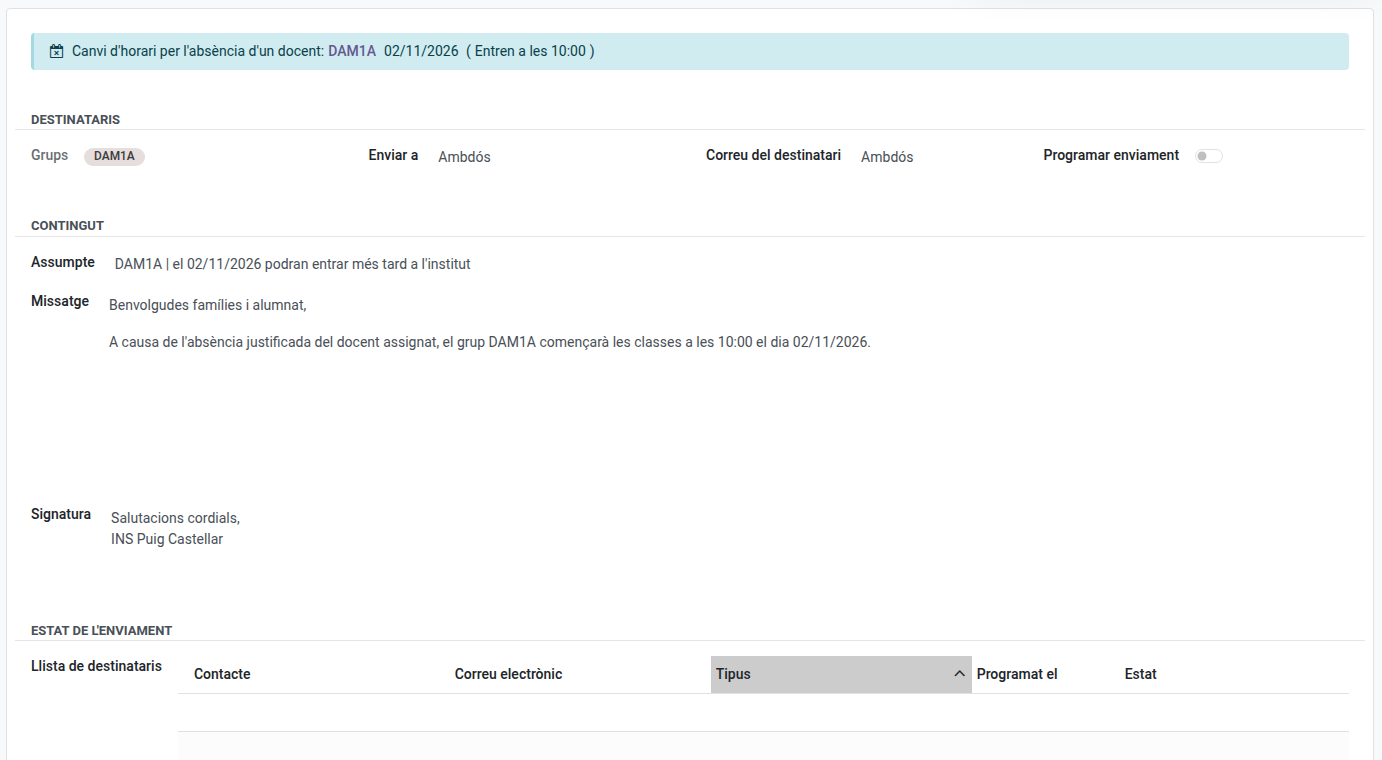
Once the notice is sent (or scheduled), those lines are struck through with a tag such as Starts at 10:00: nobody needs to be sent to them.
A longer break
When the empty lessons are right before or right after a break (or on both sides) of the group’s level, with class further out on that side, the students could have a longer break instead. With the break at 18:00-18:20 and the 17:00 lesson empty, for example, the break could start at 17:00; with the 18:20 lesson empty, it could end at 19:20. The selector offers every combination (earlier, later, or both, hour by hour), and the notice reads “…group X will have a longer break, from 17:00 to 19:20, on …”. Only the students receive it (never their families), and it reminds them that those under 18 cannot leave the centre during the break. That is why, unlike the other changes, it does not strike those lessons off: they show the break as a tag (“Break from 17:00 to 19:20”) and still need a guard teacher, who looks after the students in the centre. If the same notice also changes when the group comes in or leaves, it goes to the families too, break included. In the proposals box, a group whose only possible change is a longer break shows it as Only tell the students.
This is never confused with coming in or leaving: if the empty lessons reach the start of the day, it is a late entry (e.g. coming in after the break, at 18:20); if they reach the end, an early leave (e.g. going home at the break, at 18:00).
Changing a notice already sent
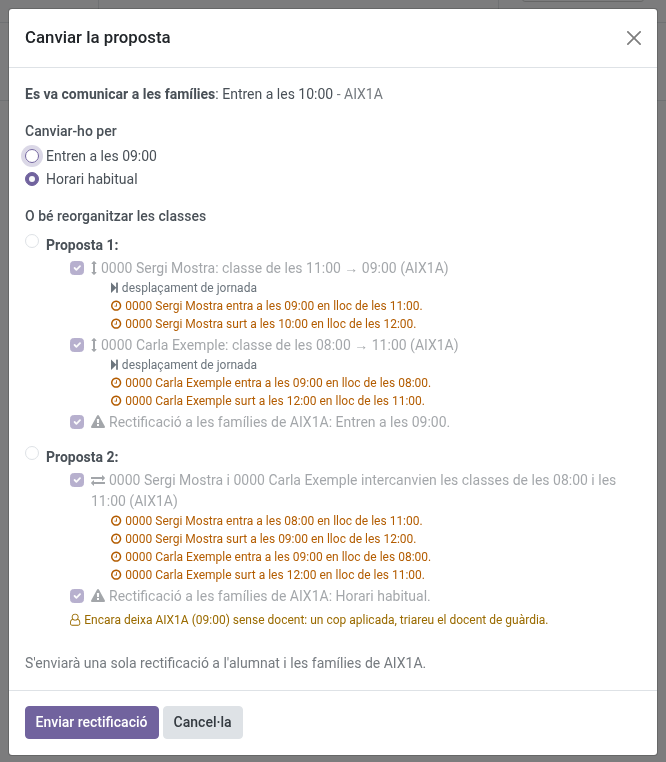
A notice already sent cannot be taken back, but it can be changed until its time comes: for instance, if the families were told the group starts at 10:00 and a guard turns out to be free for the first lesson, or if you would rather rearrange the lessons than have a longer break.
- In the Absences table, on the line the notice struck out, click Change proposal (next to the green tag with what was told). Only whoever organises the absence sees it.
- Choose what to change it for:
- Change it for: another change the absences allow (starting at another time, a shorter break…) or the Usual timetable, the option chosen by default.
- Or rearrange the lessons: the possible arrangements of the group’s day, planned as if nothing had been told, with their steps checked (you can uncheck some). Each one includes the correction to the families as a step.
- Click Send correction.
Whichever you choose, the group’s students and families get one correction notice with the new situation, never a cancellation and a new notice apart. The lessons that take place again are no longer struck out, and you can send a guard to them as usual.
When the absence changes afterwards
If an absence is refused, cancelled or shortened, or a co-teacher turns out to be in, what was organised may no longer be needed. Nothing is undone automatically: the boxes above the table tell you, and you decide.
- A guard who is no longer needed (box Guards no longer needed): click Release guard. They are told they no longer need to cover the class.
- An arrangement that no longer applies (same box): the class no longer needs covering, or one of the teachers it relies on is now away at that time. Click Remove arrangement; the teachers are told.
- A notice that no longer matches (more was told than the absences now allow): a notice already sent cannot be taken back, so the group moves to the red box Corrections to absences already organised, above the proposals box, because it is urgent. Every proposal of the group there includes the correction as a step, and so does Only tell the families. What you apply goes out in one notice per group: for instance, that the group leaves at 11:00 and starts at the usual time. To send only the correction, uncheck the other steps.