EMS
| Català | Castellano | English |
Applying for an Erasmus+ staff mobility
Apply for a job shadowing, a structured course or a teaching assignment abroad, follow your application and prepare your mobility, all from EMS.
Who: vocational training teachers (basic, intermediate and higher training cycles, specialisation courses and PFI), the Director and the Head of Studies of vocational training. Only they see the staff call.
Everything is in the Erasmus+ app (below Meetings), under My participation: Staff calls, My applications and My mobilities. You can also click your name at the top right and Erasmus+. The links in the Erasmus+ emails take you straight there. Each screen only shows what you can do at that moment: when it is one thing, it is a button at the top; when there are more, they are in the Actions menu.
1. Open the call
When the Erasmus team publishes a staff call you can apply to, it shows under Staff calls, with its dates, and you are told in your daily summary. Open it: you read the Information for applicants, you can download the published call, and Actions > Apply to the call opens the form straight away.
2. Fill in the form
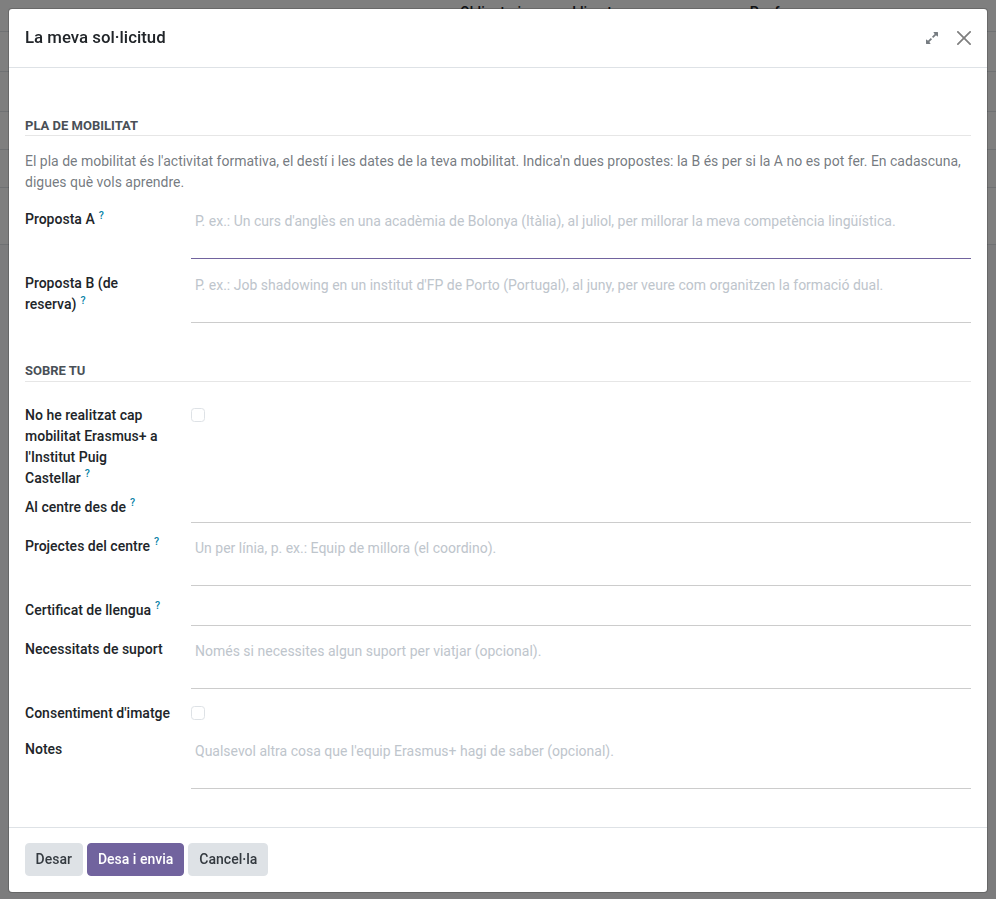
The form opens when you apply. To change it later, in your application, the Fill in the form button opens it again (Modify the application once you have submitted it); until you have filled something in, the application only shows a box telling you so. Each empty field shows an example of what to write. It has three short blocks:
- Mobility plan (annex 1 of the call): the training activity, the destination and the dates of your mobility. Write two proposals, both required, in a few sentences each: the activity (job shadowing, a training course or teaching), the host entity or course, where, when and what you want to learn. It must be a specific entity or course. Proposal A is the main one, for instance “Job shadowing at a VET school in Porto (Portugal), in June, to see how they organise dual training”; proposal B is in case A can’t be done, for instance “An English course at an academy in Bologna (Italy), in July, to improve my language skills”. A job shadowing or a teaching assignment in proposal A scores half a point more than a course. Preferably in the non-teaching period (June, July); at another time, such as April, only a week that does not affect the assessments, and with the Direction’s validation. 1,500 characters at most per proposal. You will find options on the centre’s Erasmus+ website. The panel only reads your two proposals.
- About you: tick I have not done any Erasmus+ mobility at the Institut Puig Castellar if that is the case (as staff: accompanying student groups and mobilities of other programmes don’t count; otherwise the Erasmus team checks when your last one was), the month and year since when you work at the centre without interruption, your highest official language certificate (B2 or higher) and the centre projects: if you coordinate or take part in them, the centre projects, improvement teams or commissions of this school year or the last one, one per line, saying which ones you coordinate.
- Optional: the support you need to do the mobility (confidential: only the Erasmus team reads it), the consent to use your image and anything else for the Erasmus team.
Dissemination is not part of the plan: it is the same for everyone. When you come back, you publish a news item on the centre’s website about your experience, following the Erasmus+ visual identity and dissemination policy, and, if it is considered necessary, you share it with your colleagues at a department or cycles meeting.
Click Save to keep working on it later, or Save and submit when everything is ready. You receive a receipt by email. Until the closing date you can still change it.
The documents the call asks for are in the Documents tab of your application: click Hand in on each one and attach the file (a PDF or a photo; you can attach several). The Handed in column shows what you handed in and To do what is still missing (To hand in until you attach something). If the Erasmus team asks for corrections, hand in what it asks for there and submit the application again with Submit.
3. Follow it
My applications lists your applications with What to do now and the deadline. In the application you see its state, your answers (Form tab), the documents and, once published, the Results tab: each resolution with your position (download it with PDF), the place offered and your claims.
If you disagree with the provisional resolution, use Actions > Claim before the claims deadline: write what you claim and attach any supporting files. You receive a receipt by email, and the Erasmus team answers it: upheld, partially upheld or dismissed, and why.
If you are selected, use Actions > Accept the place or Renounce the place before the deadline: without an answer, the place is considered renounced.
4. Prepare your mobility
When you accept the place, your mobility shows under My mobilities (and in your application, under My mobility). Until you send it, the mobility does not show the activity’s empty fields. Use Actions > Send the activity proposal: it starts with your proposals from the application. Choose the activity (job shadowing, course or teaching) and complete it with the exact start and end dates, accept the responsible declaration for your absence for training and send it: the Direction (the Director or the Head of Studies of FP) validates the activity, the host entity or course, the destination and the dates. When it does, EMS requests your absence for training for those days on its own, and whoever approves your absences approves it as usual. If it is not validated, you will receive the reason by email: change what is needed and send it again.
If it changes later: once validated, if the course, the host entity or the dates change (for example, the course is not offered that month), send a new proposal from the same action before the mobility starts. The Direction validates it again, and until then your mobility stays as it was validated. If the Direction leaves a comment, you see it in the email and in Validation by the Direction.
The Record tab has the documents to hand in before leaving and on return (European Health Insurance Card, grant agreement, learning agreement (FP staff, KA121-VET) or mobility agreement (higher education, KA131-HED) signed by you, the Erasmus coordinator and the host entity, on return the Europass mobility document (FP staff, issued by the Erasmus team; the certificate of stay or attendance only if needed to prove the dates or the activity) or the certificate of stay or attendance (higher education), a short report with evidence within a month of your return…), who signs each one and its deadline. What the Erasmus team uploads first (the grant agreement filled in, your insurance policy) is under From the Erasmus team: download it, sign it if needed and click Hand in to attach it. A document you can sign in EMS has Sign it here. Sign the others outside EMS and hand them in.
At the top, Your documents says how many you have handed in of those you hand in yourself, e.g. You have handed in 1 of 4: neither those the Erasmus team uploads nor the application’s count. The From the Erasmus team and Comment for the applicant columns only show once the team has put something in them.
Once the Erasmus team has worked out your grant, the Grant tab shows it in two blocks, with the same names as the Erasmus team’s form: Grant (the grant, what is Paid directly by the centre for you, such as the travel or the accommodation, and what You receive) and Payments to you (what has already been Transferred and what is Pending transfer). It is read only: if something looks wrong, tell the Erasmus team.
The rest is also in Actions: Sign the commitment letter, the Weekly self-assessment during the stay and, on return, I have answered the EU Survey once you have answered the final report. While something is missing, you have an EMS task, Erasmus+: hand in what is missing, with the list; it is updated every week and disappears on its own once you have handed everything in.
At the top of your mobility, a box tells you what to do now (for example, send the proposal or sign the letter) and by when, as on the application. The Steps tab lists the call’s steps (for example, sharing the stay at a meeting): once you have done one, click Done; if you made a mistake, Undo. The steps on return (for example, the news item on the website) can be ticked from the day the stay starts, since it is often written on the last day, and until the mobility is closed. A step the Erasmus team ticked can only be unticked by the team.
If you cannot go in the end, use Renounce the place and write the reason. You can do it until the stay starts; after that, talk to the Erasmus team.