EMS
| Català | Castellano | English |
Daily Summary
This guide explains the daily message with everything EMS has for you (pending tasks, your students’ attendance issues if you are a tutor, and notices for your information), when it arrives and how to choose when and how you receive it.
Role required: any member of staff with an EMS user
Contents
What it is
EMS doesn’t send you an email every time something that isn’t urgent happens: it keeps it and sends it all together, at most once a day, at the moment you have chosen. Your inbox doesn’t fill up and you have a single daily check.
Urgent matters (for example, a guard duty for today) still arrive straight away.
Since version 18.0.0.44.0: the pending-tasks summary and the tutors’ attendance issues report are a single message, and it can no longer be turned off: it arrives whenever there is something, by email or in the EMS inbox, as you choose.
What it contains
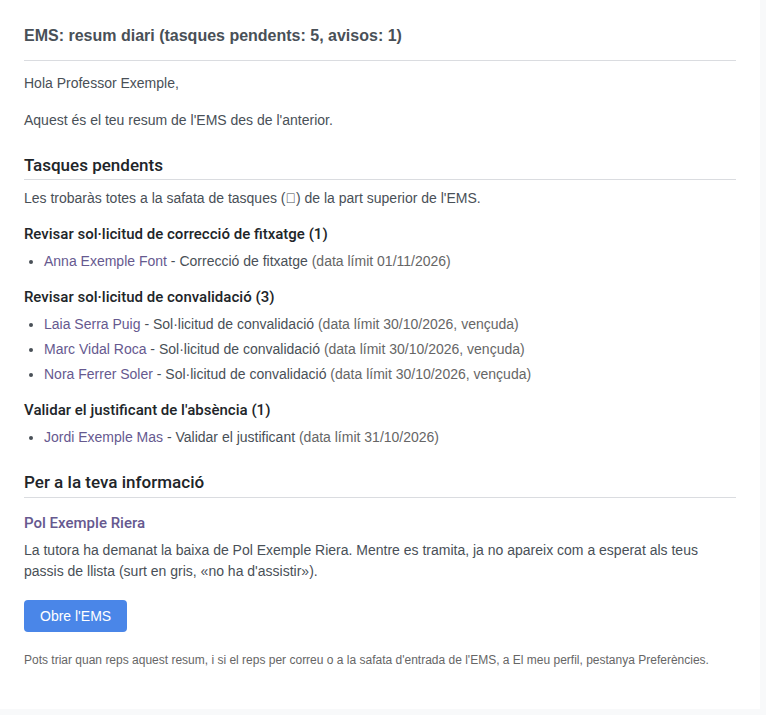
Only the sections with something in them are shown:
- Pending tasks: the tasks in your activities tray (🕒) due today or overdue, grouped by type (for example, Review convalidation request). For each task, a link that opens it in EMS, its description and its due date; overdue ones are marked in brackets. If a type has more than 20 tasks, the 20 due soonest are shown, plus how many more there are.
- Your students’ attendance issues (tutors only): absences, delays, etc. recorded since the previous summary, by day and student. See Your Students’ Attendance Issues Report.
- For your information: notices that ask nothing of you, grouped by the student, the agreement or the Erasmus+ call they are about. For example, that a student of yours has an expected withdrawal and no longer appears in your roll-calls, that they won’t attend a subject of yours while their convalidation request is resolved, or that some of their subjects have been convalidated. Also, for the agreements you are responsible for: that you have a new one, each follow-up entry someone else adds, and those agreed and done in the meeting itself. And that an Erasmus+ staff call you can apply to is open, or is about to close and you have not applied.
The subject line sums it up, for example EMS: daily summary (pending tasks: 3, notices: 1).
When it arrives
- At the moment you have chosen (see below). By default, at the start of your working day, according to your schedule; if you have no schedule in EMS, the centre’s schedule framework is used.
- Only if there is something. With nothing pending and no notice, you get nothing that day.
- Anything arriving after the chosen moment waits for the next summary. For example, a task assigned to you at noon reaches you first thing the next working day.
- Tasks and notices don’t arrive on days you don’t work (weekends, public holidays, an approved whole-day absence). Your students’ attendance issues don’t wait for you to come back: on a day you don’t work, they arrive at the end of the centre’s day.
Choosing when and how you receive it
- Click your avatar, at the top right of EMS, and choose My Profile.
- Open the Preferences tab.
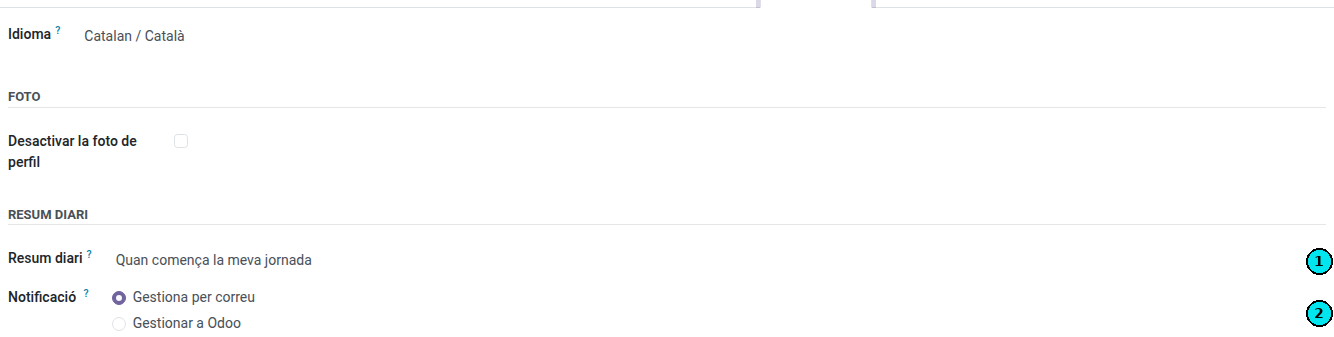
- In the Daily summary group, choose the moment in Daily summary (1) and, if you choose At a fixed time, enter the time.
- In Notification (2), choose whether you receive it by email or in EMS (the inbox at the top). This option applies to every other EMS notification too.
- Save.
| Moment | When it arrives |
|---|---|
| When my working day starts (default) | At the start of your working day, according to your schedule. |
| When my working day ends | When your working day ends. |
| When my students’ classes end (tutors) | When the last class of the day of any of your students ends. If you don’t tutor a group, it works like When my working day ends. |
| At a fixed time | At the time you choose, every school day. |
The change also applies to the summary waiting to be sent at that moment.
Postponing a task
The summary only lists the tasks due today or overdue. If you can’t deal with one yet and don’t want it reminding you every day, postpone it: it leaves the summary until its new due date and then comes back on its own.
- Click the activities tray (🕒) at the top of EMS and choose View all activities. It opens on your tasks due today or overdue.
- On the task’s row, press the bell (Snooze) and choose 1 day, 3 days or 7 days; under each one you see the date the task will move to. To postpone several at once, tick them, press Snooze at the top of the list and choose in the same way.

The days are counted from today or, if the task was already due later, from its due date. You can also change the due date by hand from the task in the record it belongs to.