EMS
| Català | Castellano | English |
A Student’s Expected Withdrawal
This guide explains how to mark that a student of yours is leaving the centre while their withdrawal is processed, so they stop piling up absences, and how to undo it if they don’t leave after all.
Role required: the student’s tutor (also the Department or Seminar Chief, the Head of Studies and the Deputy Head of Studies above them, the Director, the secretariat and the administrator)
Contents
- What it is for
- Marking the expected withdrawal
- What changes while it lasts
- Reverting it
- When the withdrawal is registered
What it is for
When you know a student won’t come back, you ask for their withdrawal, but processing it takes a few days. Meanwhile the student would keep appearing in every roll-call and piling up absences. With an expected withdrawal, the student stays in the group, but is no longer expected in class.
Marking the expected withdrawal
- Open the student’s file.
-
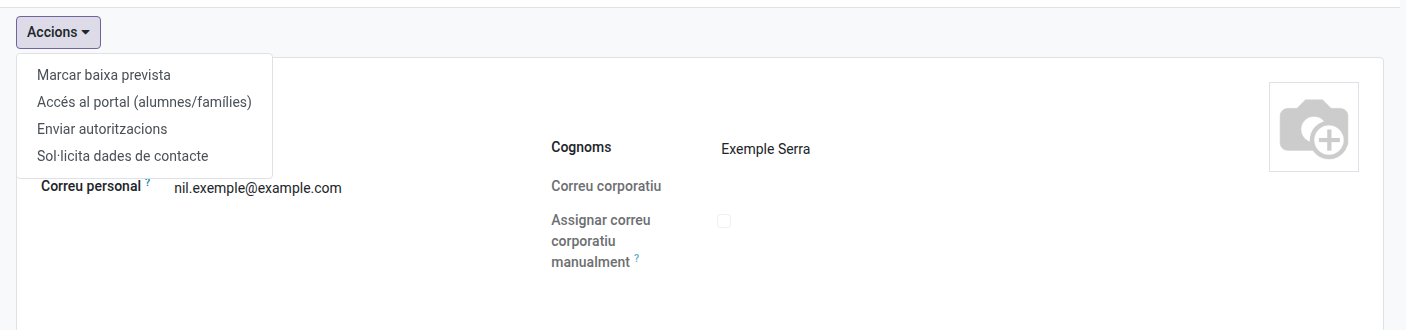
Open the Actions dropdown and choose Mark expected withdrawal.
-
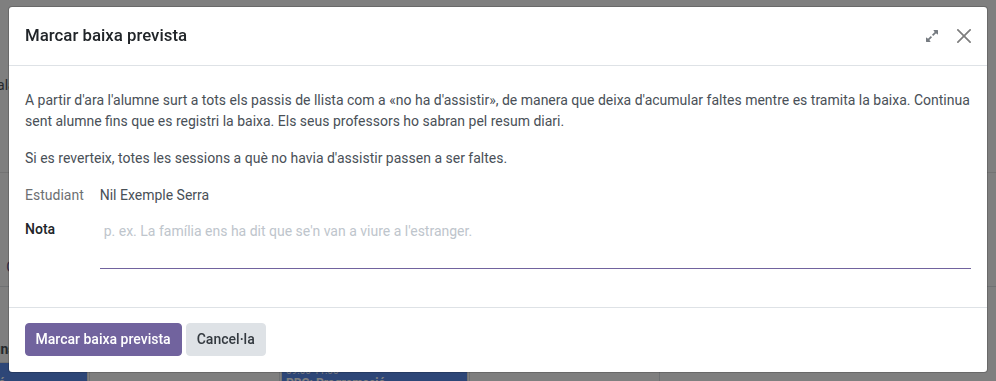
Optionally write a note with the reason, and click Mark expected withdrawal.
What changes while it lasts
-
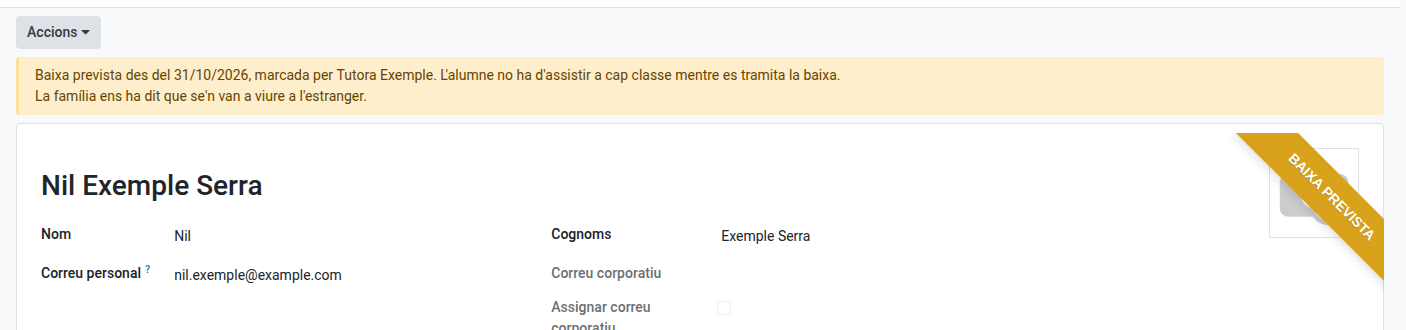
The file shows the Expected withdrawal ribbon and a notice with the date, who marked it and the note. The student’s card in the students list shows the same ribbon.
- Roll-calls: from then on, the student appears greyed out, at the bottom of the list, with Not required to attend: expected withdrawal. It counts neither as attendance nor as an absence, and the family is not notified. If they turn up anyway, the teacher can put them back on the list. Roll-calls already taken that same day for later classes take them off too.
-
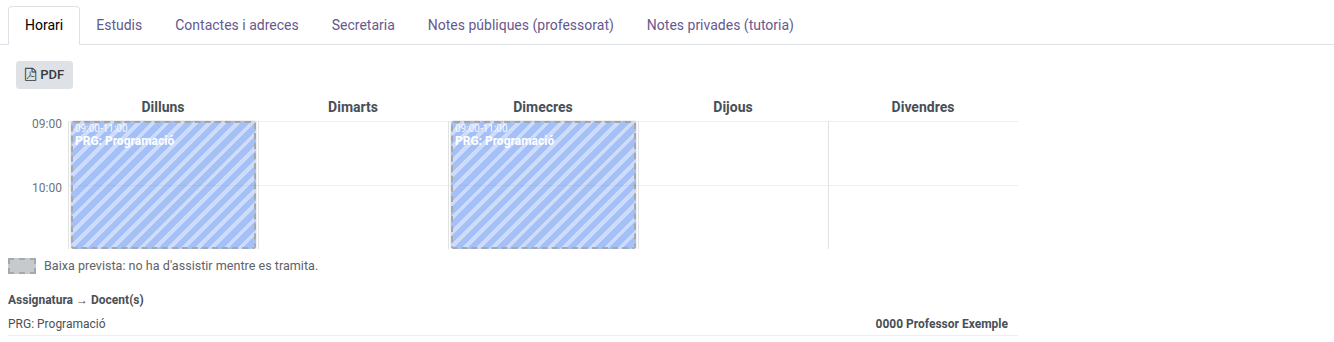
The student’s schedule shows the classes dashed, with a legend explaining why.
- The student’s teachers and you get a notice in your daily summary, so you know why they appear greyed out.
Reverting it
If the student doesn’t leave after all, open the Actions dropdown and choose Revert expected withdrawal. EMS asks for confirmation, because:
- The student appears in the roll-calls again.
- Every session they were not required to attend since it was marked becomes an absence. The ones you had justified stay justified.
- The family is not notified of these absences: you already know the situation. They appear in the attendance issues section of your daily summary.
- The student’s teachers get a notice in their daily summary.
When the withdrawal is registered
When the secretariat registers the withdrawal (see Marking a Graduation and Processing a Withdrawal), the expected withdrawal disappears by itself. The sessions the student was not required to attend stay as they were.