EMS
| Català | Castellano | English |
A Classroom’s Occupation Schedule
See a classroom’s full weekly occupation — every class booked into it, with subjects, teachers and breaks — built automatically from the schedules already set up for each teacher, from the room’s own record. Always read-only.
Required role: any staff role with access to Spaces (Administrator, Secretary, Teacher) — everyone who can open a space can see its occupation schedule.
Access
Navigate to: Educational Community → Configuration → Spaces → [a space] → Schedule tab
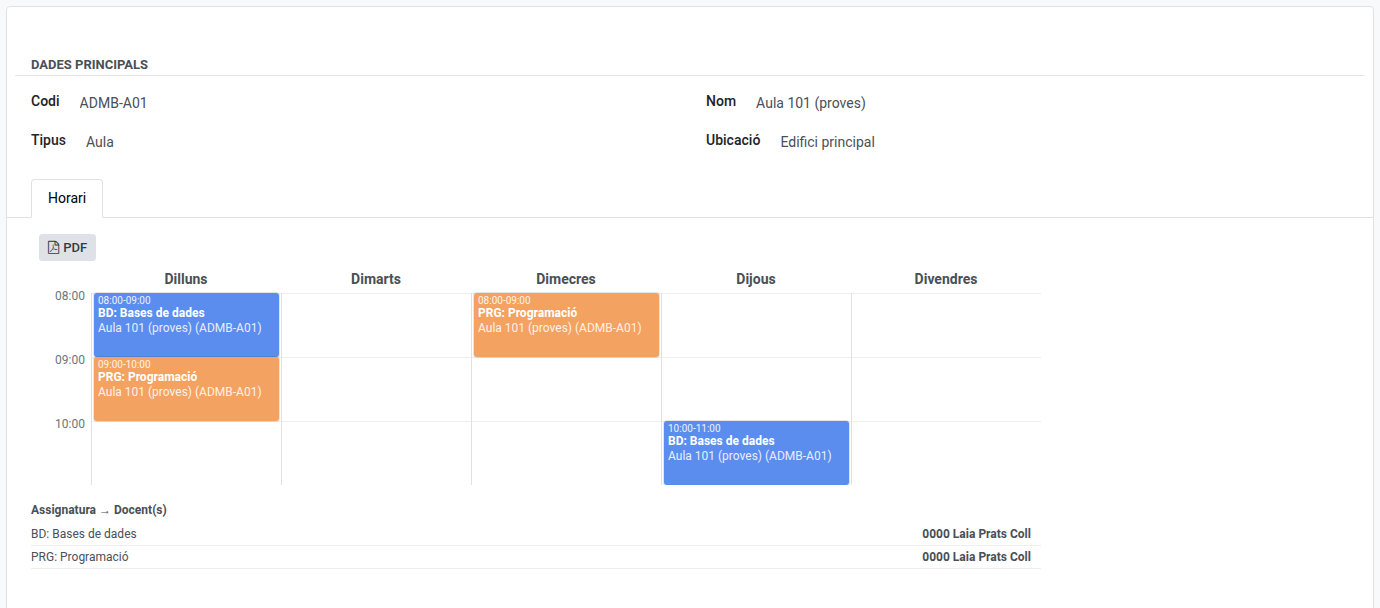
Reading the Schedule
The room’s weekly grid is not stored on its own — it is assembled from every teacher’s schedule that books this room, so it is always up to date with whatever is set on the Employees → [teacher] → Schedule tab. Each block shows:
- its exact start and end time (periods are not always aligned to the hour),
- the subject being taught — followed by its topic, when the teacher set one on their own Schedule tab,
- which teacher(s) teach it — more than one name for a co-taught class.
Unlike a group’s or a student’s own schedule, a room’s grid always shows the whole day (morning and afternoon together), since a classroom is routinely booked in both.
Below the grid, a Subject → Teacher(s) table lists every subject (and, when set, topic) booked into this room and who teaches it.
Everything on this tab is read-only — to move a class to a different room, day or time, use the relevant teacher’s own Schedule tab, or the group’s own Schedule tab if the change should apply group-wide.
Exporting the Schedule to PDF
Click PDF in the Schedule tab’s toolbar to download a printable version of the classroom’s weekly occupation, including the Subject → Teacher(s) table.