EMS
| Català | Castellano | English |
A Student’s Weekly Schedule
See a student’s own full weekly timetable — subjects, teachers, classrooms and breaks — built automatically from the schedules already set up for each of their teachers, from the student’s own record.
Required role: any staff role with access to Students (Administrator, Secretary, Teacher, Group Tutor, Head of Studies…) — everyone who can open a student’s record can see their schedule.
Access
Navigate to: Students → [a student] → Schedule tab
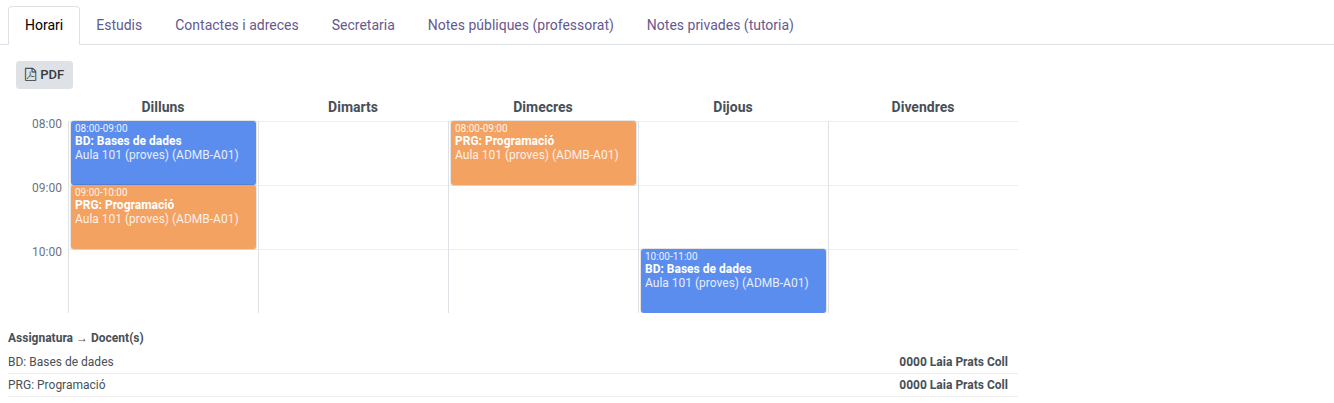
Reading the Schedule
A student’s weekly grid is not stored on its own — it is assembled from every subject they are actually enrolled in (their main group’s subjects, plus any elective or reinforcement subject taken through a different group), matched against whatever is set on the relevant teacher’s own Employees → [teacher] → Schedule tab. Each block shows:
- its exact start and end time (periods are not always aligned to the hour),
- the subject being taught — followed by its topic (e.g. “MP 3161 - Castellà”), when the teacher set one on their own Schedule tab,
- the break (patio), when the student’s main group’s level and shift make it possible to work out its time.
Unlike a group’s own schedule, a student’s can show genuinely overlapping classes — for example, a main-group class and an elective taken through a different group, scheduled at overlapping times. When that happens, the grid shows both blocks side by side instead of hiding one behind the other, so nothing is lost from view even when the underlying schedules happen to clash.
Below the grid, a Subject → Teacher(s) table lists every subject (and, when set, topic) the student takes and who teaches it — a subject split into topics shows one row per topic.
This tab is entirely read-only: to change anything, edit the relevant teacher’s own Schedule tab, or the student’s own enrollments, instead.
Exporting the Schedule to PDF
Click PDF in the Schedule tab’s toolbar to download a printable version of the student’s weekly timetable, including the Subject → Teacher(s) table.