EMS
| Català | Castellano | English |
Plannings: setting the grading ponderations
This guide explains how the Head of Studies and the Deputy Head of Studies create and edit the plannings: the configuration each module’s grades are calculated with.
Contents
- Access
- What a planning is
- Finding a planning
- Editing a planning
- Creating a planning
- What you cannot do
Access
Planning and Grading → Plannings
You can see and edit every planning of the centre. Teachers can only consult the plannings of the subjects they teach, without changing them.
What a planning is
A planning is the grading configuration of one subject, in one study, for one specific academic year:
- Internal grading ponderation (%) and External grading ponderation (%): how much of the final grade comes from the centre’s own assessment and how much from the work placement. They must add up to 100.
- Outcome ponderation: within the internal part, how much weight each learning outcome (RA) carries. They must add up to 100 too.
Teachers’ grade screens use it to calculate the internal grade and the final grade of each module, and a grade review of a closed course uses the planning of that same course.
A planning belongs to a course, shown read-only in its Course field. Changing this year’s weights never changes how a past course’s grades were calculated. When the course transition moves a study to a new academic year, it copies that study’s plannings to the new course automatically, so you only need to edit the ones that change.
Finding a planning

The list opens with two filters on:
- Show only mine: only the subjects you teach yourself. Remove this facet from the search bar to see every planning of the centre.
- Show only current course: only the plannings of the current academic year. Remove it to reach past years’ plannings.
Each planning is named after its study, its subject and its course.
Editing a planning
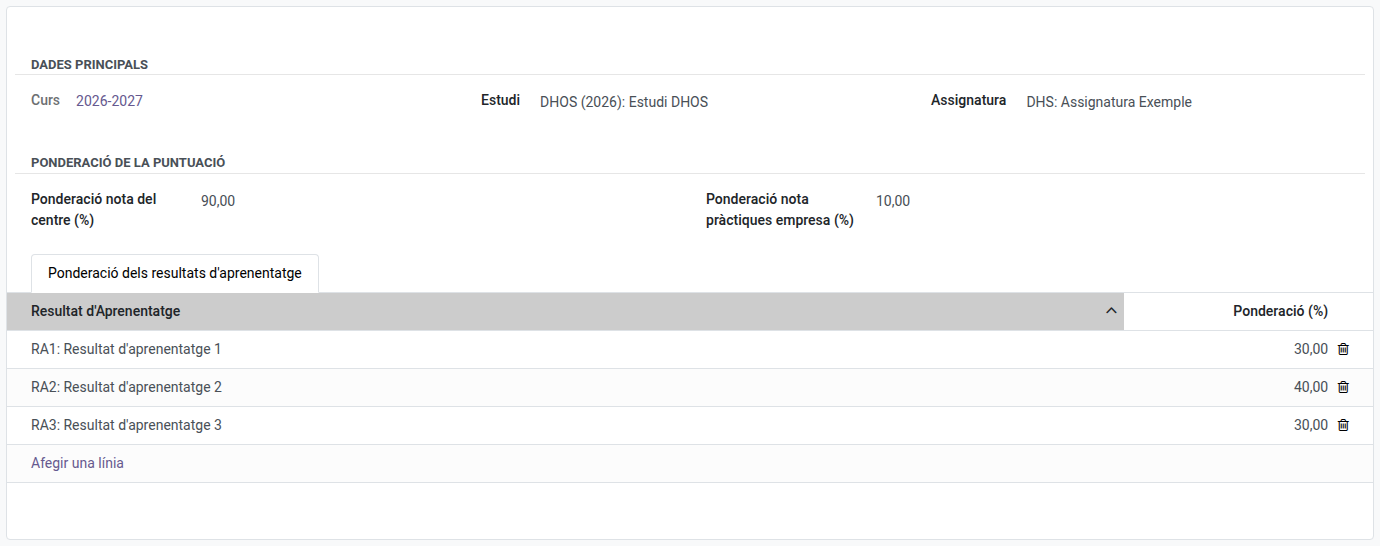
- Open the planning.
- Change the Internal grading ponderation (%) and External grading ponderation (%), if needed.
- In the Outcome ponderation tab, change the Ponderation (%) of each learning outcome. To add a learning outcome missing from the list (for example, one added to the module’s curriculum), click Add a line; to remove one, click the bin icon at the end of its row.
- Save. If either pair of values does not add up to 100, the planning is not saved and a message says which one to correct.
The history panel beside the form records every change: who changed the study, the subject, the course or the internal/external ponderations, and when.
Creating a planning
- Click New.
- Choose the Study and then the Subject (only the subjects of that study are offered). The planning is created in the current course.
- The learning outcomes of the subject are filled in automatically, with the weight split evenly among them. Adjust them if needed.
- Save.
Each study and subject can only have one planning per course.
What you cannot do
- Delete a planning: only the academic administration can.
- Change a planning’s course: it is always the course it was created in.