EMS
| Català | Castellano | English |
Erasmus+ calls and applications
Create and publish an Erasmus+ call, review the applications students send from the portal, ask for corrections and admit or exclude each application.
Required role: Erasmus coordinator or Erasmus mobility technician (Erasmus+ > Manager).
1. Create the call
Go to Erasmus+ > Calls > Calls and click New:
Dates and hours: lists and read-only dates show the day alone. A deadline you can edit keeps its hour, because that hour decides when it ends: 20/11/2026 23:59 closes at the end of that day. So do an interview’s date, the turn to choose a destination and the deadline to answer an offer.
| Field | What to enter |
|---|---|
| Name | For example, Erasmus+ internships 2026-27 |
| Course | The school year of the call |
| Published call | The PDF of the call, which students open on the portal (in a new tab, without downloading it); in the call, View the call rules opens it the same way |
| Applications open / close | When students can apply. After the closing date nobody can change their application |
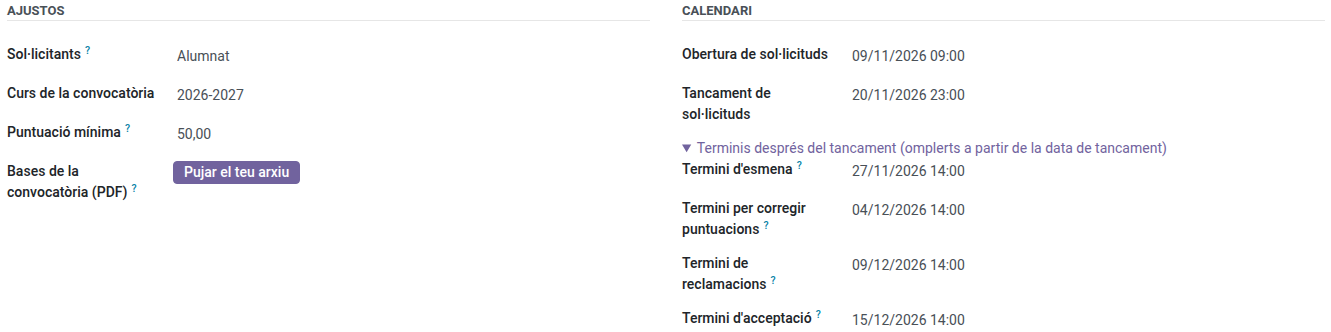
The top of the call has two blocks: Settings (who it is for, the course, the minimum score and the call’s PDF) and Calendar (the dates, in the order of the process). EMS fills in the four deadlines after closing from the closing date, at 14:00, and shows them folded under Deadlines after closing: click it to see or change them.
| Deadline | When EMS sets it | 2026-27 call (closes on Friday 20/11) |
|---|---|---|
| Corrections deadline | 7 days after closing | Friday 27/11, 14:00 |
| Interview/evaluation deadline | 14 days after closing | Friday 04/12, 14:00 |
| Claims deadline | 19 days after closing | Wednesday 09/12, 14:00 |
| Acceptance deadline | 25 days after closing | Tuesday 15/12, 14:00 |
A deadline that falls on a weekend, a holiday or a school break moves to the next school day. If you change the closing date, the deadlines follow it, except the ones you changed by hand. If the dates do not follow the order of the process (for example a claims deadline before the applications close), the call warns you at the top; it lets you save it anyway.
Replies to the emails EMS sends without anyone of the team sending them (receipts and reminders) go to the Erasmus+ mailbox in Settings > EMS Management > Center Data > Erasmus+ (erasmus@elpuig.xeill.net), the same for every call. EMS emails students at their school address (the Puig one), not the personal one (only the electronic signature request goes there, see Preparing the mobilities): a student without it gets no Erasmus+ email, and the application says so in its history. The family gets its copies at its own address.
The call’s tabs are in two blocks: Selection (modalities, documents, information for applicants, panel and resolutions) and Mobility (destinations, mobility documents, commitment letter, checklist and weekly self-assessment). The Mobility block only appears once the definitive resolution is published: it is for the selected, and a new call already brings what it needs, so to open a call you only see Selection. The buttons at the top follow the call’s phase, the latest first: before the definitive resolution, the ranking and the interviews (or plan ratings); then the mobilities and place offers; the claims, from the provisional resolution. A tie to draw is warned at the top of the call.
Modalities tab: one line per selection list with its own places, for example GM and GS. In Levels choose the levels whose students apply in that modality (for example CFGM for GM, and CFGS and the specialisation courses for GS, whose students go on the higher education project). Any student whose main group is of one of those levels can apply, whatever their year. Also fill in the places. EMS sets the project from the levels (CFGM on KA121-VET; CFGS and the specialisation courses on KA131-HED); the actual project of each person is chosen on their mobility. The real destinations, with their dates and places, go in the Destinations tab of the Mobility block, before opening the destination choice.
Documents tab: one line per document the call asks for, with its Requirement:
- Required: the application cannot be submitted without it.
- Optional.
- Required for minors: only asked to students under 18 (for example the family authorization).
- Required if fewer opportunities are declared: the portal shows it right below the fewer opportunities box, only once the student ticks it, and then it is required.
Handed in as: Files (any), PDF only (the CV: other files are refused) or A link (the presentation video: the student pastes the Google Drive link instead of uploading it). Instructions and Instructions link (e.g. the Europass editor) are shown to the student with the document. A new students’ call already brings the CV (PDF), the video (link), the language certificates, and the evidence of fewer opportunities, with their instructions. No family authorisation is asked for to apply: the receipt of a minor’s application goes to the family too, and the family accepts the commitment letter once the place is accepted, which authorises taking part.
Tick Confidential for documents only the Erasmus team may see, such as the evidence of fewer opportunities. A confidential file is only viewed (the eye on its card opens it on screen): it has no download button, EMS does not serve it as a download either, and every time someone opens it a line (who and when) is added to the application’s chatter, once per person and file every ten minutes. The administration also sees it; the Head of Studies and the panel don’t. Like any screen, it can still be photographed or captured.
Every other file of an application, mobility or project is also opened on screen with the eye, and downloaded or removed from its card.
One file (ticked by default): only the newest file the student uploads counts; the earlier ones are kept and shown as Earlier version, and the receipt lists only the newest. Untick it for a document with several files, such as the language certificates (one per language). Model to download: a file the student (and the family of a minor) downloads from the portal, fills in and hands in, for example the family authorisation.
The default documents, the checklist and the questions are already on a new call before you save it; if you change Applicants, they change to those of the staff call (or the students’ call). These default texts (documents, steps, questions, commitment letter) are saved in Catalan, Spanish and English, whoever creates the call: each student, family or teacher reads them in their own language. Calls created before keep their texts as they were.
Watch out: when you edit one of these texts, check the other languages too with the field’s language button (e.g. CA). Otherwise whoever reads in another language keeps seeing the old text.
Information for applicants tab: the text shown on the portal above the form. Click in the text and the editor’s toolbar appears. To paste an information card prepared elsewhere (for example with the portal’s colours and boxes), use the </> button (code view) at the end of the toolbar (1), paste its HTML code there and press the button again to go back to the editor: the card keeps its design. Pasting the card directly into the editor loses it.

Tip: next year, open this call and use Duplicate: the modalities and documents are copied.
2. Publish it
In Actions, click Publish. The call appears on the portal of every student who can apply. While no application has been submitted you can still go Back to draft.
Notify who can apply
Publishing tells nobody. To tell everyone who can apply, click Actions > Notify who can apply: EMS shows how many people will get it and sends it when you click Send the notice. It is the same rule as the portal: in a students’ call, the students of the levels of its modalities; in a staff call, the teachers of its levels and the Direction that validates the activities.
- Students’ call: each student receives their own email, with the call’s dates and the link to apply, at their school address (the Puig one), never the personal one. Students without a school address don’t receive it: the assistant tells you how many. The family does not receive it.
- Staff call: no separate email. The notice goes in each person’s next daily summary, at the moment they chose in their profile (by default, the start of their working day), with the closing date and where to apply.
You can send it before the call opens; if you send it again (for example after adding a level), everybody receives it again: the assistant warns you.
Reminder before closing: in Reminder (days before closing) (3 by default), EMS reminds whoever can apply and has not submitted an application yet (a draft does not count), that many days before the closing date and from 9:00, the same way as the notice. It is sent once, and only if the notice was sent from EMS. Set it to 0 for no reminder. The call shows when each one was sent and to how many people.
3. Review the applications
Go to Erasmus+ > Calls > Applications, grouped by call, with each application’s score and position once they exist (or the Applications button on the call, which groups them by modality). Filters: To review, Corrections requested, Admitted, Excluded. Documents to review counts the files waiting for your check (a draft not submitted yet does not count).
Open an application. On top is what decides it: the Requirements, the Total score and the Rank (once there is one); on a staff application, the Staff record button opens the teacher’s file.
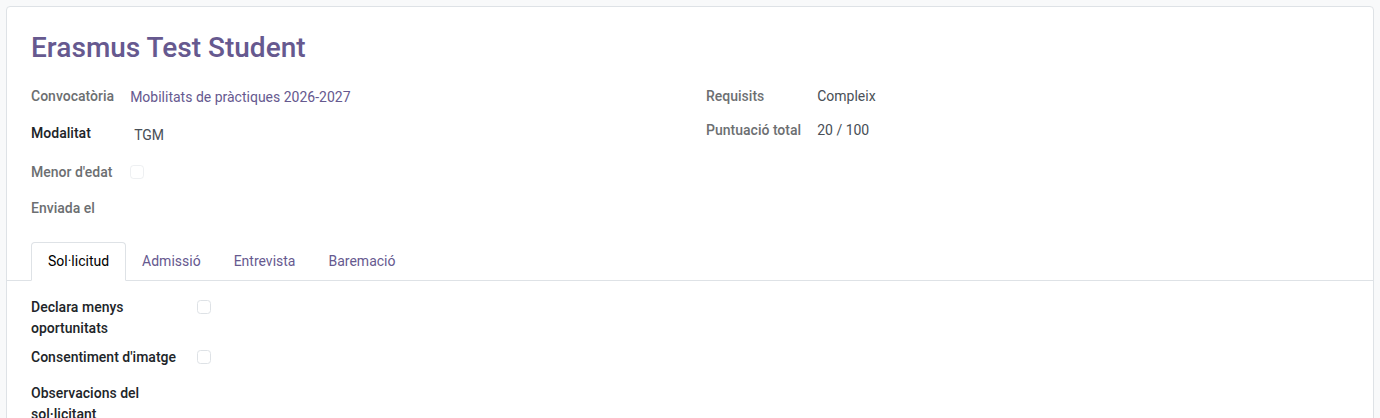
- Application tab: what the student sent, the form’s answers first and the documents below, each document with its Status (To hand in, Pending review, Needs changes, Complete; in grey, the optional ones and those that do not apply, such as the family authorisation of an adult), its Files (the ones that count) and, for a link, the Link itself. Every file the student uploaded is kept: the optional column Every version shows the earlier ones too. Mark each one as Valid (✓) or Needs changes (✗), and write a Comment for the applicant when it needs changes. A document without any file cannot be marked valid.
- While the application is a draft, the student can remove from the portal a file uploaded by mistake. Once submitted, only you remove it, with Remove a file and the reason.
- Admission tab:
- Requirements: enrolled in a level of the call and no previous Erasmus+ internship in this cycle (a minor needs no family authorisation to apply). EMS records who checked it and when.
- Conduct this course: the conduct warnings the student has in EMS during the call’s course. With as many as the number that sends the case to the coexistence team (3, the EMS setting) or more, Conduct to review is ticked and the form shows a notice at the top. It does not rule the student out: having heard the teaching team and the coexistence team, you may exclude the application with the reason (article 6 of the call). If it goes on, every warning takes points off (criterion F).
- Exclusion reason, if the application is excluded. It also shows at the top of the form (Excluded: …) and in a column of the applications list.
4. Ask for corrections
When a document needs changes or a required one is missing, mark it and click Actions > Request corrections. The call needs a Corrections deadline still to come: without it EMS does not let you ask. The student receives an email with the list and that deadline, and can upload only those documents. When they submit again, the application is back to Submitted, the new files are pending review and each member of the Erasmus team gets a task to review it (also in their daily summary of pending tasks). The task is closed on its own when you admit it, exclude it or ask for corrections again.
5. Admit or exclude
- Admit: the requirements must be Met and every required document Valid.
- Exclude: write the exclusion reason first. It also works on an admitted application, for example when the student does not attend the interview.
- Back to review undoes either decision.
6. Close the call
When the application period is over, click Actions > Close applications. Applications that were never submitted are marked as Not submitted, and EMS saves the record average and the conduct warnings of the others for the scoring: see Scoring and interviews.
From then on, the bar at the top of the call and the list of calls show its phase: Scoring (until the provisional resolution is published; the admission list is part of it), Resolution (until the definitive one), Offers (while a place offer waits for an answer) and Places assigned (no offer waits for an answer; the students may still be choosing their destination). If you later offer a place to someone on the reserve list, it goes back to Offers.