EMS
| Català | Castellano | English |
Preparing the Erasmus+ mobilities
Once a place is accepted, prepare the mobility in EMS: the destination, the host entity and the dates, the documents to hand in before leaving and on return, and the steps to follow.
Where the participants do it: the students and their families on the portal; the staff in EMS, under Erasmus+ > My participation > My mobilities (see Applying for an Erasmus+ staff mobility). Where this manual says “on the portal”, for the staff read “in EMS”.
Required role: Erasmus coordinator or Erasmus mobility technician (Erasmus+ > Manager). The Head of Studies and the Director can read the mobilities; the Direction (the Director or the Head of Studies of FP, set in the call) validates the staff’s activities (see Validating Erasmus+ staff activities).
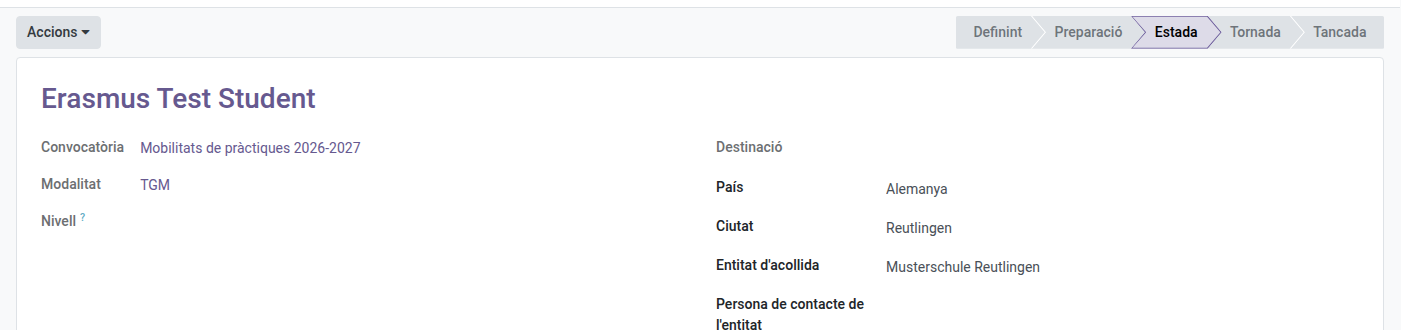
The mobility’s phases show on the bar at the top of the form and in the list: Defining (no destination yet), Preparation, Mobility stay (from the start day), Return home (from the day after the end day) and Closed. The stay and the return change by themselves with the dates. The kanban view of Mobilities has one column per phase.
1. Before you start: the projects and the call
In Erasmus+ > Projects, keep the centre’s active Erasmus+ projects: their agreement number, kind (KA121-VET for CFGM, KA131-HED for CFGS) and Short name (for example 2026-VET). EMS takes the kind and the short name from the agreement number (KA121-VET or KA131-HED, and its year) and you can change them: it is what lists and dropdowns show, and you can search by either. Several of the same kind can be active at once (one per call year); archive a project when it ends (Actions > Archive, on the list or the project). Its Mobilities tab has two tables, Individual mobilities and Group mobilities, each shown only when there is any. The Documentation tab is for the project’s agreements, reports and dissemination (each participant’s documents are already in their record) and shows with a bar how many participants’ records are complete. Below its table, Retention says until when the documents must be kept and whether a pending audit keeps them longer. The Exports tab logs every download of the project’s documents: when, who, what (with the participant’s or the group’s name), whether it was an audit export with the confidential documents, and how many files it had.
On the call, check these tabs:
- Mobility documents: what the participants hand in before leaving and on return. EMS already has their identity document, bank account, personal details and emergency contact, so they are not asked for. A new call already has the usual ones: for students, the European Health Insurance Card (as soon as they have it), the OLS certificate with their English level, the inclusion documentation if it applies (optional and confidential), for minors the authorisation to travel abroad processed with the Mossos d’Esquadra, the grant agreement, the learning agreement, the sBID agreement (REF5) and activity plan (REF6) (you upload them from sBID; required only for a curricular work placement: each student’s mobility has a Placement type, curricular work placement in sBID by default, extracurricular or recent graduate), the insurance policy and the virtual component (KA131-HED stays of 30 days or fewer only: a PDF the student uploads, from a month before leaving until the day before, with their preparation, such as information about the city, how they will get to the company and the transport prices, and exercises on the technologies and tasks the host company tells you about; a longer stay doesn’t see it on the portal); on return, the certificate of stay (you upload it for the tutor at the host company to sign, with the dates, the tasks done and the project number, and the student uploads it signed), the Europass mobility document (KA121-VET only: you issue it after the mobility, with the learning outcomes and the actual dates, and the Erasmus coordinator signs it on behalf of the centre when authorised to, as the Europass model allows) and the recognition of ECTS credits (KA131-HED only, you upload it; required only for a curricular work placement); for staff, the health card, the grant agreement, the insurance policy, the learning agreement (KA121-VET) or the mobility agreement (KA131-HED), on return the Europass mobility document (KA121-VET, with the certificate of stay or attendance as an optional extra for when the dates or the activity need proving) or the certificate of stay or attendance (KA131-HED) and the report with evidence. For each one, say whether it is required (always, optional, for minors only, for a curricular work placement only or for short blended mobilities only), if it is only for some modalities or for one project (Only for project: KA121-VET or KA131-HED), who signs it (participant, legal guardian for minors only, Director, Erasmus coordinator, the centre’s tutor in sBID, host entity: by default the Director signs the grant agreement and the sBID agreement, the Erasmus coordinator the learning agreement and the Europass mobility document, and the family of a minor the grant agreement and the learning agreement too), its deadline (Due: after the destination is set, before leaving or after returning, and Days), from when the participant can upload it (Opens (days before leaving): empty, as soon as they have a destination; the virtual component opens a month before leaving) and Handled by: the participant uploads it; the team fills it in, the participant signs it (the grant agreement and the learning agreement: you upload them filled in, the participant downloads, signs and uploads them, and is not asked for them before); or the team provides it (the insurance policy: you upload it and the participant only downloads it). By default, the travel documents and the OLS certificate are due a month after the destination is set; the agreements a month before leaving at the latest (ideally three); the insurance policy a month before leaving; and the return documents a month after returning. They are signed outside EMS and uploaded signed, unless you give them a Signature template: then they are signed electronically in EMS (see Electronic signature below). A document someone signs is not complete until you mark it Valid after checking its signatures, the ones you upload yourselves too (sBID, the Europass document); those you provide and nobody signs (the policy) are complete once uploaded. The list shows five columns (When, the name, Requirement, Due and Handled by): click a line for the rest, signatures included. A staff call does not offer the legal guardian’s or the centre’s tutor’s signature.
- Commitment letter (students): the text of annex 3, already filled in on a new call. Each selected student reads it on the portal, ticks that they accept it and clicks Accept and sign: EMS keeps the text accepted, who signed it, when and from which IP address. For a minor, their family signs it too, from its own access to the portal (Erasmus+): EMS emails it when the destination is set and every week until it is signed. Leave it empty if the call asks for none.
- Weekly self-assessment: the questions the participants answer on the portal every week of the stay (what they did, what they learned, a rating of the week from 1 to 5, what was hardest). A new students’ call already has four; change them, add or remove any (each one is a text or a rating from 1 to 5). Leave it empty for no self-assessment (a staff call has none by default).
- Checklist: the steps that are not a document (preparation sessions, dissemination). The EU Survey is not a step: each mobility has its own EU Survey status (see 6). You can limit a step to some modalities or to one project, and set its Requirement to Short blended mobilities only: it then only counts in a KA131-HED stay of 30 days or fewer. The mobility shows it as Short blended mobility once it has dates. An Optional step is listed (on the portal, with “(optional)”) but never holds the mobility back: a staff call brings Share it at a department or cycles meeting as optional, since the call leaves it to each person’s judgement (art. 15).
Students’ call only, on the Destinations tab: add each destination with its modality, a name, country, city, places, the levels it suits (empty: every level of the modality), the dates if they are known and notes for the students. Add them before publishing the definitive resolution: the place offer (on the portal and in its email) lists the modality’s destinations with their places, so each student knows what they may get before accepting. The places of a modality’s destinations should add up to the modality’s places: EMS does not check it.
2. The destination choice (students)
When the definitive resolution is published and the destinations are ready, click Actions > Open destination choice on the call.
- A modality with one destination: every student who accepted a place is assigned to it directly.
- A modality with several destinations: the students choose on the portal by turns, in rank order. When their turn comes they receive an email and have the Hours per choice turn (72 by default) to choose among the destinations with free places that suit their level. When they choose, the next one gets the turn.
- Whoever does not answer in their turn loses the turn, not the place: the next one gets the turn, and they choose among the destinations left once everyone else has chosen (they receive another email then).
- Whoever finds that no destination suits them, or is not available for their dates, must talk to the Erasmus team to find an alternative: a destination they find themselves, or one through an intermediary organisation the centre works with. When it is agreed, click Actions > Set the agreed destination on their mobility: a dialog asks for the country (required), the city, the host entity and the dates you have, and the student receives an email once you confirm. Students only: staff propose their activity and the Direction validates it.
A student who accepts a place later joins the queue in their rank order.
3. Own destinations (students)
A selected student can propose their own destination on the portal, with the host entity’s written commitment. While it waits for validation, they don’t get a turn.
- Go to Erasmus+ > Mobilities > Individual mobilities and use the Proposal to validate filter. You also get a to-do.
- Open the mobility and check the Proposal tab: host entity, contact, country, city, dates and the commitment.
- Click Actions > Validate the proposal. To reject it, write the Comment on the decision first and click Actions > Reject the proposal: the student receives it by email and goes back to choosing among the centre’s destinations.
4. Prepare each mobility
The list of Erasmus+ > Mobilities > Individual mobilities shows how each participant’s Record is going (documents complete out of those required) and whether they are Ready to leave and Back home; the proposal’s state, the rank or the grant can be added from the column selector. The Students and Staff filters separate them, and Group By > Call groups them by call. The cards view (button at the top right) shows them in one column per phase, with the destination and the record.
Open the mobility from that list (or the Mobilities button of the call). The breadcrumb only says the participant’s name, and the Application button opens their application (with the rank they got). While the destination or the activity is being defined, the fields still empty (country, entity, dates) are not shown: the proposal is in its tab. In the Record tab, a bar says how many required documents are complete (Complete documents, e.g. 1 / 12, the same figure the participant sees on the portal) and Overdue shows in red only when one is past its deadline; the EU Survey shows once the stay is over. The Commitment letter tab says in one line whether it is signed (Signed on 03/11/2026 by … or To sign on the portal), for the participant and, for a minor, for the family; the text signed and the signature details (day and IP address) are below. Staff have no self-assessment tab. On the mobility:
At the top of the form, a blue box says which step the mobility is at and who has it: for example Waiting for the destination choice to open, Their turn to choose the destination, until 12/11/2026 18:00, Waiting for the Direction to validate the proposed activity or Pending: 3 documents missing from the participant, 1 documents to review. If the mobility already has a destination and still no grant amount, a yellow warning reminds you to copy it from the Beneficiary Module: EMS does not calculate it.
-
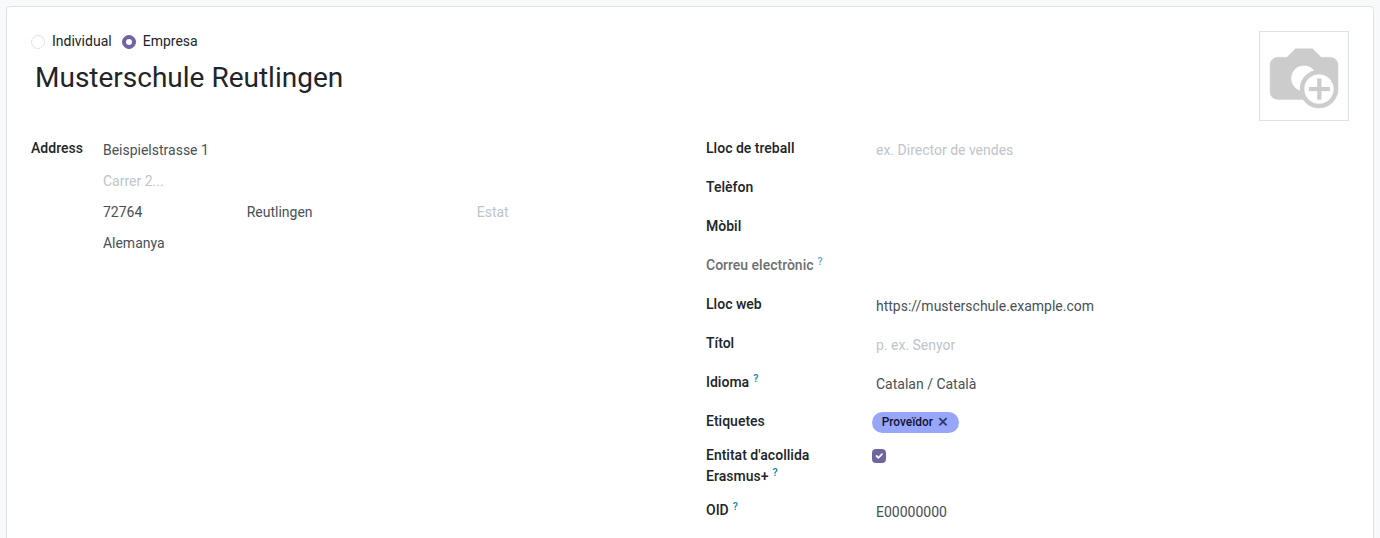
Fill in the Host entity (a company contact, which stays for next years) and its Host contact person, correct the place and the dates if needed, and check the Project the mobility goes on. Choosing the host entity fills in its country and city if the mobility has none yet. For staff, validating the proposal copies its country, city and dates, but not the host entity: the name the staff member wrote is only a guide, and you choose the real entity when you prepare the documents. EMS only offers the projects of the modality’s kind (CFGM on KA121-VET, CFGS on KA131-HED); for staff, those of the call’s places per project (see Staff call). When only one is possible, EMS fills it in on its own; with two or more (for example the agreements of two call years), you choose. A host entity’s address, country, website and OID (the Erasmus+ organisation code the agreements ask for) are on its own record, in Configuration > Host entities. That list shows each entity’s country, city, OID and how many mobilities it has hosted; on its form, the Mobilities and Group mobilities buttons open the ones it has hosted, to decide whether to go back.
- Documents tab: in Files from the team, attach the document filled in for the participant to sign, or the one you provide (the insurance policy). The participant downloads it on the portal; that column only shows on the documents the team hands over. The participant uploads the others on the portal; to attach one they sent you, add the Every version column from the column selector. Each one shows its Deadline. Mark each one Valid or Needs changes (with a comment the participant sees; only once it has a file). The list shows few columns (the others, such as the category or who signs, can be added from the column selector): Who handles the document (Participant, Team and participant, Erasmus team), the Files that count and its Status: only what the participant has to do now is red (To hand in, Needs changes); a document you have to upload first says Waiting for the team, and one not due yet (no destination yet, it opens later, or a return document before the end of the stay) says Not yet. Signatures counts the signatures ticked out of those needed. A new file puts it back to review; earlier files are kept. For a document someone signs, click Signatures and tick each signature you see on the uploaded copy (participant, Director, host entity…): EMS keeps who ticked it and when, and the participant sees it on the portal. The document can only be marked Valid once every signature is ticked (the legal guardian’s, only for a minor). To take out a file uploaded by mistake from a document not valid yet, click Remove a file, choose it and write the reason: the file is not deleted, it stays in the mobility’s history with the reason, your name and the date. Ready to leave is ticked when every required document before leaving is valid (or, if the team provides it, uploaded), every step before leaving is done and the commitment letter is signed (Commitment letter tab). While anything is missing, EMS reminds the participant by email every week.
- Checklist tab: tick each step when it is done. EMS records who ticked it and when.
- Staff: the staff member completes their proposal with the exact dates and their responsible declaration, and the Direction validates it. Then EMS requests their absence for training for those days on its own, and whoever approves their absences approves it as usual. If the dates change before it is approved, the absence follows them; if it was already approved, EMS warns you on the mobility to correct it by hand.
- Staff, a change after validating it: until the mobility starts, the staff member can propose another course, host entity or dates from their mobility in EMS; you can also change them in the Proposal tab and click Actions > Ask the Direction to validate it again. The Direction validates it again, and until then the mobility keeps the validated dates. Staff never see the modality or the places: they are the team’s planning.
- Actions > Notify pending documents emails the participant the documents missing or needing changes.
- The documents and steps you add to the call reach the mobilities still going on when you save the call, and those of a modality or a project when you change the modality on the application or the mobility’s project. If you take a document off the call, it also leaves the mobilities where nobody has handed it in yet; if someone already has, EMS doesn’t let you remove it (make it Optional instead), so nothing handed in is ever lost.
Electronic signature
The grant agreement, the learning or mobility agreement, the certificate of stay, the Europass mobility document and the report with evidence can be signed in EMS instead of on paper. Every signer signs from a link sent by email, without an EMS account: the host entity too. The commitment letter keeps its own acceptance on the portal, and the sBID documents are still signed in sBID.
Once per document (in the call):
- In Sign > Templates, create a template and upload the SEPIE model (annex 6) of the document. Use a copy already filled in: the copies you fill in for each participant have the same pages, so the signatures land in the same place.
- Open Configure and place a signature box for each signer, choosing its role: Erasmus+ participant, Erasmus+ legal guardian, Erasmus+ Director, Erasmus+ coordinator, Erasmus+ host entity.
- In the call, Mobility documents tab, open the document’s line and choose that template in Signature template.
For each mobility:
- Fill in the document outside EMS as usual, save it as PDF and attach it in Files from the team (for a document the participant uploads, such as the report, use their file).
- Click Send to sign on the document’s line. EMS prepares the request with the participant, the family of a minor (the first family contact with an email: you can change it), the Director, the Erasmus coordinator and the host entity’s contact person, as each document asks. If anything is missing (for example the host contact’s email), EMS tells you what before going on.
- Check that the boxes are in place (Configure) and click Send. Every signer gets the email at the same time; the participant also sees Sign it here on the portal. This email is the only Erasmus+ one a student gets at their personal address: the signature module always writes to a contact’s main address.
- Each signature is ticked on its own in Signatures (and can’t be unticked). When the last person signs, the signed PDF is added to the document’s files: check it and mark it Valid.
If you click Send to sign again while the request is still open, EMS opens the same one. If you cancel it, you can prepare a new one.
5. During the stay: the weekly self-assessment
From the first day of the stay, every week the participant answers the call’s questions on the portal, for each week already begun. A week over and not answered goes in the weekly reminder email. On the mobility, the Self-assessment tab shows how many weeks are answered (for example, 2 / 4) and each week’s answers and rating; to let the participant answer a week again, delete it there. Print them all with Print > Weekly self-assessment, and the exports add that PDF to the participant’s record (category 03, during the mobility).
6. Return and closing
When the stay is over, the participant sees on the portal that they have to answer the EU Survey (by default within 30 days, EU Survey deadline) and clicks I have answered it. You get a task: check it and click Actions > Validate the EU Survey (if the participant tells you another way, Actions > EU Survey answered).
Once the stay is over (the Return home phase), click Actions > Close the mobility when everything is done: every required document and step before leaving and on return, the mobility on its Project, the EU Survey validated and nothing left to pay: every payment requested and transferred, the final one included, and every invoice for the participant paid. Closing also removes a graduate’s access to the portal, so wait for the last payment.
To cancel a mobility (for example, the travel documents were not handed in on time), click Actions > Cancel the mobility: a dialog asks for the reason. Once cancelled, the reason shows at the top of the form. The application is marked as renounced and the place becomes free. It can be cancelled until the stay ends. The participant can also renounce on the portal, but only until the stay starts.
Graduates: a student who graduates and does the mobility in the summer keeps access to the portal after the course transition, until the mobility is closed or cancelled. Then EMS removes the access, as the course transition would have done.
What is evidence is never deleted. A mobility, an application or a document that already has a file, a signature, a payment or a self-assessment cannot be deleted, nor can the file of a valid document be deleted or replaced: cancel the mobility, or upload a new version. A project document with files cannot be deleted either. An archived mobility still goes in the project’s export, marked Archived. A cancelled mobility or a withdrawn participant goes in it too, in the folder 99_Cancellades_i_retirades, when it has a payment made or a document validated or signed (a valid document, a signature ticked, the commitment letter accepted); otherwise the export’s index and manifest only list it. If the Secretary undoes a transfer, they write the reason, and the payment’s history keeps it with who undid it, when it had been paid and its receipts. When a project’s keeping period is over (Keep the documents until) and it is not on hold for an audit, EMS gives the Erasmus coordination a task, once: EMS deletes nothing, you decide what to keep. A payment can only be requested while the mobility is in preparation or closed.