EMS
| Català | Castellano | English |
Spaces and Space Types
Spaces are the centre’s physical rooms (classrooms, labs, workshops…), each assigned to a Type and a Location (site/building). They’re used throughout the app wherever a session, group, minute or schedule slot needs a room. Each space also has its own weekly occupation schedule — see A Classroom’s Occupation Schedule.
Required role: Administrator (Teachers and Secretary can view a space, but not create/edit/delete one).
Access
- Space Types: Educational Community → Configuration → Space Types
- Spaces: Educational Community → Configuration → Spaces
Create a Space Type
- Click New.
- Fill in the Name (e.g. “Classroom”, “Computer Lab”).
- Click Save.

Create a Space
- Click New. The Type and Location already come pre-filled with “Classroom” and “Main building” — change them if this space is different.
- Fill in:
- Code (required): must be unique within its Location — the same code can be reused across different sites.
- Name (required).
- Type (required): pick a Space Type.
- Location (required): which site/building this space belongs to.
- Click Save.
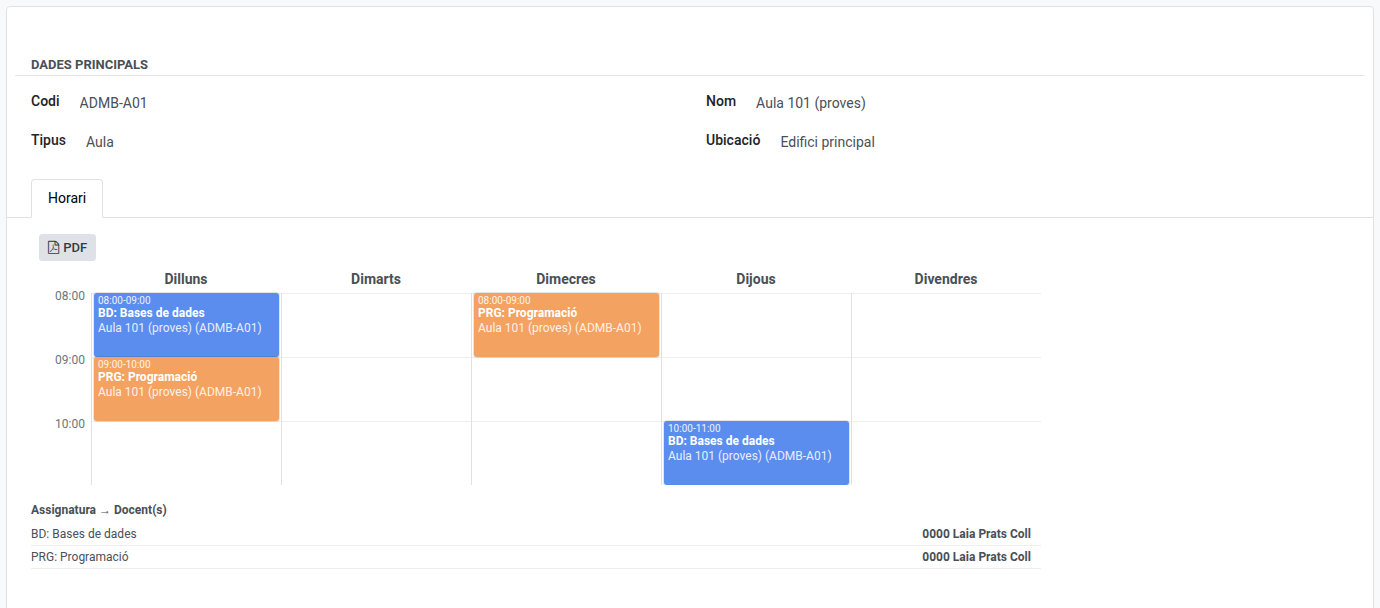
A Schedule tab and a chatter (for internal notes, messages and activities) are available once the space is created.
Edit or Delete
Open the record from its list, edit any field, and save — or select it in the list and use the Action menu (⚙) to delete it. A Space Type or Space in active use (referenced by a session, group, minute or schedule) cannot be deleted until those references are cleared.