EMS
| Català | Castellano | English |
Strikes: Flagging a Disciplinary Incident
Sometimes a student’s behaviour during a session needs to be flagged so the family, the group tutor and — if it happens repeatedly — the coexistence coordinator are aware. This page explains how to issue a strike from the roll-call view.
Required role: Teacher
Issuing a Strike
- Open the roll-call view (Attendance → Current) and select the session with the student.
- Next to the student’s row, click the strike button (⚠) — it sits immediately to the left of the notes pencil.
- A dialog opens with:
- A Reason dropdown, already set to a generic default so you can submit with zero typing.
- An optional Details field, in case you want to add context.
- A Kicked out of class checkbox, unchecked by default — tick it if the incident ended with the student being sent out of the classroom.
- Click Send.
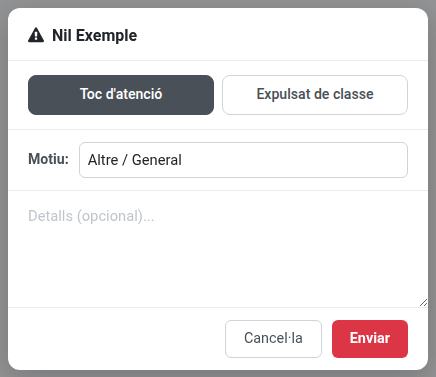
That’s it — no further confirmation is needed, and nothing is required beyond the reason.
What Happens Next
- The student is notified by email.
- The family may also be notified, subject to the same rule used for attendance notices (minor, or an adult student who has authorized sharing information with their family) — whether that’s on every strike or only when the student was kicked out of class depends on a setting configured by the administration.
- The student’s group tutor is always notified.
- Every one of these emails states whether the student was kicked out of class or not, based on the checkbox you set.
- If the student reaches a certain number of accumulated strikes (configured by the administration), the coexistence coordinator for your area is notified automatically as well.
Consulting Strikes
- Convivencia → Strikes lists every strike you have issued.
- From a student’s own form, a Strikes button appears in the header (only when the student has at least one) showing their accumulated count — click it to see the full history for that student.
- From Attendance → History, opening one of your past sessions now also shows, per student row, how many strikes were issued during that specific session, with a button to see their full detail.
If you are also a tutor, Head of Studies, Deputy Head of Studies, Director or coexistence coordinator, see the corresponding manual for how you can consult a wider set of strikes.