EMS
| Català | Castellano | English |
Justifying Your Students’ Absences
A justification covers a period (start and end date and time) for one student of your group. Every absence within that period becomes a Justified Miss, whichever teacher recorded it.
Required role: Tutor
Recording a justification
- Go to Student’s Attendances → Justifications and click New.
- In Student, pick the student. Only the students of your group are listed.
- In Period, set the start and end date and time.
- The Affected sessions tab lists the sessions within the period where the student has an absence, from every teacher.
- Click Save. The absences in the list become Justified Miss.
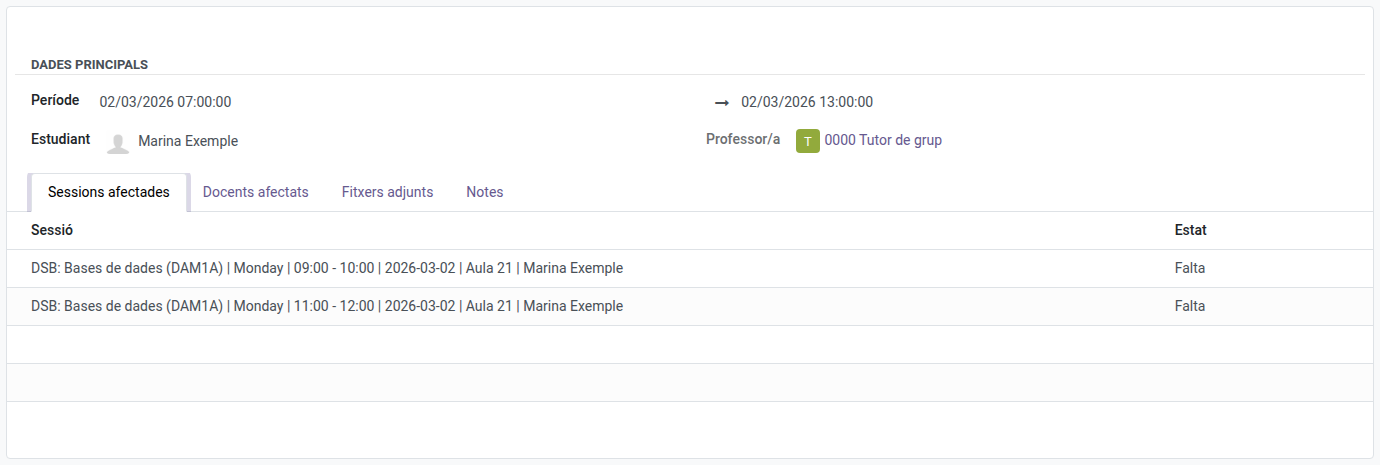
A student cannot have two justifications with overlapping periods.
Days still to come
The period can include future days (for example, a planned hospital stay). When a teacher takes attendance in a session within that period, the student already appears as Justified Miss, and the session is added to the justification’s Affected sessions.
Attaching the document
- Open the justification from the Justifications list.
- In the Attached files tab, click Add a line and, in the window that opens, New.
- Click Upload your file, choose the file (for example, the medical certificate) and save.
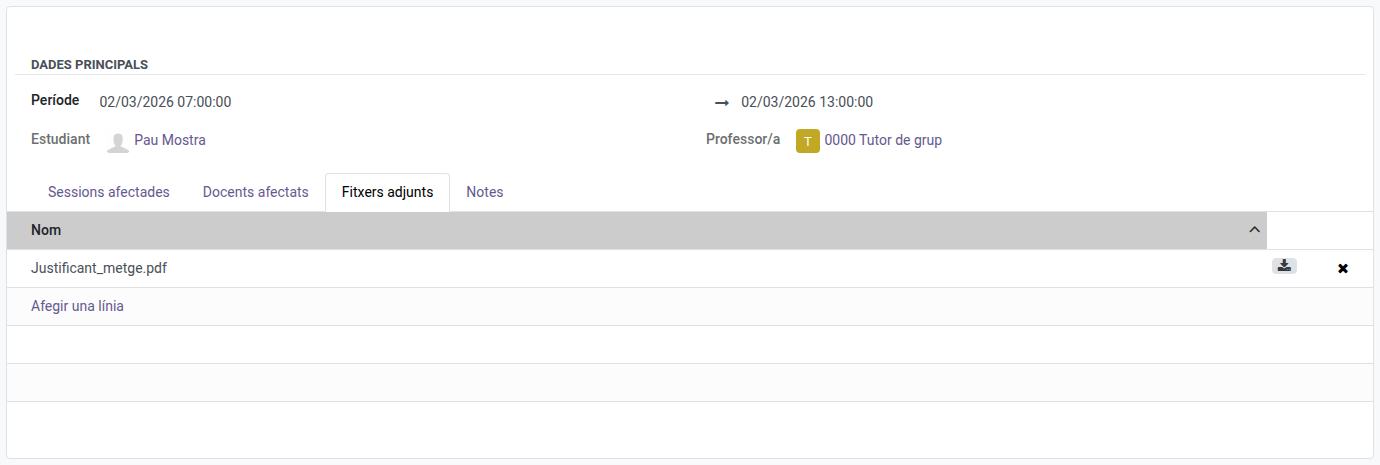
The download icon opens the file; the cross removes it from the justification. Use the Notes tab to add a comment.
Checking, changing or deleting a justification
Student’s Attendances → Justifications lists your students’ justifications, with the teachers of the affected sessions.

- Changing the period: open the justification, change the Period and save. Absences left outside it go back to Miss, and the new ones become Justified Miss.
- Deleting it: the absences it covered go back to Miss.
- The Student cannot be changed once saved: delete the justification and create a new one.