EMS
| Català | Castellano | English |
Printing student cards
EMS generates the student card as a PDF ready to print and cut.
Required role: Secretary, Head of Studies or Administrator, for any student. Tutors print their own students’ cards, and so can their Seminar Chief, Department Chief and Head of Studies for those students.
What the card shows
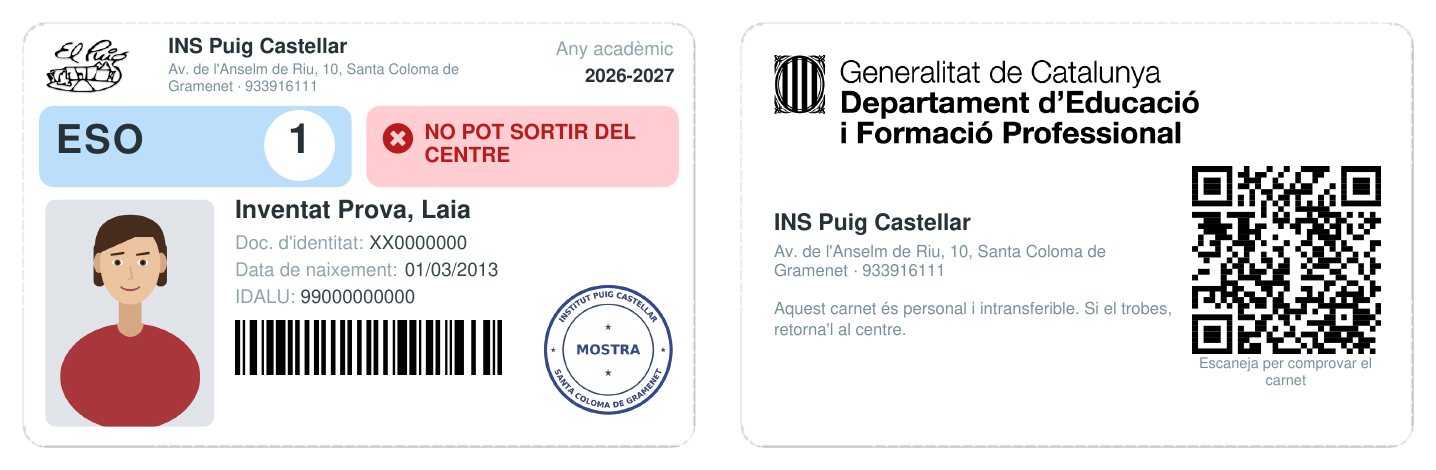
Front:
- The centre’s logo, name, address and phone, and the current academic year.
- A band split in two. On the left, the student’s level in big letters (ESO, BTX, CFGB, CFGM, CFGS, PFI, EFPS), the study’s acronym (SMX, DAW…; not for ESO and BTX, where it would repeat the level) and the course year (1, 2, 3, 4) in a white circle, in the level’s own colour.
- On the right, whether the student may leave the centre, for the teacher at the door: Pot sortir del centre (green) when the student is of age or the family has accepted the Leave the Centre authorization for this academic year, No pot sortir del centre (red) otherwise. The card shows it as it was when printed; the QR on the back always shows it as it is now. If the student turns 18 or the family accepts the authorization later, you can print the card again.
- The photo, last names and first name, identity document (DNI or NIE, or the passport when there is none), birth date and IDALU, with its barcode.
- The centre’s stamp, right of the barcode. Until the administrator uploads it, an empty circle is printed there instead, to stamp by hand.
Back: the logo of the Departament d’Educació i Formació Professional, the centre’s details, a note saying the card is personal and non-transferable, and a QR code to check the card is genuine (see Checking a student card).
The card is always printed in Catalan, whatever the language of whoever prints it. Its data comes from the student’s record: if something is missing (the photo, for instance), fill it in before printing.
Printing the cards of a whole group
- Go to Educational Community → Groups and open the group.
- In the header, click Print student cards. When there are other actions, the button is inside the Actions menu.
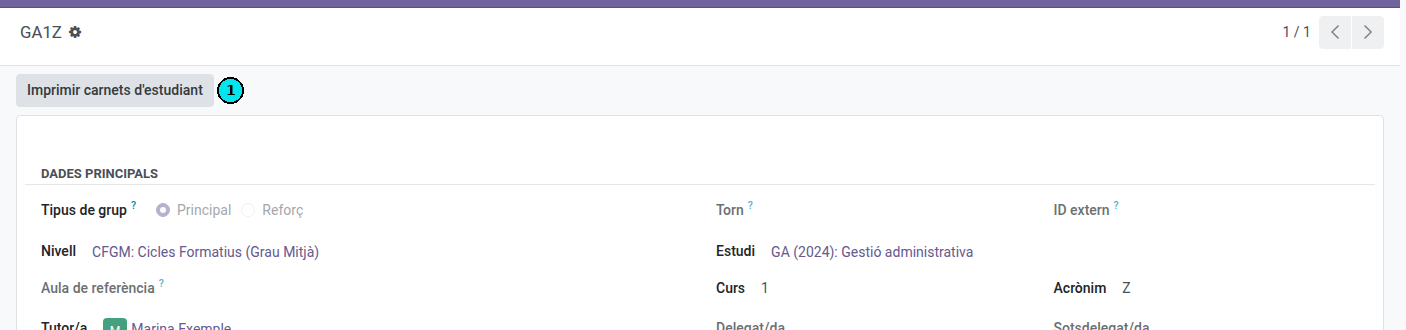
The PDF has the card of every student whose main group is this one, sorted by last name.
Printing the cards of a few students
- Go to Educational Community → Students and switch to the list view.
- Select the students.
- Open the Actions menu (the cog) and click Print student card.
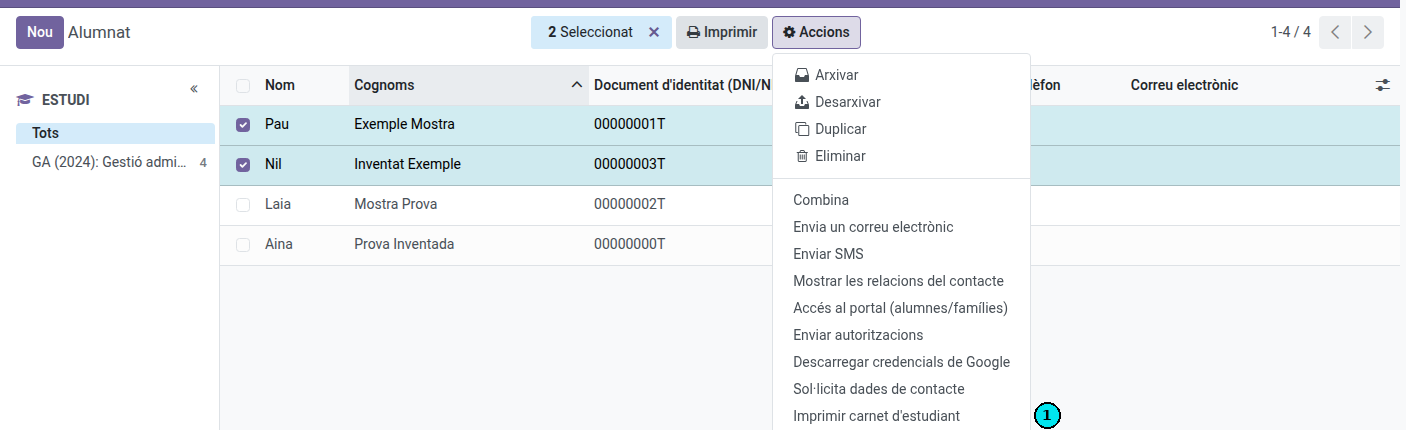
Selected contacts that are not students, or students whose card you can’t print, are left out. If none is left, a message tells you so.
Printing one student’s card
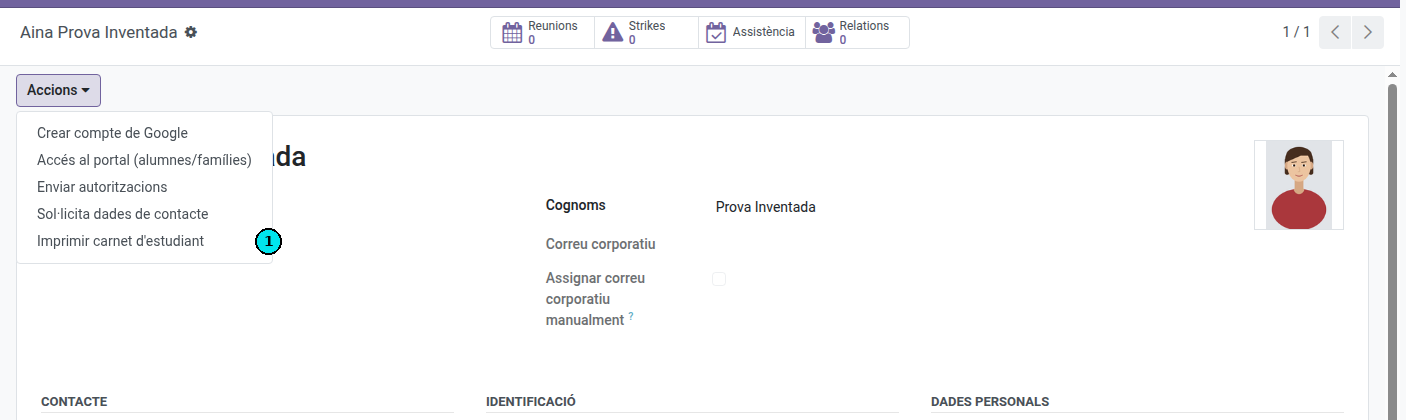
- Open the student’s form.
- In the header, open the Actions menu and click Print student card.
Printing and cutting
The PDF is A4, with 10 cards per sheet in two columns. Each card is the size of a credit card (85.6 × 54 mm), so it fits the usual card holders.
Each sheet of fronts is followed by its sheet of backs. Print the PDF double-sided, flipping on the long edge, and every back (with its own QR) lands right behind its front. Then cut each card along the dashed line.
Printing a card again
A damaged card can be printed again as many times as needed, alone or with its whole group: the new card has the same QR, and the cards already handed out keep working.
The QR is valid for the current academic year. When the year changes, the cards of the previous one show “not valid”, and the first card printed in the new year gets a new QR.
Revoking a lost or stolen card
- Open the student’s form.
- In the header, open the Actions menu and click Revoke student card, and confirm.
The QR of every card printed so far for that student shows Carnet no vàlid from that moment on. Print a new card for the student: it carries the new QR. The student’s record keeps a note of the revocation.
When a student leaves the centre (withdrawal, graduation), their card stops being valid by itself: there is no need to revoke it.