EMS
| Català | Castellano | English |
Meeting minutes
Minutes are written in Meetings → Minutes and records. The screen opens on yours: the ones you wrote, the ones of meetings you were convened to (whether you came or not) and the ones awaiting your approval, for the current year. Removing a facet in the search bar shows more.
If you are a Department or Seminar Chief, or Head or Deputy Head of Studies, you also see the minutes of the departments and groups that hang from you.
Only whoever writes a minute and whoever approves it can change it, and so can their chiefs (for instance the Seminar Chief of whoever writes it); if whoever approves it is away, their chiefs (Department Chief, Head or Deputy Head of Studies, Director) can approve it in their place. Any other minute you can see (one of a meeting you were convened to, one of your department) opens read-only, with no actions.

Writing a minute
- New.
-
Choose the minute type. It is the first thing the form asks for and the step that matters: the type decides which sections appear, so a department minute and a staff-meeting minute do not ask for the same things.
Only the types you can start are listed:
Type Who can start it Acta de reunió genèrica Anybody Acta de reunió de departament The Department or Seminar Chief, and those above them, only for their own department Acta de claustre The management team: Director, Head of Studies, Deputy Head of Studies and Secretary Acta d’equip docent The group’s tutor, those above them and the teachers who teach the group Acta de constitució d’equip de millora / Acta de finalització d’equip de millora The quality coordinator Acta de reunió d’equip de millora The quality coordinator and the team’s members Whoever administers the quality system sets this up in Meetings → Configuration → Minute types.
- Right after, the form asks whose meeting it is, depending on the type: the department, the workgroup or the group. A staff-meeting minute asks for nothing. A generic minute asks you to choose the scope of the meeting (it starts empty): a department, a workgroup, a group’s teaching team, the whole centre, or No particular scope, where you add the participants yourself.
-
Check the date and time (the next full hour comes proposed), the nature and the modality, and set the room. If the meeting is not in person, write where it takes place in Place (a video call, a mailing list…).
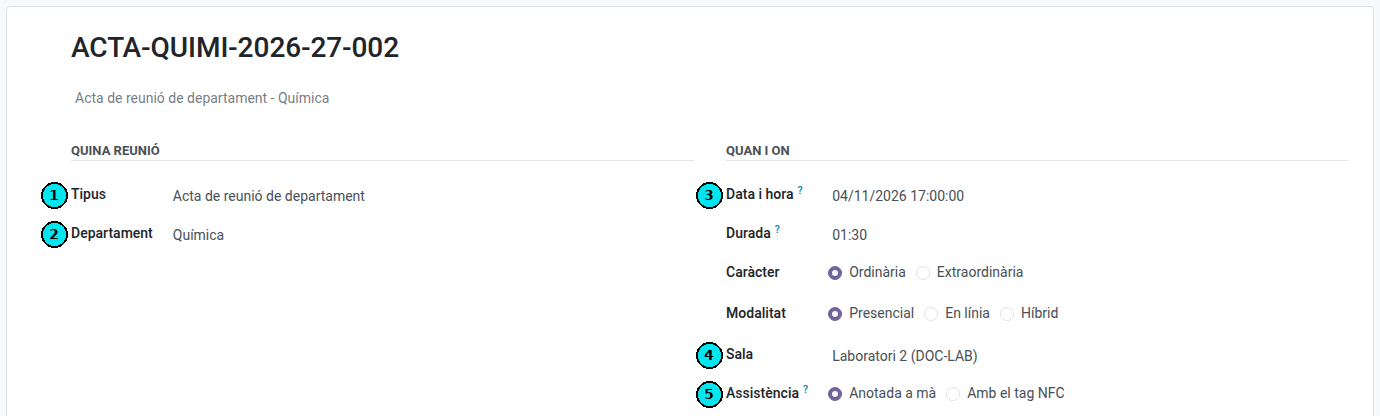
(1) The minute type, (2) whose meeting it is, (3) the date and time, (4) the room and (5) how attendance is taken.
- Choose how attendance is taken:
- Written by hand: the Attendance tab already holds the list filled in, taken from the scope (the department’s members, the workgroup’s, or the group’s teachers and its tutor). Just move whoever did not come to Absentees. Whoever has an absence or a leave request at the time of the meeting is already there, with the note “Has an absence” in About the absences (never the reason); if they come anyway, move them back to Attendees.
-
With the NFC tag: set the duration and save the minute. The kiosk is offered once the meeting has started (see “Holding the meeting and writing the minute” below): then, in the Attendance block, Open the kiosk opens the screen where each person passes their tag; Close attendance ends it and fills both lists: whoever passed the tag attended, everybody else is recorded as absent (whoever has an absence, as justified with the note “Has an absence”). If someone left their tag at home or it failed, Actions → Correct the attendance opens the session: if it is already closed, Reopen it, mark them by hand (present, or justified with a note) and close it again. The minute’s lists update by themselves. It can be done until the minute is approved.

If somebody from outside EMS comes to the meeting (a student’s family, a teacher from another school…), switch on Add people from outside EMS and add them to the table that appears: first name, surname, email and, if useful, their organisation or relationship. Untick Present for somebody who was invited but did not come. The minute names them with their organisation; their email is not printed. Tick Send them the call for them to get it: it reaches them in a message of their own, never together with the staff’s.
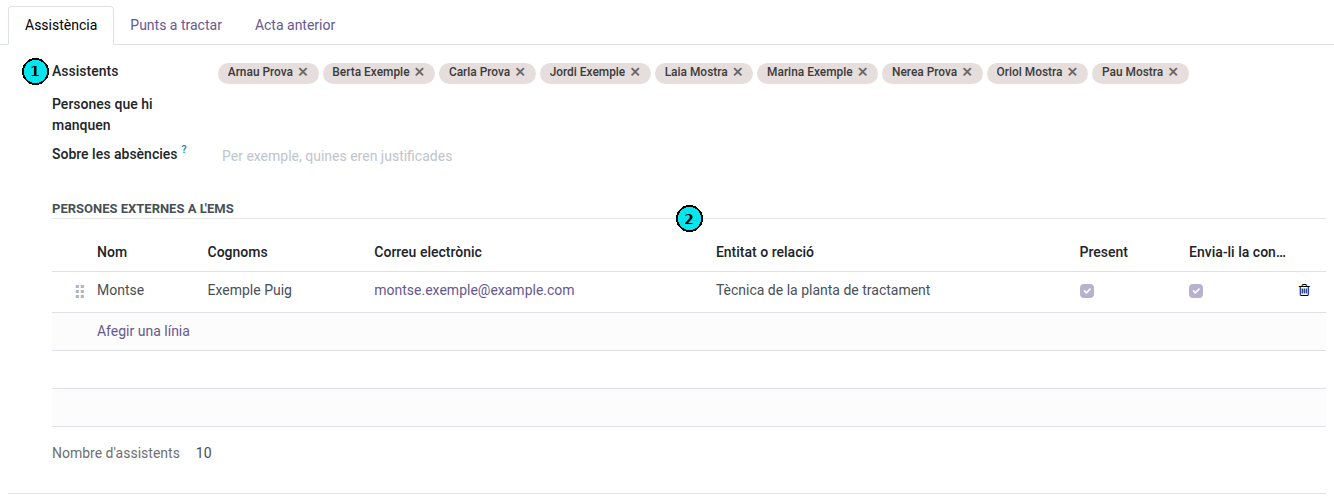
(1) The list of attendees, already filled in from the department. (2) The people from outside EMS, with the box to send them the call.
-
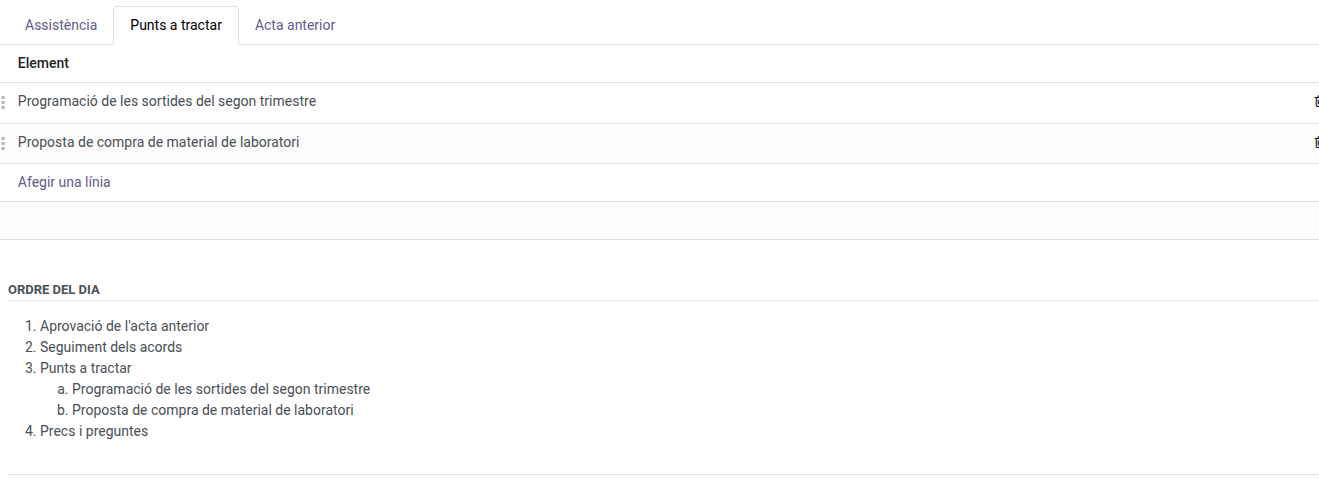
In the Items to discuss tab, add the meeting’s own topics. The agenda is not typed in: it is put together below, with the approval of the previous minute (when there is one), the follow-up of the agreements (when some are still open), your items and any other business.
 In the Content tab, fill in each section the type asks for. The ones marked as
required have to be filled in before the minute can be approved.
- In Agreements, add what was agreed: the commitment, who is responsible (who carries its progress), who is involved (who has to do something, without managing it) and by when. Use the description to explain how to carry it out (links, instructions); the PDF prints it. Once the minute is approved, the responsible people get it in their daily summary and keep it up to date from the agreement’s form. Each agreement’s code is issued automatically.
- Save. The minute’s code, which you saw build up at the top of the form as you filled in the type, the scope and the date, is now issued.
What fills in by itself
- The attendee list. It comes from the scope: the department’s members (including the departments under it), the workgroup’s, the teachers of the group together with its tutor, or the whole teaching staff. You can add or remove anybody by hand, and add people from outside EMS.
- Copying the open agreements of the previous meeting. The Previous minute tab already holds the agreements that are not closed yet, ready to review.
- The pending topics. Whatever the previous minute left unticked arrives loaded too. Tick Dealt with on those now resolved; the rest carry over to the next one.
- Numbering. Neither the minute nor the agreements: the application issues the codes, and they run consecutively within your scope, so a missing number shows.
Calling the meeting
Until the minute is sent for approval, Actions → Send the call emails everybody convened (the people in the attendee list) the date, time, place and modality of the meeting, its agenda and a link to the minute of the previous meeting, so they can read it before approving it.
If anything changes afterwards (the date, the time, the place or the items), Actions → Send the call again sends it once more, saying it replaces the earlier one. The minute keeps the date it was last sent.
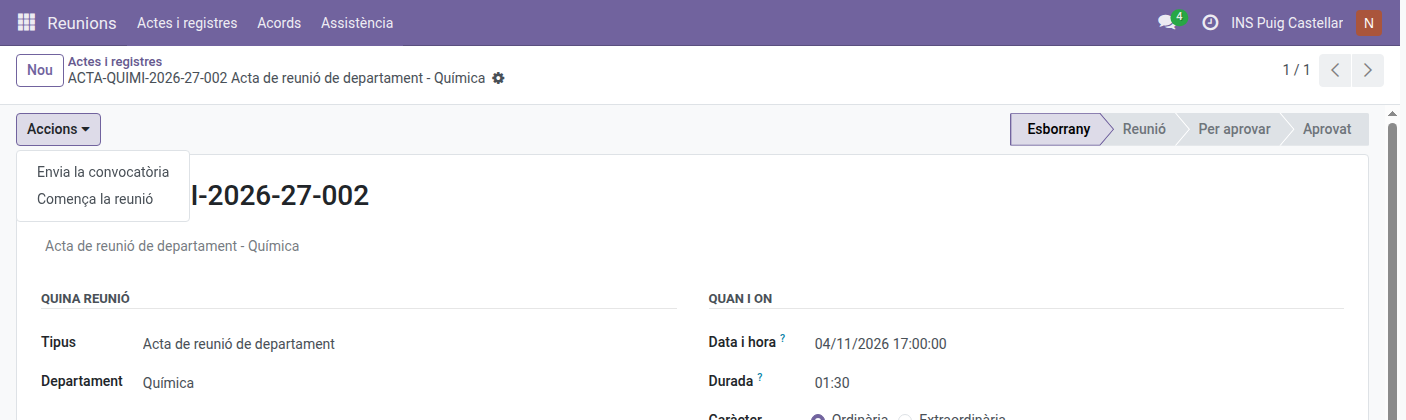
If you created a meeting by mistake, Actions → Delete removes it with everything written in it. This only works while the minute is a draft: once the meeting starts, it can no longer be deleted.
Holding the meeting and writing the minute
When the meeting starts, Actions → Start the meeting. The minute moves to the Meeting state and the screen changes: no more tabs, but the blocks of the agenda one under another, to fill in as the meeting goes on.
- Attendance: who attended and who is missing (or the kiosk, when it is taken with the NFC tag). Nobody can be in both lists: adding a person to one takes them off the other, and you can also drag a person from one list to the other.
- Approval of the previous minute: open its PDF, mark whether it is approved and note any amendment.
-
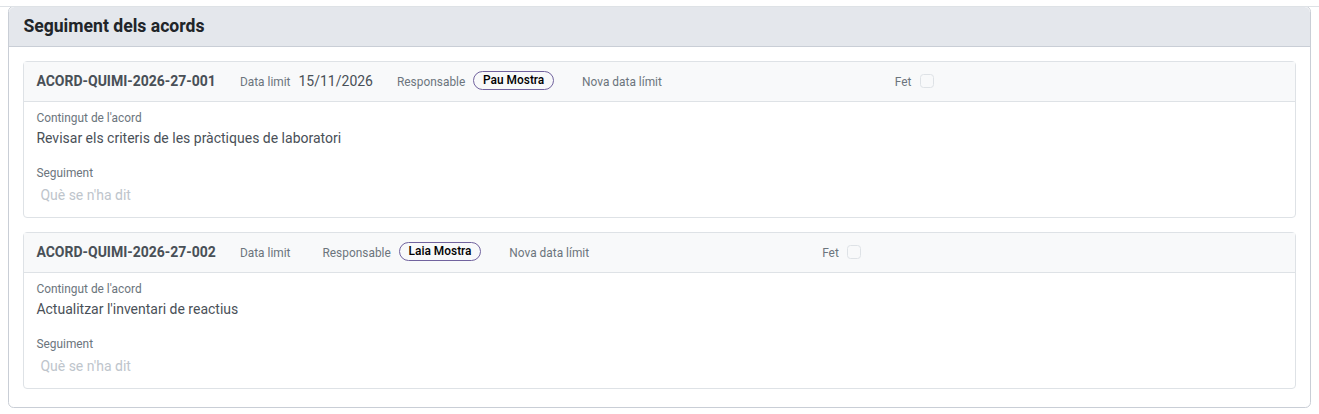
Follow-up of the agreements: each agreement still open has its card. Write what was said about it, set a new deadline if needed and tick Done when it is closed. What you write goes to the agreement’s own follow-up, and a closed agreement is not brought to the next meeting.
- Items to discuss: each item has its own text box, with the formatting toolbar above it (bold,
underline, lists). Type
/to insert a table. A long item scrolls inside its own box. Add an item adds one that was not planned. - Any other business: another text box.
-
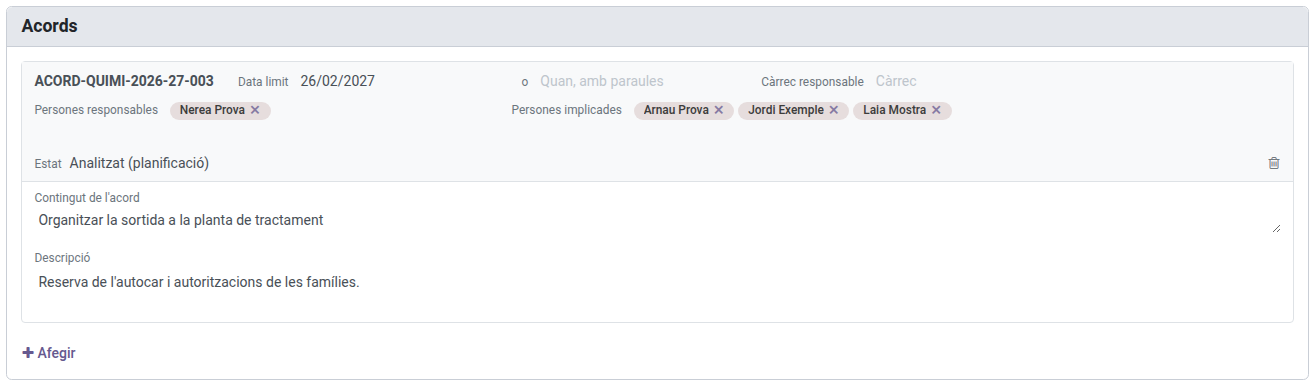
Agreements: each new agreement is a card, with its content at full width and, in the header, the deadline and who is responsible (by default, the department’s chief and its seminar chief). An agreement that is simply a decision, which nobody has to carry out, can be closed right there: tick Done and it is not brought to the next meeting.
- Pending topics: at the end, as a list.
- Annexes: the documents that go with the minute. The Attached files button attaches files from your computer (a PDF, a spreadsheet…). Whoever can read the minute can download them, and the PDF lists them.
The minute saves itself while you write, in your pauses, without moving the cursor from where you are writing. Open the draft of the minute, at the top and at the bottom of the screen, shows the PDF as it would come out, marked as a draft, while the minute is in the meeting or waiting for approval. To change the date or the people convened again, Actions → Back to preparing the meeting.
Approving
Under Signatures, the Approved by field says who will approve the minute. Whoever answers for the scope that meets comes proposed (the department’s chief, the group’s tutor, the director) and the dropdown shows those people first; anybody else can be chosen by typing their name or with Search more.

(1) Who will approve the minute.
When the minute is ready, Actions → Send for approval. A dialog asks you to confirm it and offers Also send the draft to the participants, ticked. Everybody convened gets it, whether they came or not: the staff, an email with a link to the draft’s PDF; the guests from outside EMS, the PDF attached. That way they can review it while the meeting is fresh and reply with any correction before it is approved. While the meeting is held or the minute waits for approval, Actions → Send the draft to the participants sends it again (for instance, after a correction).
Whoever gives the approval finds it on their own screen under the Awaiting my approval facet, and also gets an Approve the minute task in their daily summary. Approving it:
- Records who approved it and when.
- Generates the PDF, kept as an attachment on the minute.
- Makes the minute read-only.
- Emails the approved minute to everybody convened, whether they came or not: the staff, a link to its PDF; the guests from outside EMS, the PDF attached. A meeting held by email gets it by its own thread.
Correcting an approved minute
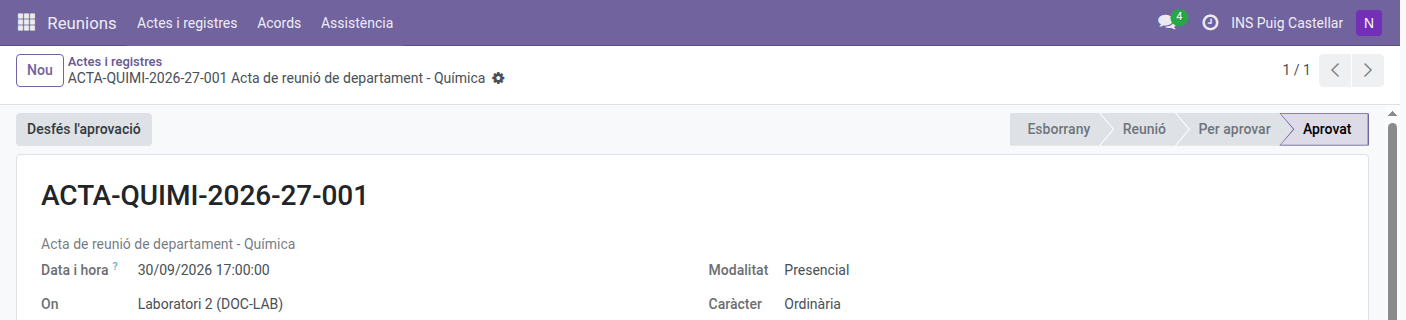
If something needs changing after the approval, use the Undo the approval button. Whoever approves the minute, whoever answers for the scope that met (the Department or Seminar Chief, the group’s tutor, the Director) and whoever wrote it can do it. The minute goes back to To approve: it can be edited again and its draft sent again to the participants. Once corrected, it is approved again as above: the approval date then says when the changes were approved, and a new PDF is generated (the previous one stays attached to the minute). Its agreements follow what the minute now says, and their responsible people are only told again about what changed.
The copy in Drive
When the centre has set it up, EMS keeps a copy of every minute’s PDF in a folder of the centre’s Drive, named after the minute’s code. The copy is replaced each time the minute changes state (when it is created, when the meeting starts, when it is sent for approval, approved or reopened), so the folder always holds a single file per minute, as the minute stood at its last change of state: what you write in between reaches Drive at the next one. Once filed, In Drive → Open in Drive, under Signatures, opens it. Deleting a minute sends its copy to the Drive bin.
Meetings held by email
When a matter does not need everybody in the same room, any meeting minute can be held by email: choose By email as its modality. The minute keeps its own type (a teaching team’s, a department’s…), so it follows on from the earlier minutes of the same scope like any other. The participants take part by answering an email, or from EMS.
-
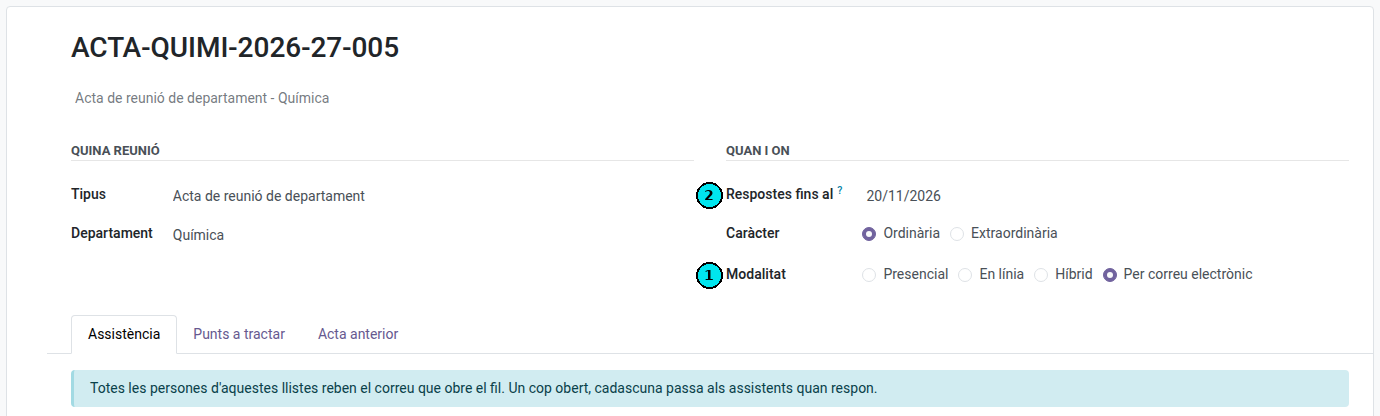
Prepare the minute as usual, with By email as the modality. Instead of a time, room and kiosk it asks for Answers until, the last day to take part. Write the items to discuss and check who is convened in the Attendance tab.
- Actions → Open the thread. Everybody convened gets an email with the agenda and the deadline, and they all start among the absentees.
-
Each participant replies to that email from their mailbox. Everybody receives every answer, as in a mailing list, and within a few minutes the answer is written under Precs i preguntes, with its author and date and without the text it quotes. Whoever answers moves to the attendees by themselves. A message written in the minute’s history counts too.

-
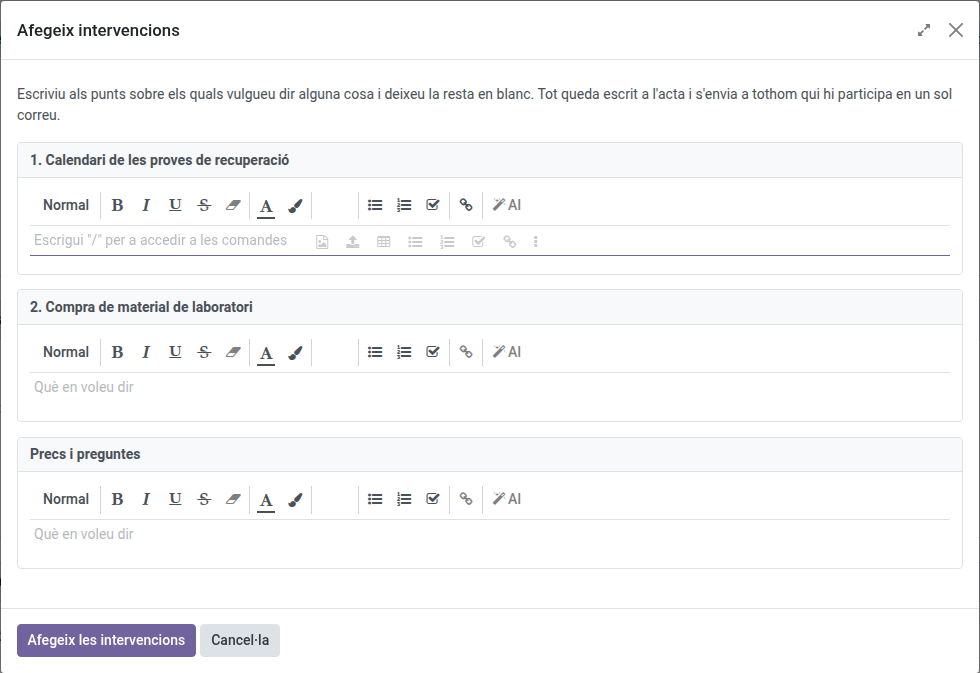
To say something about particular items, open the minute in EMS and use Actions → Add interventions: there is one box per item to discuss and one for Precs i preguntes. Write in the ones you want and leave the rest empty. Each text is written under its item, and everything reaches everybody in a single email, saying which item each part is about.
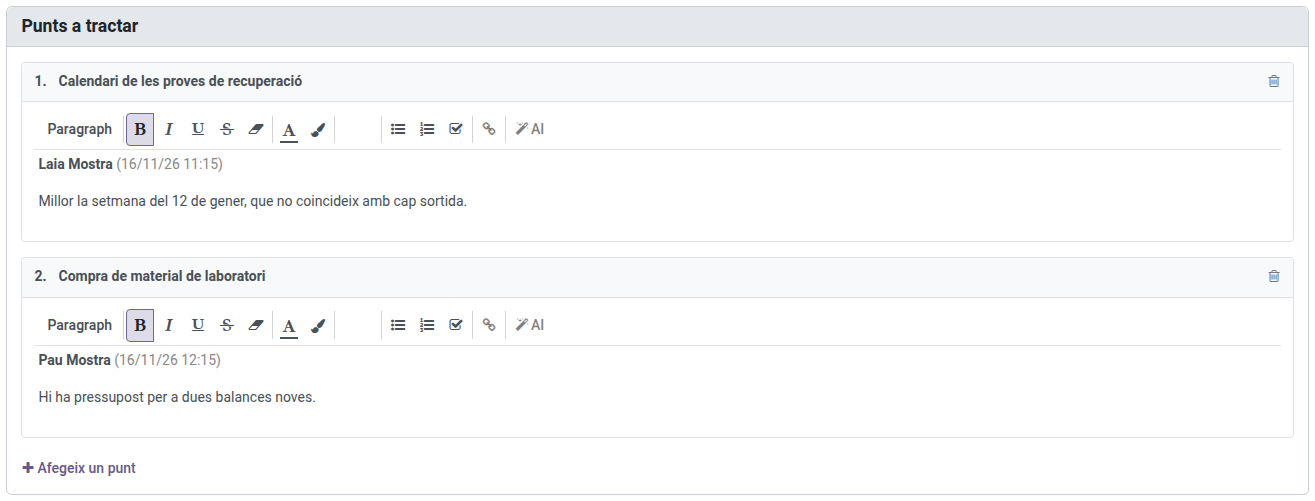
- Whoever writes the minute can retouch everything written in it, and correct the lists: whoever is taken off them stops getting the thread.
- When the deadline is over, write the agreements and the pending topics, and Actions → Send for approval, with the draft for the participants ticked: they get it as one more email of the same thread. What they answer to the draft stays in the minute’s history, for whoever writes it to apply; it does not hold back the approval.
Answer from the email address the centre has for you: an answer from a personal address is written into the minute, but does not make you an attendee.
My agreements
Meetings → Agreements opens on the open agreements where you are a responsible person (by your name or by the post you hold) or a person involved: the facets Mine, Where I am involved and Open. You can remove Mine and Where I am involved separately to see only part of them, or Open to see the closed ones too.
Evidence records
The same screen holds the papers that only need to be on record (a cash count, a key handover, a delegate election). They are minute types with their own sections, so they will not ask you for an agenda or agreements: only what that record needs. To see them, remove the Meeting minutes facet from the search bar.