EMS
| Català | Castellano | English |
Setting Up the Next Course
At the end of the school year, one operation closes the outgoing course and opens the next one: Settings → EMS Management → Set up the next course.
It archives the year that ends, turns the graduates who leave the centre into former students, and moves everyone else — the graduates staying on in another cycle included — into the group they enrolled in for the coming year.
Only administrators see this button, and part of what it does cannot be undone. Read this page before using it.
Before you start
Five things have to be in place. The wizard checks the first four itself and refuses to run if any is missing.
- The incoming course exists and is different from the current one.
- The evaluations are closed. The last round of every group in scope must be in the Finalised state. If some are still open, the wizard lists them; close them from Grades → Change grade session state. This also covers the studies students come from: if this run is about to place students arriving from a study you are not transitioning, and that study still has open evaluations, the wizard refuses to run — leaving the group freezes their record, and it would be frozen half-way.
-
No confirmed enrollment without a destination group. If an enrollment is confirmed but nobody chose the group, the wizard refuses to run and lists them. Run the Suggest destination group action of the Students without destination report over them: it proposes the group with the same letter and shift in the destination course, and it also resolves repeaters, whose course it reads from the tutorship they enrolled in.
If some are still left, it is almost always because the destination group does not exist yet: an afternoon group moving up to a course that only has a morning group, or a study with no group at all for the next course. Create them before carrying on, or decide which existing group those students go to and set it by hand on their enrollment. No automatic suggestion can place anybody in a group that has not been created.
A repeater’s own subject pending from an earlier course is placed automatically in that course’s own equivalent group (same letter and shift where it exists, otherwise the first group of that course) — nothing to fix by hand. The only exception is a subject sold by both courses’ enrollment templates: it stays in the student’s own group, since there is no single correct course to redirect it to.
-
No student without an enrollment in the studies that enroll through the flow. In a vocational cycle, a student with no enrollment at all — not even a draft proposal — is either leaving or somebody forgot about them. Register the withdrawal or send the proposal before carrying on.
It blocks because afterwards there is no way back: the transition takes the group away, and the graduation wizard needs it to tell whether the student is in the last course, so graduating them later is impossible.
In ESO, Bachillerato and the other studies that do not use the enrollment flow this is only a warning: there, having no enrollment is the normal state until the September Esfer@ re-import.
- A database backup. The wizard asks you to confirm you have one, and will not apply anything until you tick the box.
Mark the graduating students beforehand, with the graduation wizard from the student list. The transition does not decide who graduates — it only executes marks that are already there.
Graduating and staying at the centre is not a contradiction
A student who finishes SMX and enrolls in ASIX, DAM or DAW, or one who finishes DAM and starts another higher cycle — even in a different family — graduates and continues. These are two independent facts: the graduation closes the cycle that ends, the enrollment opens the one that begins.
You do not have to do anything for this to work, and there is nothing special to mark. You mark the graduation as always. The enrollment arrives on its own through the preinscription and GEDAC. The wizard cross-checks the two at run time and decides by itself, telling three cases apart: with no enrollment, archived as a former student; with a confirmed enrollment, still a student and placed in its new group; with an unconfirmed one, turned into an applicant keeping portal access so it can confirm later. Once it confirms, it becomes a student again and is placed on its own.
Study by study, not all at once
Studies do not finish at the same time: a vocational cycle may be closed in June while an ESO level is still evaluating. So you choose which studies to transition, and you can run the wizard as many times as you need.
The current course only switches on the run that leaves no study pending. Until then, everything you have transitioned is already done, and the centre keeps working on the outgoing course for the rest. The preview always tells you which one you are about to trigger.
Step 1 — Preview
Open the wizard, check the incoming course and the studies, and click Preview. Nothing is written: it is a rehearsal.
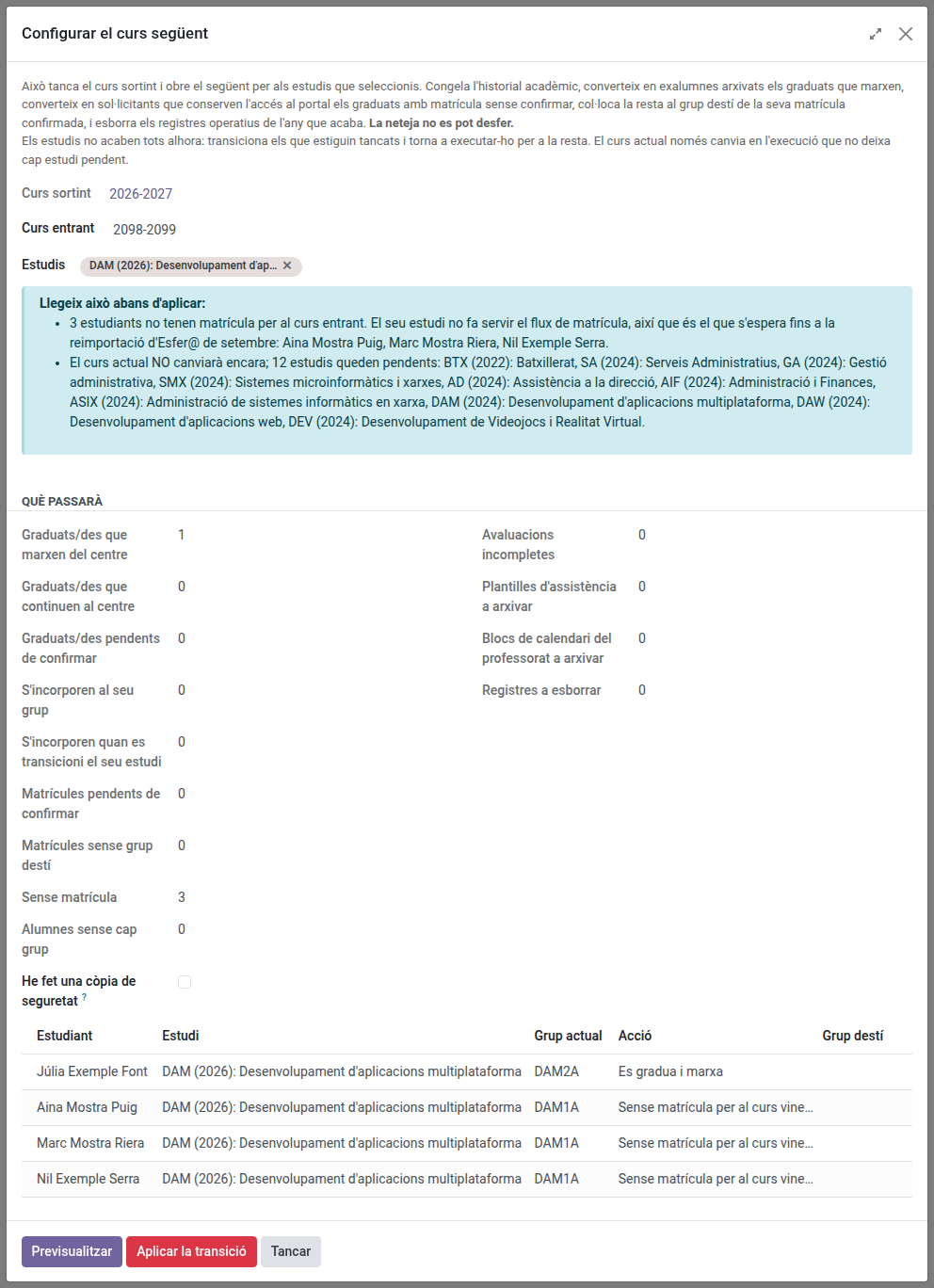
You get a red box if something blocks the run, a blue box with everything worth knowing, a counter panel, and the list of students one by one with the action each will receive:
| Action | Meaning |
|---|---|
| Graduates and leaves | Marked as graduated with no enrollment at all: becomes a former student and is archived |
| Graduates and continues | Marked as graduated and holding a confirmed enrollment: keeps the graduation, is not archived and is placed in the new group |
| Graduates, pending confirmation | Marked as graduated with an unconfirmed enrollment: becomes an applicant, keeps portal access and is not archived, so it can still confirm in September |
| Joins its group for the next course | Confirmed enrollment with a group: moves into it and gets the subject enrollments |
| Joins when its own study transitions | Enrollment confirmed, but into a study you are not transitioning now: it is not placed here. That study’s own run will do it |
| Enrollment pending confirmation | The enrollment exists but nobody has confirmed it: it does not move yet, and will do so on its own once confirmed |
| Enrollment with no destination group | Confirmed enrollment with no group: it blocks the run |
| No enrollment for the next course | No enrollment at all |
Two of these deserve your attention:
- Enrollment with no destination group — the enrollment is confirmed but nobody chose the group, so the run is blocked until you assign it: leaving them with no group would have no way back afterwards. Use the Suggest destination group action and preview again.
- Students with no group at all — if this warning appears, these are active student records in no group whatsoever, so no run can see them: their academic history is not frozen and their records are not cleaned. Give them a group or register their withdrawal before applying; afterwards they sit among the hundreds of students the transition legitimately leaves group-less and can no longer be told apart.
- No enrollment for the next course — the student has not enrolled. They are not withdrawn: they simply end up with no group. This is deliberate, because in July there is no way to tell someone moving to another school from someone who enrolls late. Keep this list: it is the one you will review afterwards to decide who really left.
Step 2 — Apply
Tick I have taken a backup and click Apply the transition. You will be asked to confirm once more.
What happens, in order:
- The academic history of every student is frozen. If this fails, nothing else runs.
- Graduates who leave become former students, their portal access is revoked and they are archived. Those continuing with a confirmed enrollment stay active as students. Those whose enrollment is not confirmed become applicants and keep their portal: without it they could not confirm the enrollment, since an archived former student has no access.
- The attendance templates of the outgoing year are archived, along with the affected teachers’ own calendar blocks. Once a teacher’s calendar has no teaching left for a course that is ending (a leftover fixed commitment like a guard duty does not count), it rolls over automatically to a fresh calendar for the next course — nothing to set up by hand, and their previous calendar is kept, archived, not deleted.
- The operational records are deleted: subject enrollments, grades, attendance and evaluation sessions. Those of the outgoing groups go too, even for a student already moved into their new group by an earlier run. This is the irreversible part — the academic history, saved in step 1, is what replaces them.
- Students are placed in their destination group and enrolled in its subjects.
- The studies are marked as transitioned and, if none is left pending, the current course switches.
- The enrollments of the outgoing course are closed: the confirmed ones are locked (they are a legal record and are never cancelled), the ones that never got confirmed are cancelled. Those of the incoming course are left alone.
Afterwards
The wizard leaves a log with the list of students and their destination group, downloadable at the end and also attached to the company’s chatter. Keep it: it is what lets you undo a specific case by hand.
Three loose ends to deal with in the following days:
- Students with no destination. Review the list and register the withdrawal of the ones who really left. One at a time from the student form, or several at once: select them in the Group enrollment proposal list and click Withdrawal. Only academic administration and the secretariat see that button, since registering an exit cancels enrollments and revokes the portal. The ones who enroll late need nothing: when their enrollment is confirmed, they are placed in their group automatically.
- Students enrolled without a group turning up later (an enrollment confirmed in September with no group, say): just fill the destination group in on the enrollment. That alone places them, subjects included.
- Unconfirmed enrollments for the incoming course. They are neither cancelled nor touched. Whoever confirms in September is placed in their group on their own, with nothing for you to re-run — as long as the enrollment has a destination group. With no group, confirming places nobody.
Browsing a past course’s attendance templates or teacher calendars afterwards: they are archived, not deleted, so nothing is lost — open Configuration → Teachers → Templates (or Working schedules), open the search bar’s Filters menu and tick Archived to see them again. On Working schedules, you can also group the list by Course to see every teacher’s calendar side by side across the years.