EMS
| Català | Castellano | English |
Task Assignment: Who Handles the Tasks EMS Creates
Required role: Administrator, or Secretary’s Office Administrator
What This Screen Is For
When a student or a family does something from the portal that needs staff attention, EMS creates a task for the people in charge, which appears in their clock icon (🕒) at the top right of the screen:
- Review student document — a student uploads their ID, medical card, IBAN or a benefit certificate and someone has to validate it.
- Review enrollment comment — a family writes a comment on their enrollment.
Academic Management → Configuration → Task Assignment is where you decide who receives each of those tasks.
The screen is open to the Secretary’s Office Administrator as well as to the Administrator: the office runs these tasks, so it also decides who handles them, without having to ask an administrator. Within it, they can only change EMS’s own task types — no other part of the system.
The Key Idea: Tasks Are Not Permissions
This list is completely separate from roles and permissions:
- Being on the list grants no access rights. It only means “this task lands in your inbox”.
- Having the Administrator role does not put you on the list. You get tasks only if someone adds you here.
This is deliberate. Before, tasks were sent to everyone in the Secretary’s Office group — and because an administrator inherits that group, every administrator received a task for every document any student uploaded, whether they had anything to do with it or not. Separating the two lists fixes it: permissions say what you may do, this screen says what you are asked to do.
Changing Who Handles a Task
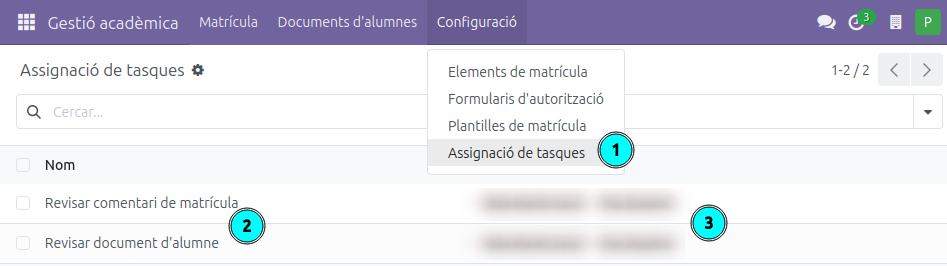
- The menu — Go to Academic Management → Configuration → Task Assignment.
- The task list — One line per task type EMS creates on its own: Review enrollment comment and Review student document. Lines cannot be added or deleted: these are the tasks the system generates, not a free-form list.
- The assigned users — The people who receive that task. Click the cell to add or remove users, then save. Only internal staff can be added (portal users — students and families — cannot).
The change applies to new tasks only. Tasks already sitting in someone’s inbox stay there until they are dealt with or closed by hand.
Removing yourself as an administrator: if you appear on these lists and you don’t want to keep receiving these tasks, simply remove yourself here. You lose nothing else — your permissions are unaffected.
Careful: An Empty List Means Nobody Is Told
If a task type has no one assigned, EMS creates no task at all: the line is shown in red and the form displays a warning.
Nothing is lost — pending documents can still be found in Academic Management → Student Documents — but nobody gets the proactive notice, and a document can sit there unnoticed. Always leave at least one person on each task type.
About Emails
Whoever handles a task receives it as a task, not as an email. The clock icon is the notice: this is on purpose, so that the office isn’t flooded with a mail every time a colleague approves a document.
The student does receive an email when their document is approved or rejected — they are the one who needs to hear back.