EMS
| Català | Castellano | English |
Guide to recovering the school email password (@elpuig.xeill.net)
This guide explains step by step how to recover the password of the school email account (@elpuig.xeill.net) when you have forgotten it or it has stopped working.
The school email account is a Google (Gmail) account, so recovery is done through Google’s official assistant.
Students can also use this account to open the student portal, with the Log in with Google button on the portal’s sign-in page (see Student portal access and activation guide).
Important: to recover the password you must have a recovery phone number associated with the account. This is the phone number you provided when the account was created. If you do not have access to that phone, contact the school office.
Index
- Step 1 — Sign in with your email
- Step 2 — Click “Forgot password?”
- Step 3 — Account recovery screen
- Step 4 — Confirm the phone number
- Step 5 — Enter the verification code
- Step 6 — Update the password
- Step 7 — Create the new password
Step 1 — Sign in with your email
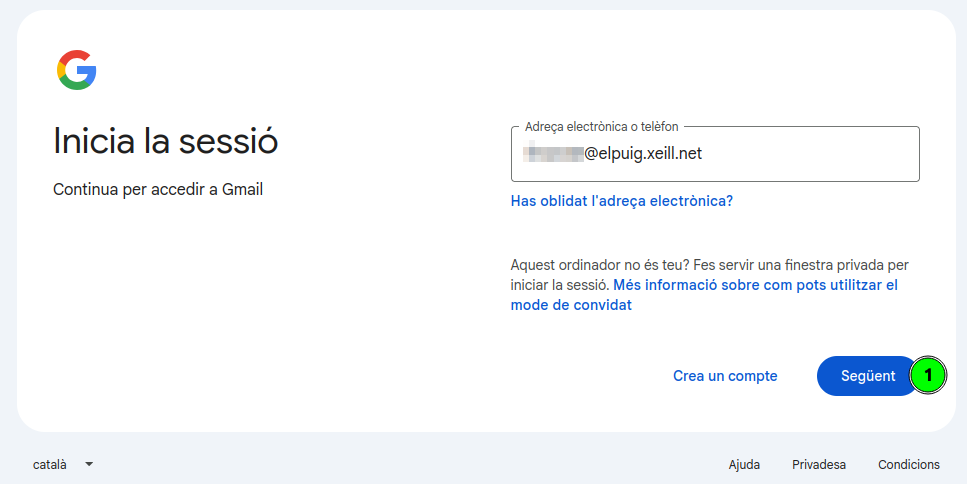
Open your browser and go to Gmail (or any Google service). On the sign-in screen:
- Type the full school email address (
user@elpuig.xeill.net). - Click the Next (1) button.
Step 2 — Click “Forgot password?”
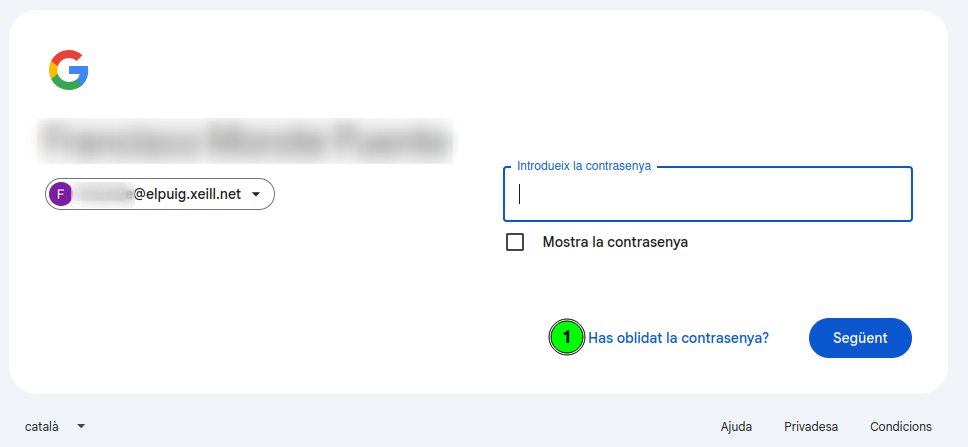
On the screen that asks for your password, you do not need to type anything. To start the recovery process:
- Click the Forgot password? (1) link.
Step 3 — Account recovery screen
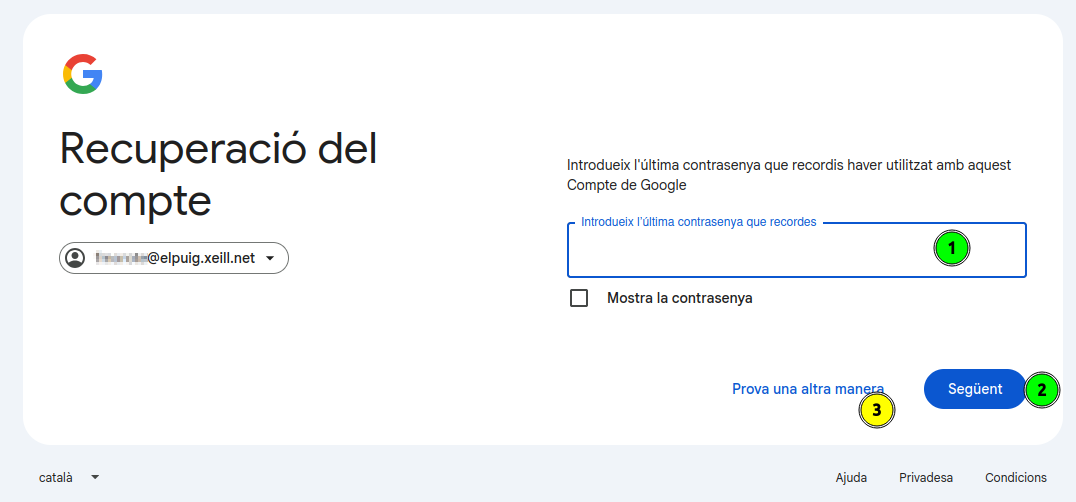
Google will open the Account recovery assistant. It will ask for the last password you remember:
- If you remember any, type it in the Enter the last password you remember (1) field and click Next (2).
- If you do not remember any, click Try another way (3) to continue with a different verification option.
In both cases, the goal is to reach the phone-number verification described in the next step.
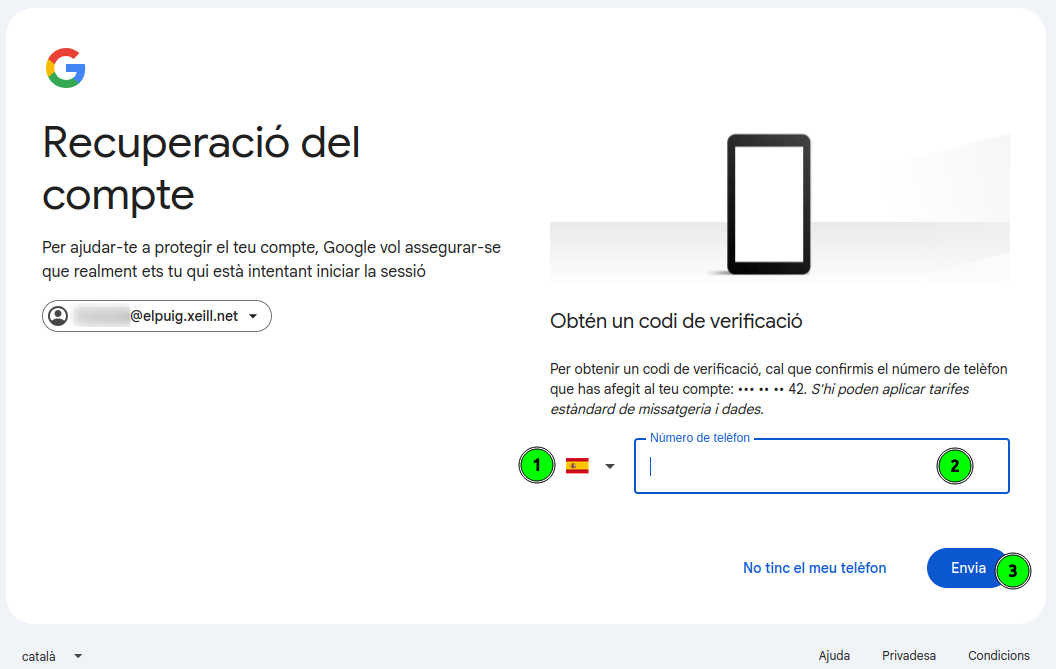
Step 4 — Confirm the phone number
To make sure it is really you, Google will ask you to confirm the phone number associated with the account (you will see the last digits as a hint):
- Check that the country prefix (1) is correct (Spain).
- Type the full phone number (2) associated with the account.
- Click Send (3) to receive the verification code via SMS.
If you do not have access to that phone, you will not be able to continue on your own: contact the school office so they can help you restore access.
Step 5 — Enter the verification code
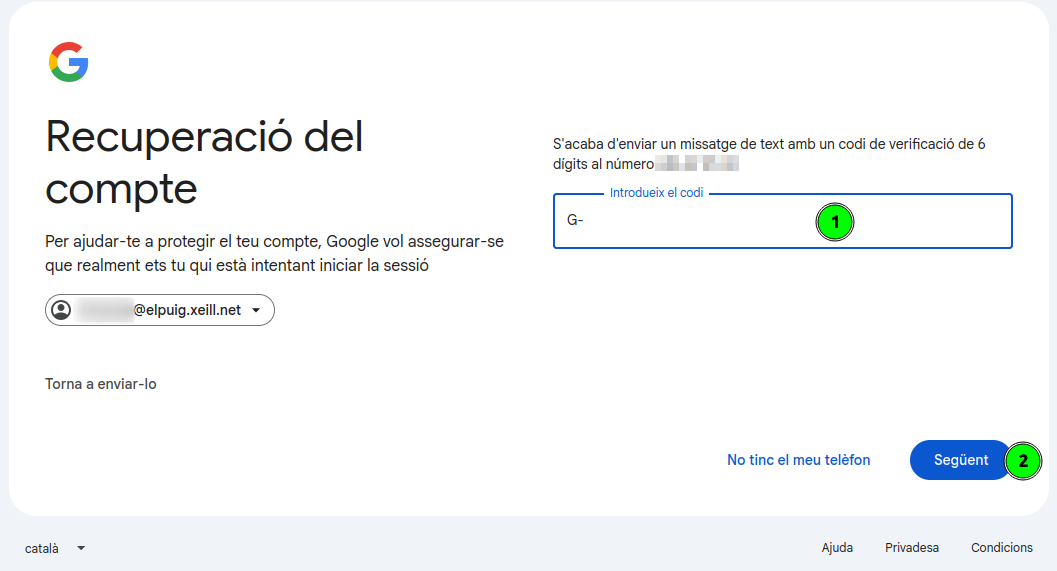
You will receive a text message (SMS) with a 6-digit verification code at the indicated number:
- Type the received code in the Enter the code (1) field (the
G-prefix is already filled in). - Click Next (2).
If you do not receive the message within a few minutes, you can click Resend it to request a new code.
Step 6 — Update the password
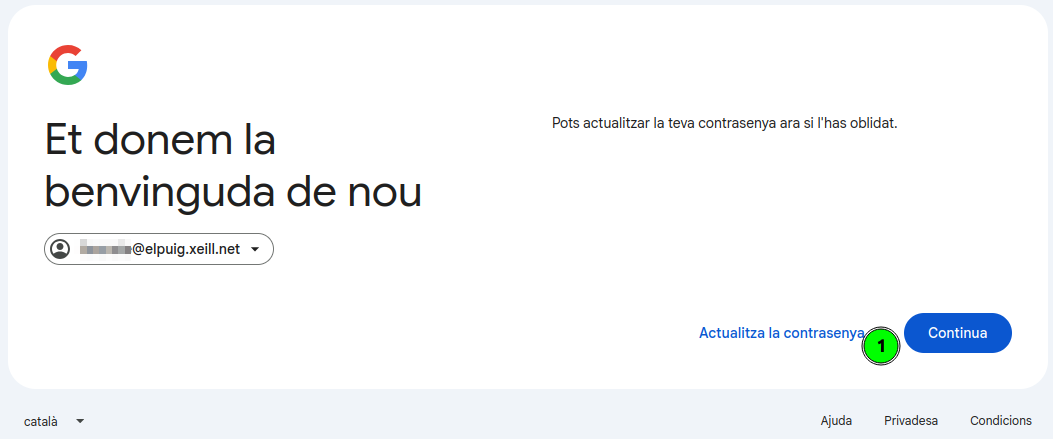
Once your identity is verified, Google will welcome you back and offer to update the password:
- Click the Update password (1) link to set a new one.
Step 7 — Create the new password
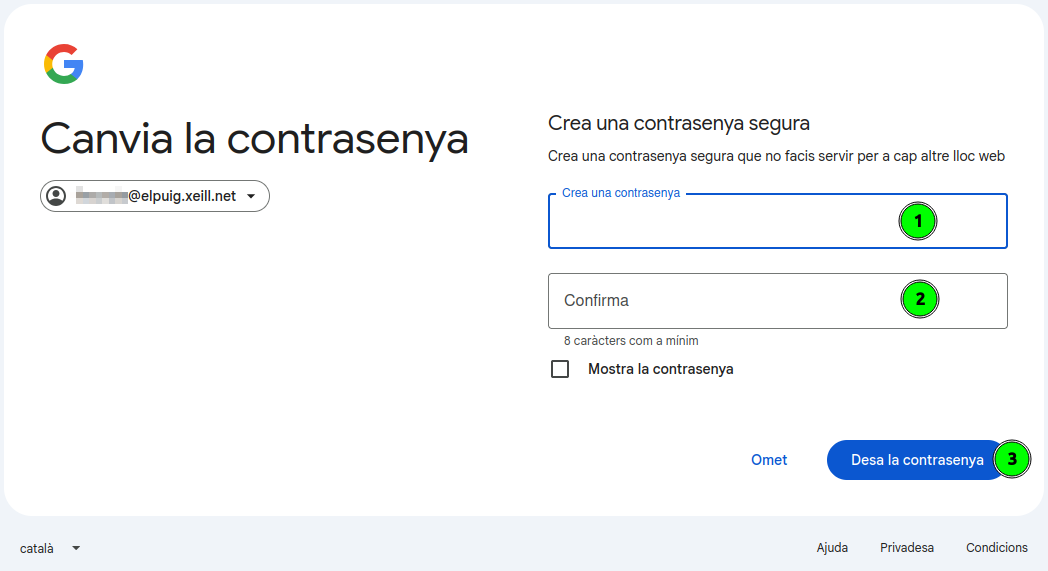
Finally, set the new account password:
- Type the new password in the Create a password (1) field. It must be at least 8 characters long, and it is recommended that you do not use it on any other website.
- Type it again in the Confirm (2) field to avoid typing mistakes.
- Click Save password (3).
Once saved, you can access the school email with the new password.