EMS
| Català | Castellano | English |
Meeting attendance with the NFC tag
Confirm who attends a meeting (staff meeting, department meeting, training) with an NFC reader at the door: each person passes the same tag they use to clock in.
Role required: Secretariat, Head of Studies, Director or academic administration.
Setting up the meeting
Go to Meetings → Attendance and click New.
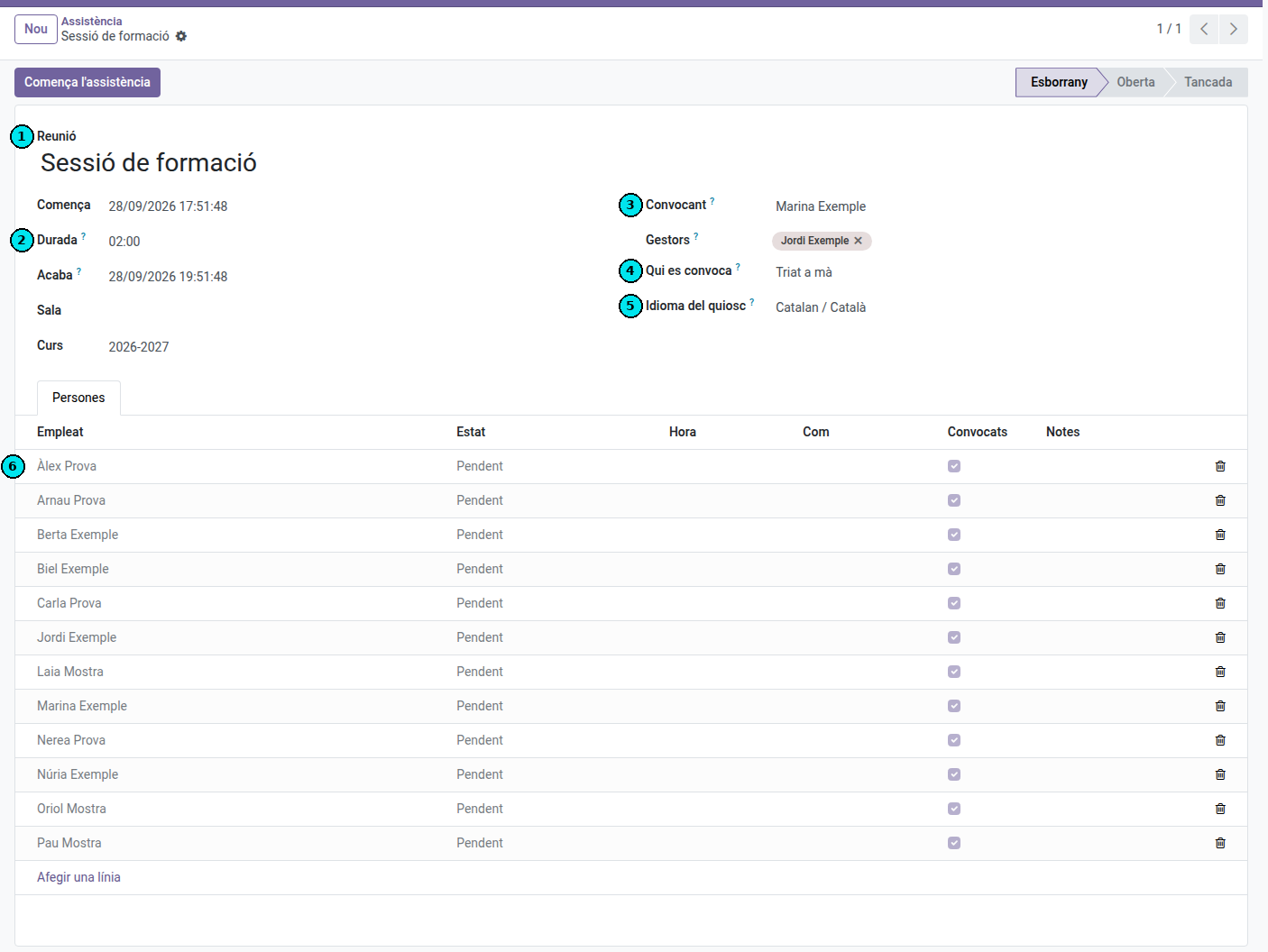
- Type the name of the meeting (1).
- In Starts and Duration (2) set when the meeting starts and how long it lasts (2 hours by default). Ends is worked out for you; you can also type it and the duration adjusts.
- Convener (3) shows you. If you are creating the meeting on someone else’s behalf, choose them. In Managers, add any other people who also need to be able to open the kiosk (see “Meetings page”).
- In Who is convened (4) choose All teachers, All staff, A department, A workgroup or Chosen by hand. If you choose a department or a workgroup, select it.
- In Kiosk language (5) choose the language of the screen at the door.
- If needed, fill in the room and the course.
- Save. The People tab (6) is filled with the convened people.
To add someone to the list, click Add a line and pick them. To remove someone, click the bin at the end of their row. If you change Who is convened after saving, click Load convened people: only the missing people are added.
On the day of the meeting
- Plug the NFC reader (USB) into the computer at the door.
- Open the meeting and click Start attendance.
- Click Open kiosk. A new tab opens with the screen for the door.
- Press F11 to make it full screen and leave it open.
- Each person passes their tag over the reader.
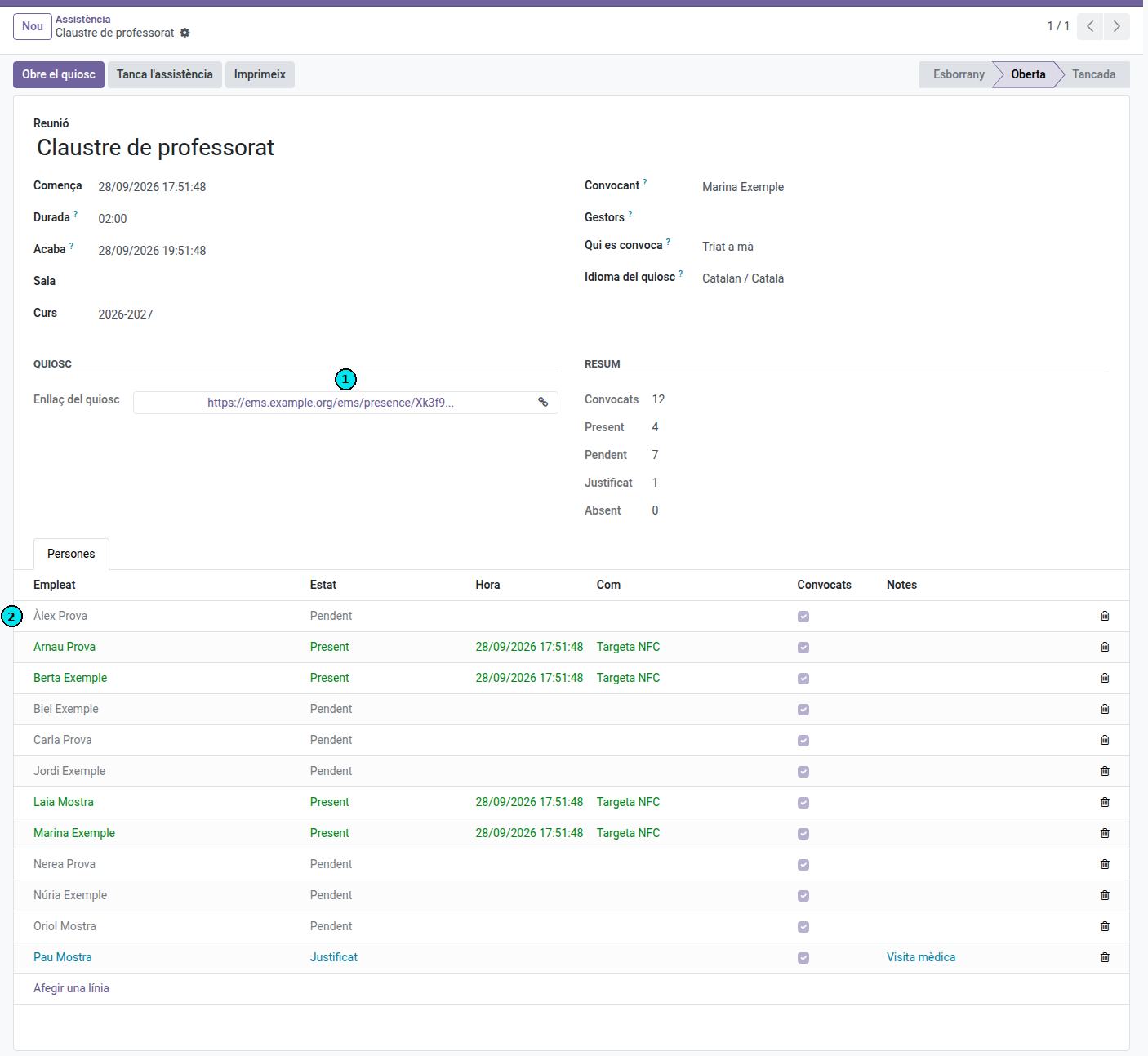
To open the kiosk on another computer, copy the Kiosk link (1) and paste it in the browser: no login is needed.
The kiosk only takes tags between the meeting’s Starts and Ends times. Before it shows “Attendance has not started yet” and afterwards “Attendance is closed”, with no need to reload the screen: it switches on and off by itself. To extend the meeting, increase the Duration or the Ends time.
Each reading shows the person’s name in a colour:
| Colour | Message | Meaning |
|---|---|---|
| Green | Attendance registered | Convened and registered. |
| Blue | Already registered | They had already passed their tag. |
| Orange | Registered, but not on the convened list | Registered, but was not convened. |
| Red | Unknown tag | The tag does not belong to any employee. |
| Grey | Attendance has not started yet / Attendance is closed | Outside the time window no tags are taken. |
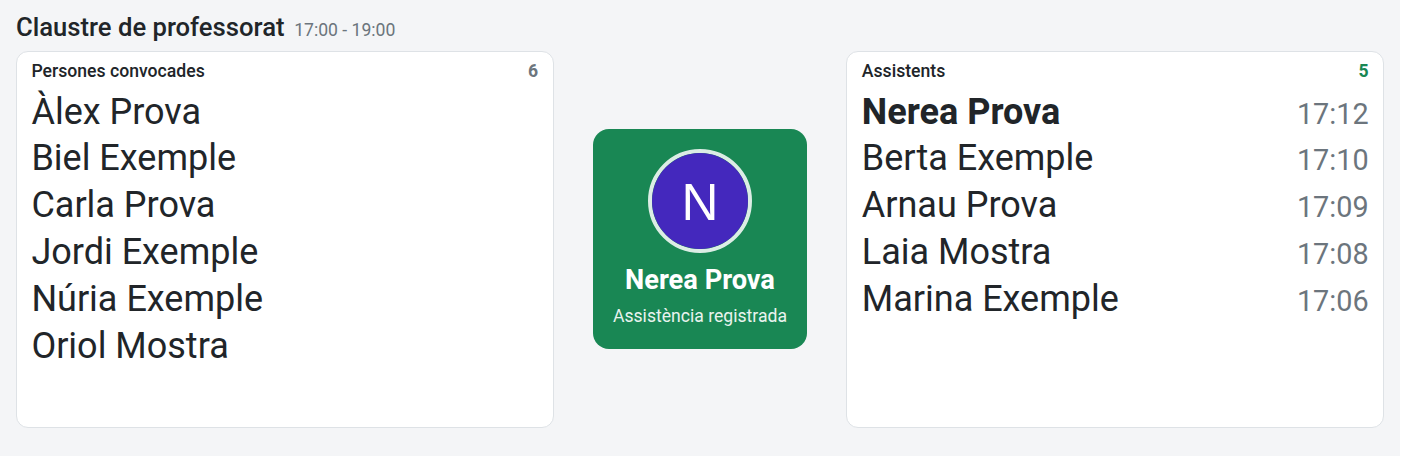
The screen has three areas:
- Left, Convened people: those who have not registered yet.
- Centre: the result of the last reading.
- Right, Attendees: those who have already registered, with the time; the latest person on top.
The names fit themselves into the space: with few people they are shown big, with many they are smaller and in several columns, so there is never any need to scroll. In the lists names appear without the last surname (for example, “Ada Alsina” for “Ada Alsina Pla”); the card in the middle shows the whole name. When someone passes their tag they move from the left to the right. Whoever passes their tag without being convened appears among the Attendees with the note “(not convened)”. People marked as Justified appear in neither list.
Anyone with the kiosk link sees these names: do not share it outside the meeting.
If a tag is not read or someone does not have theirs, mark them by hand (see “Marking a person by hand”).
While the meeting is open, the form’s Summary and the People list show who has passed their tag (reload the page to refresh them).
Meetings page
Computers with an NFC reader that serve several meetings can keep the meetings page always open. It needs no login: https://ems.elpuig.xeill.net/ems/meetings (in your installation, the EMS address followed by /ems/meetings). Set it as the browser’s home page, in full screen (F11).
- Pass your tag over the reader. The meetings you can open today appear.
- Click the meeting: its kiosk opens.
- When it is over, click Meetings, at the top right of the kiosk, to go back to the meetings page.
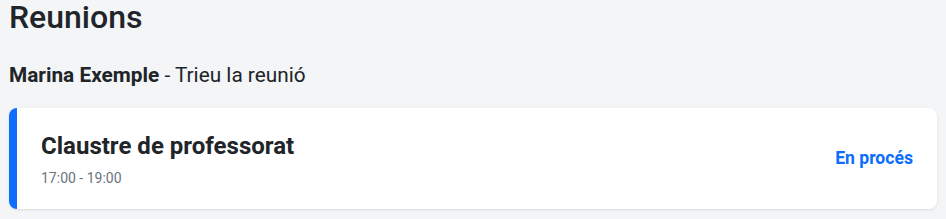
It lists the meetings where Start attendance has been clicked and that have not ended yet, with their times, the room and whether they are In progress or Not started yet. If nobody picks a meeting, the list clears after 30 seconds.
Each person sees the meetings:
- they convened (the Convener field) or are a Manager of;
- convened by the people below them: a Department or Seminar Chief, those of their staff; the Head of Studies or the Deputy, those of their whole area;
- the Director, all of them.
Marking a person by hand
In the People tab, change the row’s State column:
- Present: for someone who attends but has no tag with them.
- Justified: for someone who let you know they will not attend. Write the reason in Notes.
- Pending: to undo a wrong mark.
Closing the meeting
- Click Close attendance and confirm. Whoever has not passed their tag becomes Absent; Justified people stay as they are.
- Click Print to get the PDF with the people present (with the time), the justified ones and the absent ones.
To correct something once closed, click Reopen.
List of meetings
Meetings → Attendance shows the meetings of the current course, with the number of convened and present people.
