EMS
| Català | Castellano | English |
How to manage portal access for students and families
This guide explains how a tutor can grant, revoke or resend portal access invitations for their students and, for minors, for their families.
The portal is the space where students and families review and confirm the student’s information (enrollments, authorizations, etc.). To access it, each recipient receives an invitation email with a link to set their password. This link expires after a few days, so if someone does not use it in time you will need to send them the invitation again.
Index
- Access
- Step 1 — Select the students
- Step 2 — Choose the action
- Available actions
- The recipients preview
- Who receives access: students and families
Access
Educational Community → Students
Step 1 — Select the students
In the left panel (1), select the group of students you want to work with (for example, ESO1E).
In the list, tick the checkbox (2) for the students whose portal access you want to manage. You can tick the header checkbox to select them all at once.
Once selected, open the Actions menu in the top bar and click Portal access (students/families) (3).
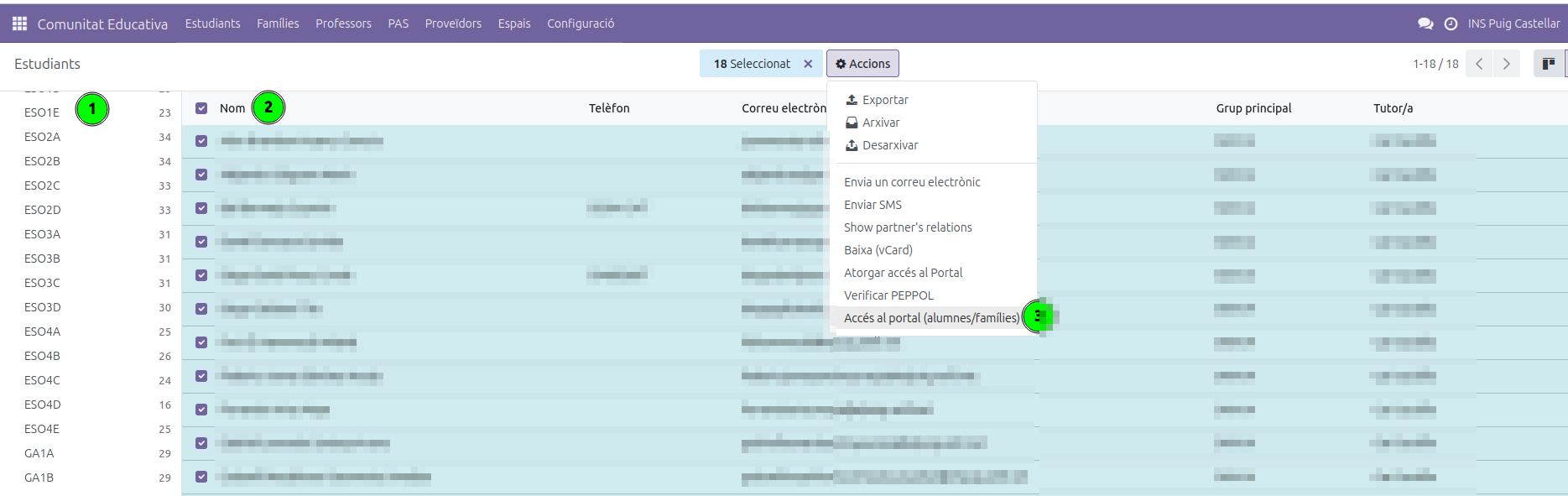
Note: you can also open this dialog for a single student from their own form, using the same Actions ⚙ menu.
Note: as a tutor, you will only see and be able to manage your own students. Even if you select students from other groups, the dialog will only show those that belong to you.
Note: the dialog only handles current students and applicants. For a student who left in a previous course, send them their new enrollment first: sending it turns them into an applicant, and they can then receive portal access like anyone else.
Step 2 — Choose the action
The Portal access dialog will open.
- In the Action section (1), choose what you want to do: Grant access, Revoke access or Resend invitation.
- Review the Recipients (preview) list to check who the action will affect.
- Click Apply (2) to run the action.
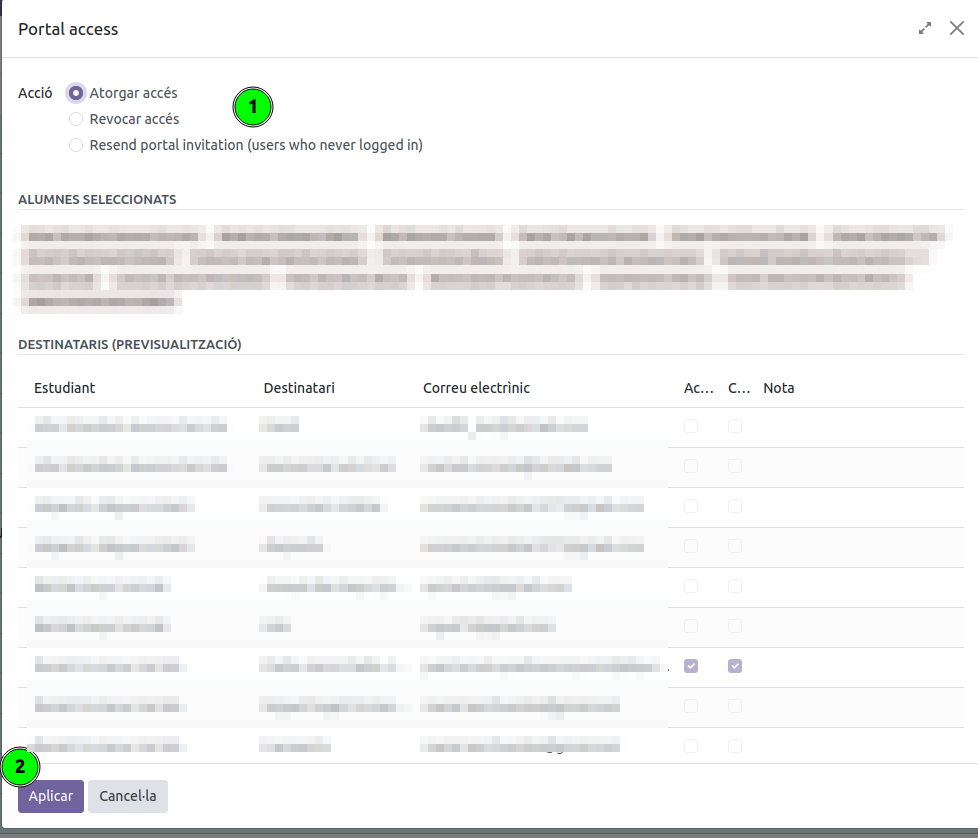
When finished, a summary message will show the number of accesses granted, revoked or invitations resent, along with any warnings (for example, recipients without an email address).
Available actions
- Grant access — Creates the portal user (if it does not exist yet) and sends the invitation email to set the password. Those who already have access are skipped.
- Revoke access — Removes portal access from recipients who had it.
- Resend portal invitation (users who never logged in) — Sends the invitation email again, with a new link, only to recipients who have access granted but who have never connected (because they did not use the invitation in time and it expired). When you select this action, the recipients list is automatically filtered to keep only these cases.
The recipients preview
The Recipients (preview) table shows, for each student, who will receive the action:
| Column | Meaning |
|---|---|
| Student | The selected student. |
| Recipient | The person who will receive or lose access (the student themselves or a family member). |
| The address the invitation will be sent to. | |
| Current access | Indicates whether the recipient already has portal access. |
| Connected | Indicates whether the recipient has ever connected to the portal. |
| Note | Warnings, for example if the email is missing or no family member was found. |
Tip: the Current access and Connected columns let you see at a glance who has access but has not activated it yet (access ✔, connected ✘): these are exactly the candidates for a re-invitation.
Who receives access: students and families
The system automatically decides the recipients based on the student’s age:
- Adult student → access is sent to the student themselves (to their main email). When a student turns 18, their family stops seeing them on the portal (unless the student authorizes sharing with the family, and then only to consult) and the student manages everything. If the student had no portal account of their own yet, grant it to them with this same action.
- Minor student → access is sent to the family members associated with the student and to the student themselves. The family manages enrollment, authorizations, convalidations and documentation. The student’s own account shows their schedule, the communications addressed to them, their profile and their convalidations, only to check them.
- Minor applicant with no family on file (straight from the GEDAC preinscription) → access is sent to the applicant, who manages their own enrollment, since there is nobody else yet.
If a recipient is missing an email address, the warning appears in the Note column and nothing is sent to them; the rest of the recipients are still processed. If a minor student has no associated family member, the student still receives their own access and the Note column warns that no family member was found.
Students can sign in with their main email and password, or with their school account (@elpuig.xeill.net) through Log in with Google. This is useful when a student has lost the portal password: the school account opens the same portal.