EMS
| Català | Castellano | English |
Attendance Reports
Attendance → Reports opens the Attendance reports screen: a pivot table you can explore and export yourself, plus 3 printable PDF reports (by group, by student, by subject) reachable from its header.
Required role: Teacher (group tutors use the same reports as any teacher)
Exploring Attendance Reports
- Navigate to Attendance → Reports. It opens directly on a pivot table, showing only your own groups and subjects by default (same scope as the by-group and by-subject PDF reports below — being someone’s tutor alone doesn’t widen this, only actually teaching a subject in their group does).
-
The table groups by subject, then student. Click the Expand all icon (top-right, next to Flip axis) twice: once to unfold the subjects, once more to unfold each subject’s students. The main number is the % of absences per student — Count (number of sessions counted) and Strike count are shown alongside it, so you can tell whether a 33% comes from 3 sessions or from 30, and whether it comes with disciplinary strikes attached.
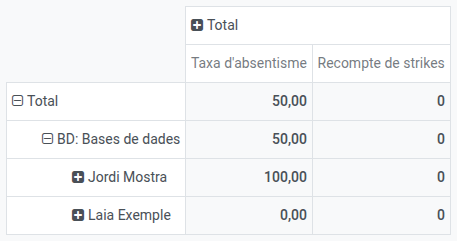
- Use the search bar to filter further (by student, group, subject or status), and Group By to change how the table is folded.
- Use the spreadsheet/download icon in the header to export the current pivot to Excel.
- Switch to the graph view (top-right icons) for a visual breakdown — by default it shows the % of absence per subject, so you can spot which subjects have the highest absenteeism at a glance. The graph shows one measure at a time — use the Measures dropdown in its header to switch to Strike count if you want to see disciplinary strikes per subject instead.
Printing a PDF Report
On the Attendance reports screen, click the ⚙ (gear) icon in the header and choose Print attendance report. In the form, pick the Report type — by group, by student, or by subject — and the fields adapt to your choice.
Attendance report (by group):
- Pick a Group — the dropdown only shows the groups you actually teach, not every group you tutor: being the tutor of a group doesn’t by itself grant it access here if you don’t teach any subject in it.
- The Tutor and the From/To dates fill in automatically from the group and its full session range.
- Click Print. The PDF opens with an overall assistance/absence breakdown, a per-status count, and any session notes recorded for the period.
Attendance report (by student):
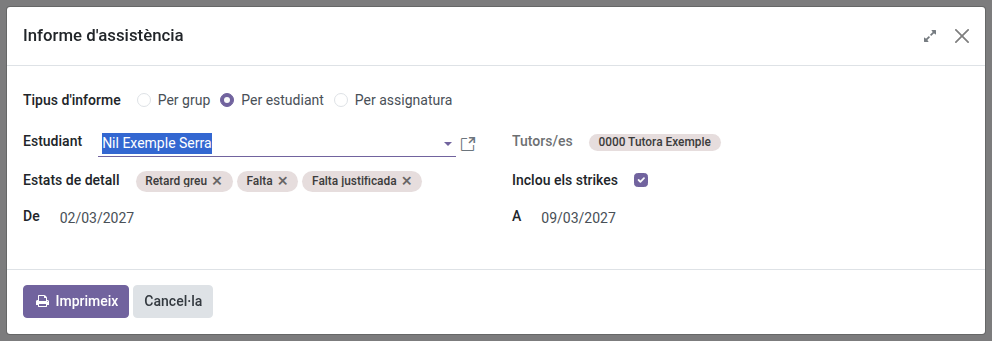
- Pick a Student — the dropdown shows the students enrolled in a subject you teach and all your tutees, even the ones you don’t teach.
- The Tutor and the From/To dates fill in automatically from the student and their full session range.
-
Click Print. The PDF opens with an overall assistance/absence breakdown, a per-status count, and any session notes recorded for the period. For your tutees it includes every subject, whoever taught the session; for any other student, only the sessions you taught.
The Department or Seminar Chief, the Head of Studies above you and the Director get the same full by-student report for your tutees.
Attendance report (by subject):
- Pick a Subject — the dropdown only shows subjects you actually teach, not every subject taught in a group you tutor.
- The Groups field fills in automatically with every group where you teach that subject, and Tutors shows their tutors for reference (this is where you can actually see who tutors each group — not by picking the group yourself first). If you only want some of those groups in the report, remove the others from the Groups field — it stays editable.
- The From/To dates fill in automatically to cover the full session range for your selection.
- Click Print. The PDF opens with an overall assistance/absence breakdown, a per-status count, and any session notes recorded for the period.
For any report type, two controls govern the per-line detail in the PDF:
- Detail statuses — which statuses appear in the “Details” tables. It defaults to absence-related statuses only (Miss, Justified Miss, Severe Delay) so the report stays a manageable size; add more and a warning appears that the report may become slow to generate or fail for large selections.
- Include strikes (on by default) — adds tables of the disciplinary strikes recorded during the period.
The downloaded PDF is named after the report and the selected student, group or subject (e.g. Attendance report_ by student_Name_Surname.pdf), so several downloads can be told apart.
For a broader, per-course view of a tutee’s attendance across their whole record, see Academic history of your students instead.