EMS
| Català | Castellano | English |
Authorizations: sending them to your students and following up
This guide explains how to send authorizations from the centre’s catalogue to your students and how to follow up their answers.
Contents
- Sending authorizations
- What the family receives
- Following up the answers
- Answering on a family’s behalf
Sending authorizations
Go to Academic management > Authorizations > Send Authorizations.
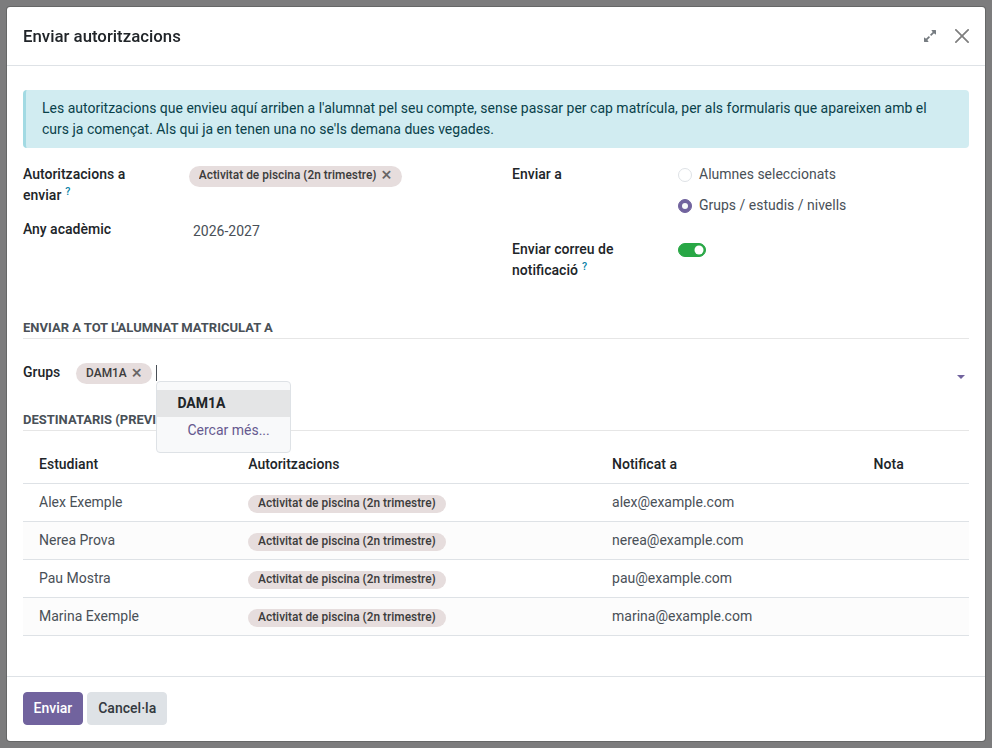
Fill in:
- Authorizations to send: one or more forms from the catalogue. They all go in the same email. The secretary’s office and the head of studies create the forms; ask them if the one you need is not there.
- Academic Year: the year the authorizations belong to.
- Send to:
- Selected students: the students you add in the list below.
- Groups / studies / levels: every student enrolled this year in the groups you choose. Only your own groups are offered.
- Send notification email: leave it on to notify by email. Turn it off to make the authorizations appear on the portal without an email.
Recipients (preview) shows who is about to receive the authorizations and at which address. Check the Note column before sending:
- Already requested: the student already has that form this year. They are skipped.
- Outside the scope of these authorizations: the form does not apply to that student’s studies. They are skipped.
- Not one of your students: the student is not in a group you tutor. They are skipped.
- No family contact found or Recipient without email: the authorization is created, but nobody can be emailed.
Click Send. A summary shows how many authorizations were sent, how many emails were queued and how many students were skipped.
What the family receives
One email per student, listing every authorization sent in that batch, with a link to the portal. Adult students receive it themselves; for students under 18 the family contacts receive it.
The student and the family answer from Enrollment and authorizations on the portal.
Following up the answers
Go to Academic management > Authorizations > Responses. The list shows the authorizations of your students, both the ones sent during the course and the ones from the enrollment.
- Filter by Pending, Accepted or Rejected, and by Sent during the course or From an enrollment.
- Group by authorization, student or status.
- The Document column holds the answer certificate. Click it to download the PDF.
Answering on a family’s behalf
When a family hands in the signed form on paper, open the authorization from Responses, set the Status and attach the scanned document in the Document field. The status cannot be changed without attaching it.