EMS
| Català | Castellano | English |
Evaluation board: reviewing the grades per student
This guide explains how the tutor reviews and adjusts the grades of the students in their group in the Evaluation for tutors view, designed for the evaluation board: it shows one student at a time with all of their subjects, so you can see and close their evaluation as a whole.
Contents
- Access
- The evaluation-for-tutors view
- Navigating between students
- Selecting the group
- Reviewing and adjusting the grades
- Locked outcomes and provisional grades
- Applying the changes
- How the grade is computed
Access
Planning and Grading → Grades → Evaluation for tutors (1)
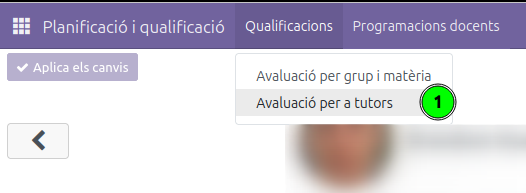
The group and the round are chosen automatically: the view loads the group you tutor and the current open round, so you see the first student as soon as you enter.
The evaluation-for-tutors view
The view shows one student at a time (photo and name at the top) with all the subjects they are enrolled in:
- Rows: one subject per row (for example, MP 0225).
- Outcome columns: RA 1, RA 2… by position. Because each subject has its own learning outcomes, the columns are generic; hover over a cell to see the outcome’s acronym and weight. The hatched, greyed cells correspond to subjects that do not have that outcome and cannot be edited.
- External: the work-placement grade (external part), when the subject has one.
- Ovr., Int., Final and Comments: the subject-grade summary columns, the same as in the teachers’ view (see How the grade is computed). Hover over the abbreviated headers to see their full name (Override Internal, Internal).
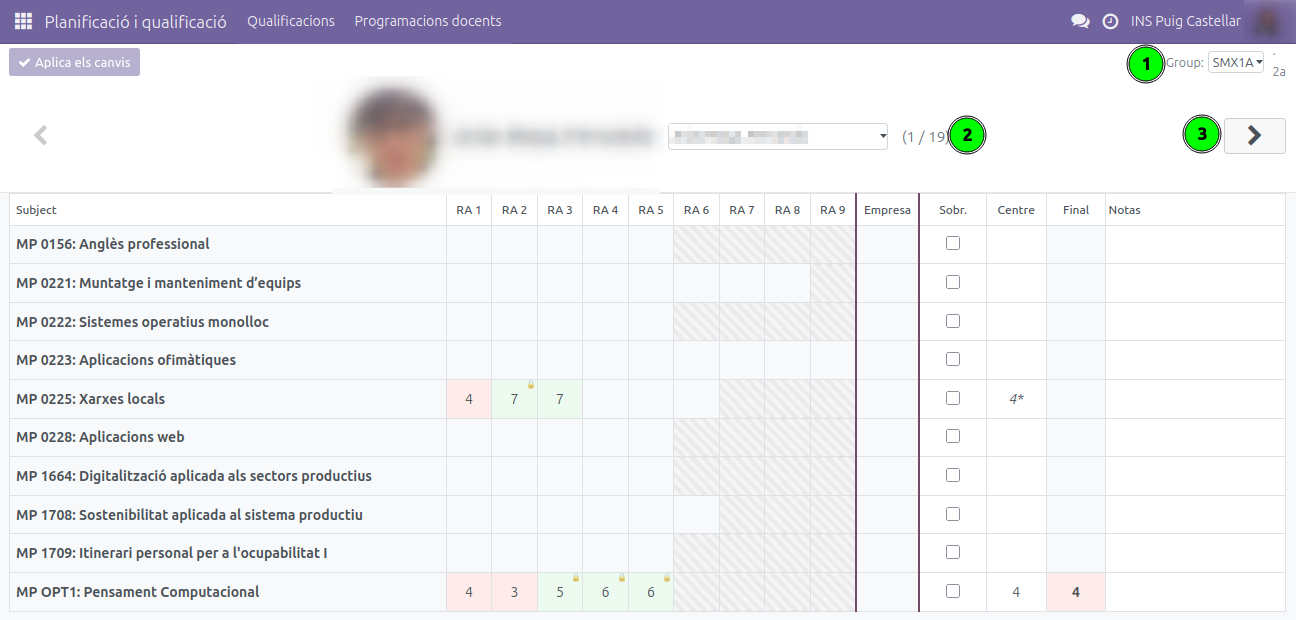
In the image:
- (1) Group selector (top right) and, next to it, the current round (for example, 2a).
- (2) Student selector: a dropdown to jump directly to a student in the group (next to it, the 1 / 19 counter shows which one you are on and how many there are).
- (3) Arrow to move to the next student.
Navigating between students
To move from one student to another:
- Use the ◀ ▶ arrows at the top (3).
- Or pick the student directly from the dropdown next to the name (2).
- You can also use the keyboard ◀ ▶ keys when you are not editing any cell.
The counter (1 / 19) tells you which student you are on and how many there are in the group.
Selecting the group
If you tutor more than one group with an open round, choose it in the Group selector (1) at the top right. The round (for example, 2a) is selected automatically.
If you only tutor one group, there is no need to touch the selector.
Reviewing and adjusting the grades
The grid works like a spreadsheet, the same as the teachers’ view:
- Edit: click a cell and start typing, or double-click it (or press Enter).
- Move around: use the keyboard arrows; Enter moves down a row and Tab moves to the next column.
- Clear: select the cell and press Del.
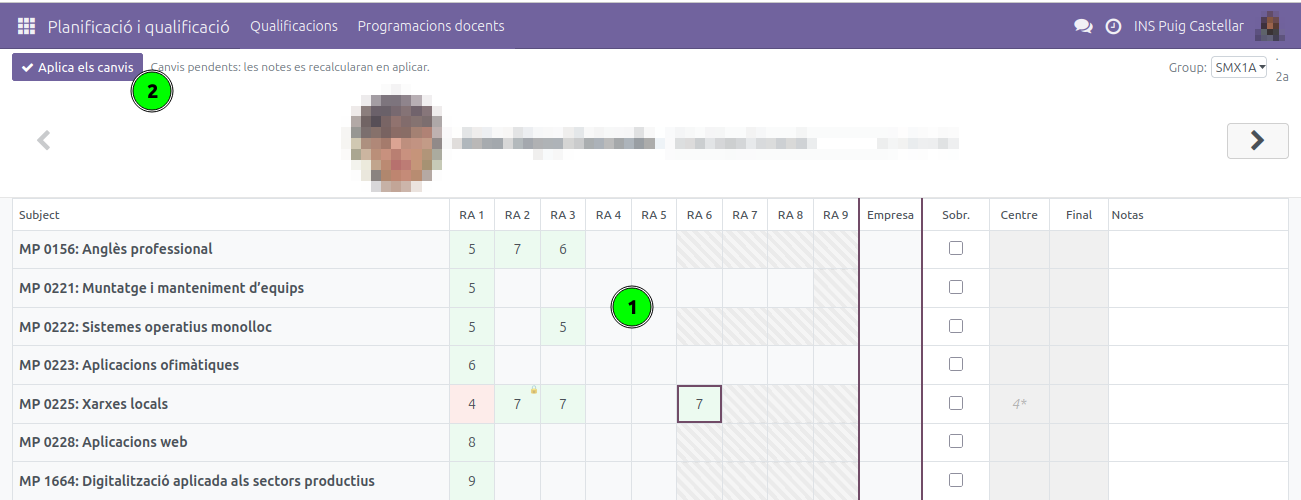
In the image, (1) shows a cell selected for editing.
Who can edit during the board: when the round is in the Board state, only the group’s tutor (and the administration) can modify the grades; teachers can only view. This is the moment to review and close each student’s grades subject by subject. If the round is already finalised, you will see the grades but will not be able to modify them.
Locked outcomes and provisional grades
The same as in the teachers’ view:
- Colours: green (grade ≥ 5, pass), red (grade < 5, fail), white (not informed).
- Locked outcomes: an outcome already passed in an earlier round appears green with a padlock and cannot be modified.
- Provisional grades: while there are outcomes still to be evaluated, the internal grade (and the final one) are shown in italics with an asterisk (
*); they are provisional and will change when the missing outcomes are informed.
Applying the changes
The changes are stored in a local draft and are not saved until you press Apply changes (2).
- While there are pending changes, the notice “Pending changes — the grades will be recalculated on apply.” appears and the computed columns (Int., Final) are shown in grey.
- When you press Apply changes, everything is saved at once and the system recomputes the subject grades.
- If you try to switch group or leave the view without applying, the system warns you so you do not lose your work.
How the grade is computed
- Internal grade: weighted average of the evaluated outcomes according to their weights (0–10). If any is missing, it is provisional; if any evaluated outcome is failed, it is capped at 4.
- Work-placement grade: informed in the External column.
- Final grade: combines the internal and external grades according to the planning percentages. To pass, both parts must be passed; if one is failed, the final grade is capped at 4.
- CV (after the grade): the subject is convalidated for the student. It counts as passed with the convalidation’s grade and needs no grades. When a convalidation is completed, you get a Convalidated subject activity in your inbox (🕒) and the student stops taking the subject.
- Overriding the internal grade: ticking the Ovr. checkbox lets you set the internal grade manually instead of letting it be computed from the outcomes.