EMS
| Català | Castellano | English |
Convalidations: registering resolutions
Register resolved convalidations in Esfera and close them in EMS, so the student receives the resolution and sees the grade.
Required role: Secretariat.
When it is your turn
A request reaches the secretariat once it is resolved, in the Pending the secretariat state. It can arrive by two routes:
- Resolved by the centre: the Director has issued the official resolution. The resolution PDF is in the form’s Resolution field.
- Resolved by the Ministry: the Head of Studies has recorded the Ministry’s outcome. If they uploaded it, the Ministry’s resolution is in the Resolution field too.
Each resolved request appears in the activity tray (🕒) of all secretariat staff. When someone registers it, the task disappears from everyone’s tray.
Access
Navigate to: Academic management → Convalidations and apply the Pending the secretariat filter. You can also search a request by its registration number (e.g. CONV-2026-27-0001).
To see a student’s requests, open their record and click the Convalidations button.
Registering a resolution
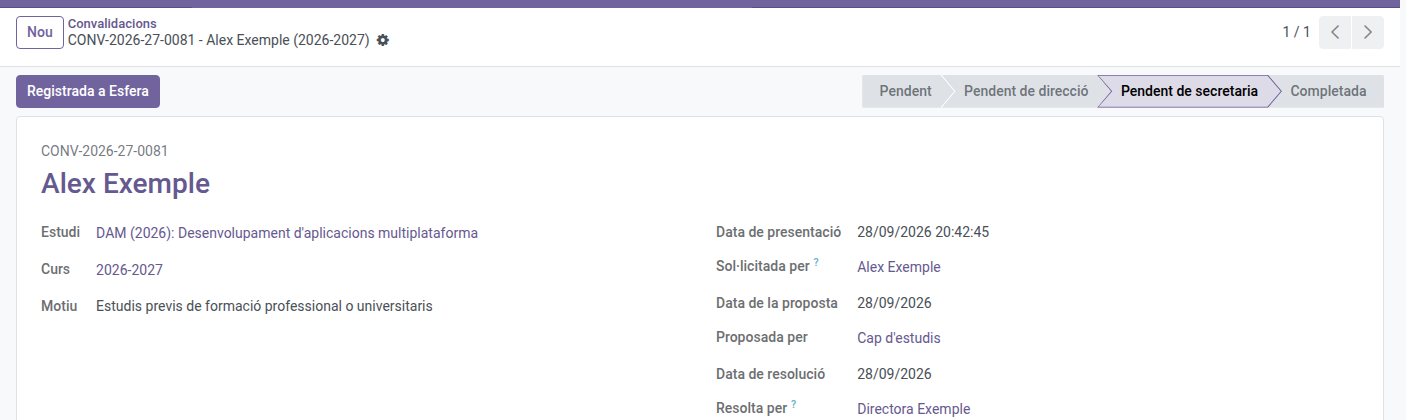
- Open the request.
- Click the file name in the Resolution field to open the PDF in a new tab, and check on the Subjects tab which modules are convalidated and with which grade.
- Register the resolution in Esfera.
- Click Registered in Esfera and confirm.
The resolution is already official: neither the modules, nor the grades, nor the reasons for refusal can be changed.
When you register it:
- The request becomes Completed if any module is convalidated, or Rejected if none is.
- The student receives an email with the resolution and the PDF attached. So does the family if the student is a minor or has authorized sharing information with it.
- The student stops taking each convalidated module: their module enrollment is deleted, so they leave its attendance lists and its open grade session, even if the teacher had already graded them.
- The module’s teachers and the group’s tutor get a Convalidated subject activity in their tray (🕒).
- The academic history records the module as passed, with the grade, the CV mark and the registration number.
Registering a request received on paper
- Click New.
- Choose the Student, Study, Course and Grounds, and write the applicant’s comments if there are any.
- On the Subjects tab, add one line for each module requested.
- On the Supporting documents tab, upload the documents.
- Click Save.
The request stays Pending, waiting for the Head of Studies to review it. Once saved, the student, study, course, grounds and comments can no longer be changed.
You can register a request, and process any request, at any time: the portal’s request period (see Convalidation settings) only limits new requests from students and families.