EMS
| Català | Castellano | English |
Reviewing student documents
This guide explains how to review the documents students and families submit — ID cards, medical cards, IBANs and supporting documents for bonifications/exemptions — and what happens when you approve, reject or reopen one.
Contents
- Where to review documents
- Approving, rejecting, cancelling
- What approving an IBAN does
- What approving a benefit document does
- Notifications
- Downloading Google credentials
Where to review documents
Go to Academic Management > Student Documents. The list opens showing only Pending submissions by default (remove the filter to see everything). This is the only screen with Approve/Reject actions — the read-only list you also see on a student’s own record (Documentation section of the Secretary tab) is for reference only.

Approving, rejecting, cancelling
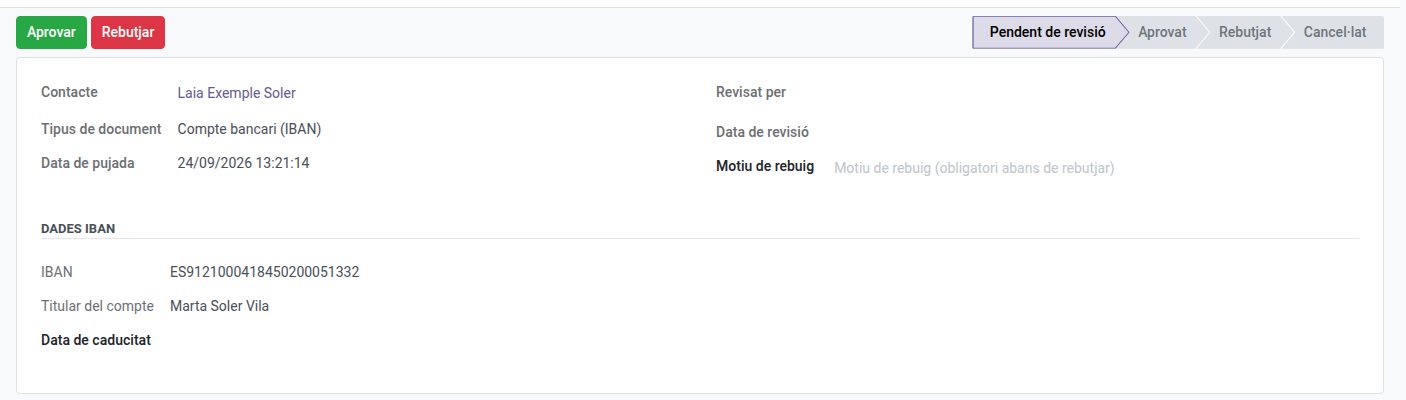
- Approve (✓ from the list, or the header button on the form): marks the document as reviewed and applies its side effects (see below). If another document of the same type was already approved for this student, it is removed automatically — only the latest approved one is kept.
- Reject (✗ from the list, or the header button): write the reason first (in the Rejection reason field) — a single click on Reject immediately closes the submission, there is no separate confirmation step.
- Cancel: available from the form when you need to withdraw a submission without marking it rejected (e.g. it was uploaded by mistake).
- Reset to pending: available on an approved/rejected document, in case a decision needs to be revisited — it reopens the review (a fresh task is assigned to the reviewers again).
What approving an IBAN does
Approving an IBAN document sets it as the student’s active bank account: any other bank account they had is deactivated, and this one is marked as usable for direct-debit payments. If the exact same IBAN was already registered (inactive), it is reactivated with the updated account holder name instead of creating a duplicate.
You can only have one pending IBAN submission per student at a time — a second one is blocked until the first is approved, rejected or cancelled.
What approving a benefit document does
Approving a benefit/exemption document creates the corresponding entry in the student’s benefits (see Managing student and family contacts), replacing any previous benefit of the same type — a student can hold several different active benefits at once (e.g. large family and a scholarship), so approving one type never removes an unrelated one.
Notifications
The student is notified by email when their document is approved or rejected. Reviewers (configured in Academic Management > Configuration > Task Assignment) get a to-do task instead of an email for each new pending submission — check your Activities for “Review document: …”.
Downloading Google credentials
To download the Google credentials PDF of several students at once: in Educational Community → Students, list view, tick the students, open Actions and click Download Google credentials. A ZIP with one PDF per student is downloaded.