EMS
| Català | Castellano | English |
Importing students from Esfera (SAGA)
This guide explains how to bulk-import or refresh student and family-contact data from an Esfera (SAGA) export file.
Contents
- Esfera vs. GEDAC — two different imports
- Running the import
- What gets created or updated
- Reading the result and the log
- Things to check afterwards
Esfera vs. GEDAC — two different imports
Don’t confuse this with Enrolling the preinscription students, which is a different import from a different system:
- GEDAC (preinscription) brings in applicants — people who don’t have a place at the centre yet, or current students changing study.
- Esfera (SAGA) — this guide — refreshes already-enrolled students’ data: personal details, address, documents and family contacts, from the centre’s official record in the Catalan education administration’s system.
For a smaller, ad-hoc update from any other CSV file (not the official Esfera format, and unable to create new students), see Updating student data from a CSV file instead.
Running the import
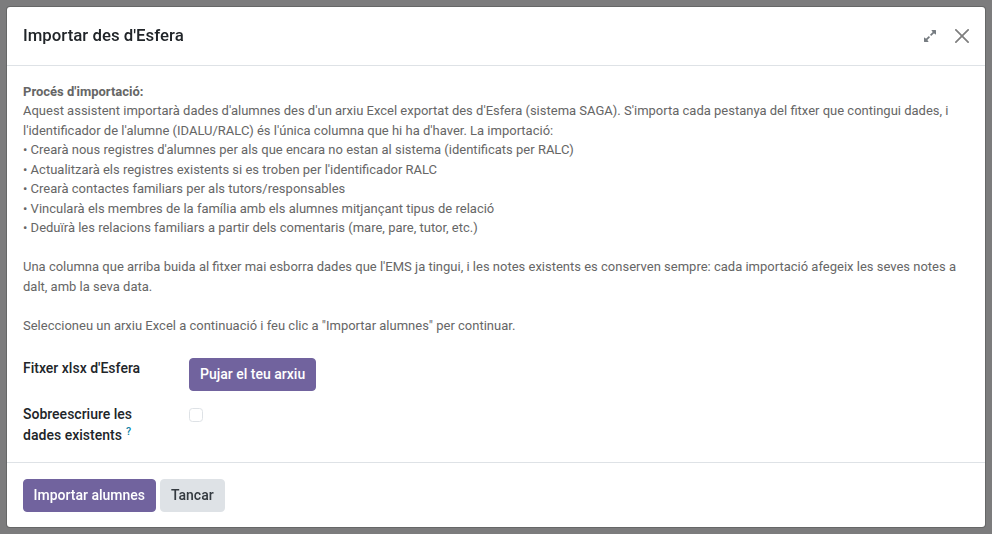
From the Students list, open the actions menu (the gear icon ⚙️ next to the list) and choose Import from Esfera. Select the .xlsx file exported from Esfera/SAGA and click Import students.
What gets created or updated
- Students are matched by their RALC identifier (the student’s official Catalan ID). An existing match is updated in place; if it belonged to a former student (alumni/withdrawal), it is reactivated as an active student rather than creating a duplicate.
- Family contacts (tutors/guardians) are matched by their document number (DNI/NIE/passport) or, if the row has none, by their mobile number when a single family contact has it under the same first name. Matched contacts are updated, unmatched ones are created. When the mobile belongs to a family contact with a different name (for example, two parents sharing one phone), a new contact is created and the result lists it as a possible duplicate. Merge real duplicates by hand from Contacts → Families.
- Family relationship (mother, father, grandparent, sibling, legal guardian…) is guessed from a free-text note in the file. When it can’t be confidently guessed, the tutor is linked as a generic “Tutor” and a note is added to the student’s own record quoting the original text — worth a quick check afterwards for anyone flagged this way.
- A student whose group code in the file doesn’t match any group in EMS is still imported (with no group assigned) — a note naming the unmatched code is added to their record so it can be corrected by hand.
- A personal email in the file that belongs to the centre’s own domain (a corporate account) is ignored: the student or family contact is still imported with the rest of its data, their current personal email is kept, and a warning naming them is listed in the result.
Reading the result and the log
After the import, the wizard shows how many students were created/updated, and lists any rows that raised an error (one bad row never blocks the rest of the file — it’s just reported and skipped). A downloadable CSV log lists every student and family contact touched by that specific run, with what was linked to what — useful for spot-checking a large import.
Things to check afterwards
- Any note left by the “unmatched group code” or “guessed relationship” cases above.
- The possible duplicates and the tutors without a document or a phone listed in the result.