EMS
| Català | Castellano | English |
Attendance: Reviewing Your Check-ins and Requesting Corrections
Every check-in and check-out you make is recorded automatically. This page explains how to review your own records and, if one has the wrong time, how to request a correction.
Required role: Teacher
Reviewing Your Attendance
- Navigate to Employee Attendances → Attendance → Overview.
-
The list shows all your check-in/check-out records, most recent first.

- Click any record to see its details: check-in time, check-out time, and how the time was recorded (kiosk, manual, etc.).
You only ever see your own records here — this is private to you and to the Head of Studies / Deputy Head of Studies / Director / Administrator, who can see everyone’s.
Requesting a Correction
If a check-in or check-out was recorded with the wrong time (you forgot to clock in, a kiosk glitch, etc.):
- Open the attendance record with the wrong time.
- Click Request Correction in the header.
-
A form opens with the Check-in and/or Check-out time already filled in with the current value — you only need to change the one(s) that are wrong. Note that you can only correct the time of day, not the date.
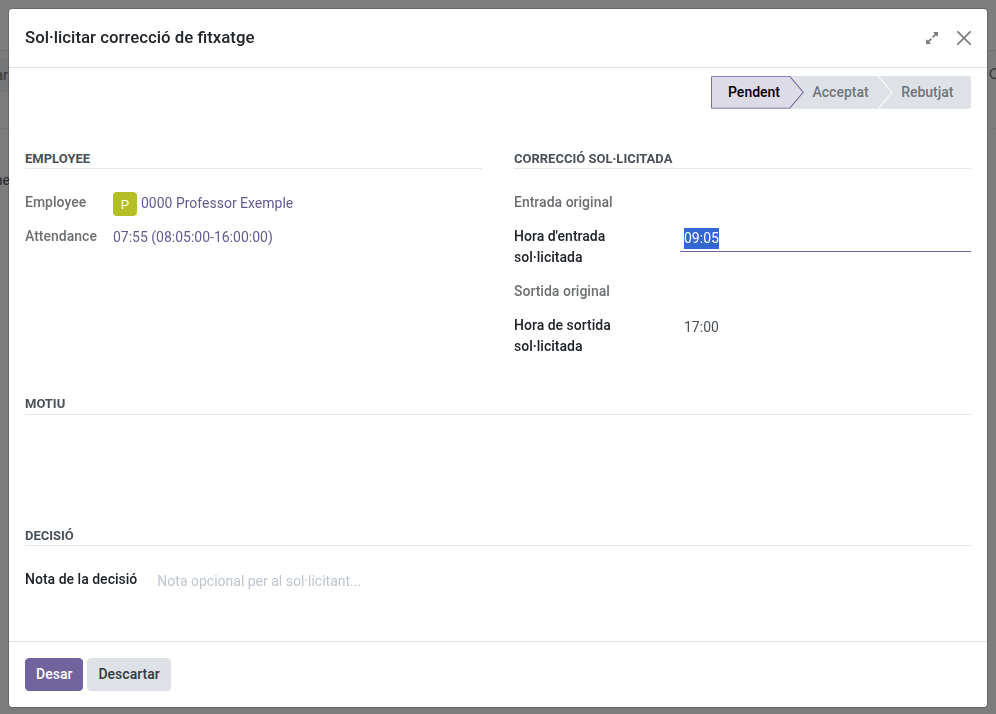
If you’re still clocked in (no check-out yet) and still within today’s expected working hours, only the Check-in field is shown — you haven’t checked out yet, so there’s nothing to correct there. The Check-out field appears once your working day for that date has ended.
- Explain why in the Reason field.
- Click Save. The request is now Pending.
Once saved, the reason can no longer be edited — if you need to add more context afterward, use the chatter at the bottom of the request to leave a comment.
What Happens Next
Your request is sent automatically to whoever can validate it — normally your Head of Studies or Deputy Head of Studies (found by walking up the management chain from your own manager; if none is configured, an Administrator is notified instead so they can fix it).
- They review the original time against what you requested, and your reason.
- Accept: your check-in/check-out is corrected to the requested time.
- Reject: your record is left as it was.
- Either way, you’re notified automatically (you’ll see it in the chatter of the request, and by email).
- If they made a mistake, they can change their decision afterward — you’ll be notified again if that happens.
Checking the Status of Your Requests
-
Employee Attendances → Attendance → Correction Requests lists all the requests you’ve made and their current status (Pending / Accepted / Rejected).

-
From the attendance record itself, the Corrections button in the header (only visible if a request exists for that record) takes you straight to it.
By default the list only shows Pending requests. Remove the Pending filter from the search bar (or switch to the Accepted/Rejected filter instead) to see requests that already have a decision.
If you’re also a Head of Studies, Deputy Head of Studies or Director, see the Head of Studies manual for how to decide on requests sent to you.