EMS
| Català | Castellano | English |
Taking Attendance: The Daily Roll-Call and Guard Mode
Student’s Attendances → Current is where you take the roll-call for your sessions: mark each student’s status, add notes, issue a strike if needed, and — when you’re covering someone else’s class — take attendance for a session that isn’t yours.
Required role: Teacher
The Three View Modes
A selector at the top of the screen switches between three modes:
- Current session (the default): shows only the session(s) or scheduled slot(s) whose time range covers right now. This is what you land on when you open the app.
- Manual: lets you pick any date (up to today — you can’t take attendance for a future day) and browse every session or scheduled slot for that day, not just the current one. Use this to go back and finish a roll-call you didn’t get to earlier, or to check an earlier period’s session.
- Guard: shows other teachers’ sessions and not-yet-started slots for today only — see “Guard Mode” below.
In Manual and Guard modes, a group filter appears next to the mode selector so you can narrow the list down to one group.
The day and the time this screen goes by (which slot is “current”, what “today” is) are always the centre’s, Spanish time, taken from the server: a computer with a wrong clock or timezone doesn’t change them.
Sessions vs. Planned Slots
The selector on the right lists what’s available for the chosen date, split into two groups:
- Sessions: a roll-call that has already been started — select one to see and edit its students’ statuses.
- Planned (no session): a scheduled slot (from your weekly timetable) for which no session has been created yet. Selecting one shows a Start session button — click it to create the session and load its students.
If more than one session or planned slot matches the current time slot, you’ll see a warning telling you to pick one manually or switch to Manual mode — this can happen if your timetable has overlapping entries.
Continuing a Double Period
If a subject spans two consecutive periods on the same day (e.g. two back-to-back lessons), starting the second period’s session copies each student’s status from the first one automatically — a banner tells you this happened. A student marked Minor Delay or Severe Delay in the first period is presumed to have arrived by the second (shown as Attended); a Justified Miss carries forward as an unconfirmed Miss unless their justification’s own date actually covers the second period too. You can freely change any of the copied statuses.
Marking Attendance
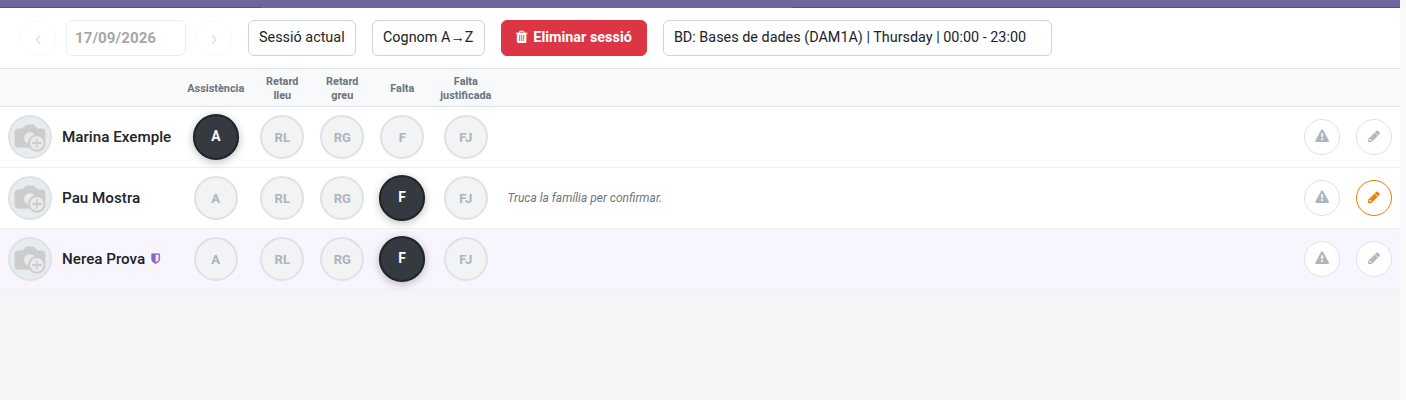
Once a session is loaded, you get one row per student with a button for each attendance status (e.g. Attended, Minor Delay, Severe Delay, Miss, Justified Miss — the exact set and their colours are configured by the administration, see the Administrator’s manual). Click the button matching the student’s status for that session — it’s saved immediately, no need to click a separate Save button.
-
Minor Delay never counts as an absence and doesn’t notify the family. Severe Delay counts as an absence and notifies the family, exactly like a Miss — use it for a delay serious enough to warrant the same treatment as a missed session.
- A shield icon next to a student’s name means their absence is already justified (an approved justification or a prevision covers this session) — their status and notes are locked, since the justification is what decides it.
- Use the sort dropdown (top-right) to reorder the list by lastname or first name, ascending or descending.
Adding Notes
Click the pencil icon on a student’s row to open a small notes dialog, write anything relevant for that session, and click Save. A short preview of the note then shows directly in the row. This is disabled for a justified absence, same as the status buttons.
Issuing a Strike
If a student’s behaviour during the session needs to be flagged, click the strike icon (⚠) on their row — see the Strikes manual for the full flow (reason, kicked-out checkbox, what happens after you send it).
Guard Mode
Switch the mode selector to Guard when you’re covering a class that isn’t your own (a substitution). It shows, for today only:
- Sessions other teachers have already started (excluding your own, since those already show under Current/Manual).
- Slots from other teachers’ timetables that haven’t been turned into a session yet — pick one and click Start session just like in normal mode.
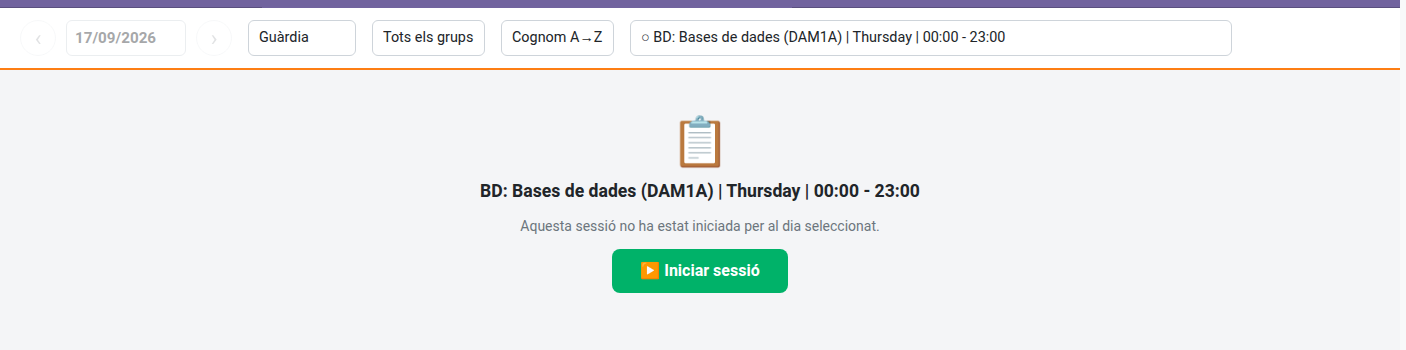
Marking statuses, adding notes and issuing strikes work exactly the same way as in your own sessions. The Delete session button isn’t available in Guard mode — only the teacher who actually owns the slot (or an Administrator) can delete a guard-covered session.
Automatic Check-In
If the centre has enabled it, starting a session also checks you in automatically, as long as you haven’t checked in yet today and you are taking the roll-call during your own working hours. Taking the roll-call outside them (from home, before your shift starts) records the attendance normally but doesn’t check you in. When you leave, check out at the kiosk as usual.
Deleting a Session
If you started a session by mistake, select it and click Delete session in the header, then confirm. This isn’t available in Guard mode, and it permanently removes the session and every status/note recorded in it — there’s no undo.
Reviewing Past Sessions
Student’s Attendances → History lists every session ever taken, most recent first — by default it shows everyone’s, not just yours; use the Show only mine filter to narrow it down, or the Archived filter to see sessions that no longer count (e.g. because the underlying schedule was archived by a course transition). Opening a session here is read-only: you can review who was marked with which status, any notes, and — per student — how many strikes were issued during that session, with a button to see their full detail.
If you need to change something in a past session instead of just reviewing it, go back through Current in Manual mode and pick that session from the selector — the History list itself doesn’t allow edits.
For Administrators
An Administrator uses this exact same screen, with nothing extra of their own on it — what shapes what appears here is entirely configuration, covered in the Administrator manuals:
- Teacher Working Schedules & Schedule Frameworks sets up the schedules that generate the planned slots and sessions shown here.
- Attendance Statuses: Managing the Passlist Options configures the status buttons themselves (which ones exist, their order and colours).