EMS
| Català | Castellano | English |
Convalidations: reviewing and resolving requests
Review the module convalidations requested from the portal, decide each module and draft the resolution proposal (Deputy Head of Studies), or resolve it officially (Director).
Required role: Deputy Head of Studies or Head of Studies to review; Director to resolve.
The circuit
Each request is resolved in one of two ways:
- By the centre: the Head of Studies drafts the proposal and the Director resolves it. Resolving it generates the official resolution as a PDF.
- By the Ministry: the Head of Studies files it with the Ministry and, when the answer arrives, records its outcome. It does not go through the Director.
Either way, the secretariat then registers the resolution in Esfera and closes the request.
| State | Who acts |
|---|---|
| Pending | The Head of Studies reviews it. It stays there until it is resolved. |
| In process at the Ministry | The Head of Studies has filed it with the Ministry and is waiting for its answer. |
| Pending the Director | The Director has to resolve the proposal or send it back. |
| Pending the secretariat | It is resolved; the secretariat has to register it in Esfera. |
| Completed | Registered, with at least one module convalidated. The student can see the grade. |
| Rejected | Registered, with no module convalidated. |
| Cancelled | The student or the family cancelled it from the portal. |
The state only changes through the buttons of each step.
Access
Navigate to: Academic management → Convalidations
The list opens with every request in progress: Pending the Head of Studies, In process at the Ministry, Pending the Director and Pending the secretariat. Remove the filters to see them all, or use Completed, Rejected and Cancelled.

To see a student’s requests, open their record and click the Convalidations button.
Each step creates a task in the activity tray (🕒) of whoever has to do it:
- Every new request, or one sent back by the Director, for whoever holds the Deputy Head of Studies position.
- Every proposal, for whoever holds the Director position.
Reviewing a request (Head of Studies)
Open the request from the list. The form shows:
- The registration number (e.g. CONV-2026-27-0001), above the student’s name.
- Study, Course and Grounds. These, the student and the applicant’s comments come from the request and cannot be changed.
- Under the student’s name, the notice Holds a title obtained at this centre when the academic history records a title obtained here.
- Subjects tab: one line for each module requested.
- Supporting documents tab: the attached files.
- Applicant’s comments tab: what the student or the family wrote.
- Documentation requested tab: the last documentation you asked for, if any.
- Resolution tab: comments for the student, sent with the resolution.
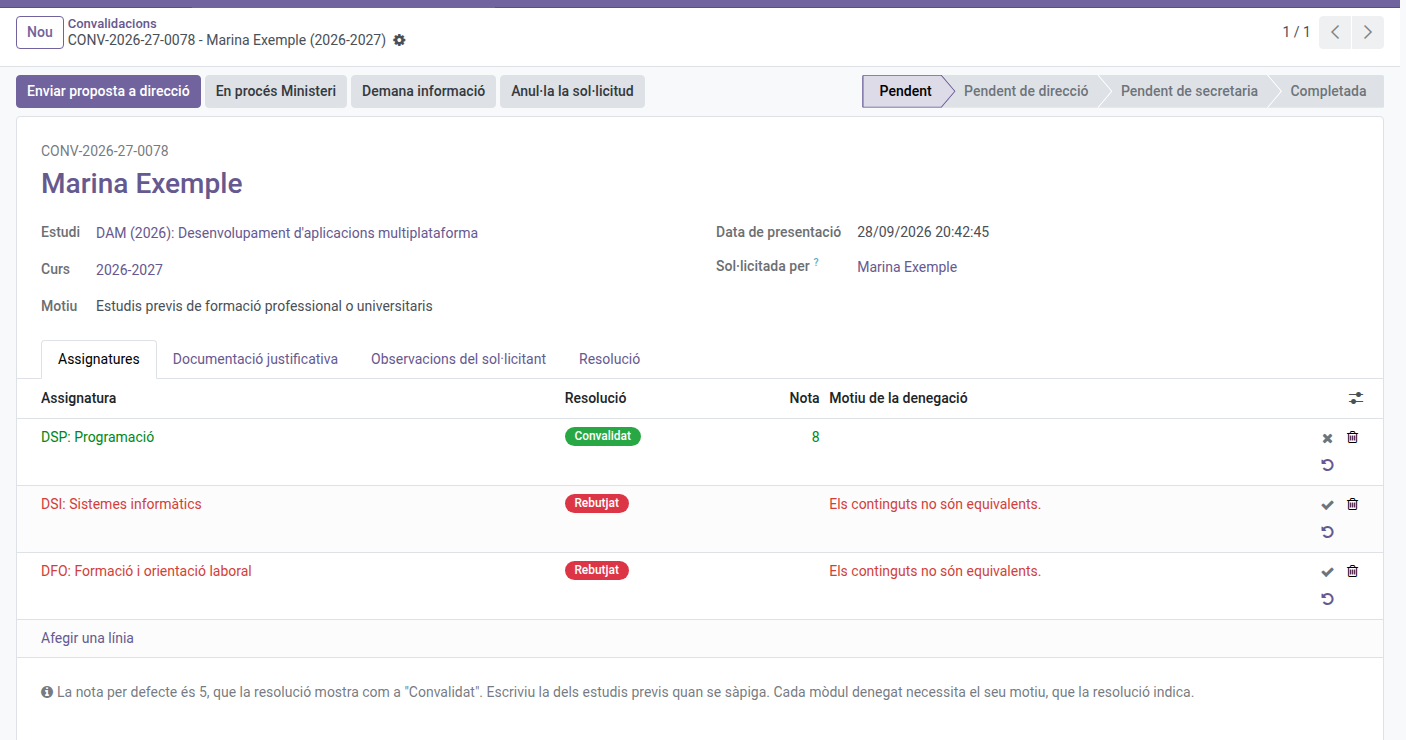
Deciding each module
On each line of the Subjects tab, use the buttons on the right:
| Button | Result |
|---|---|
| ✔ (Convalidate) | The module is convalidated. |
| ✖ (Reject) | The module is not convalidated. |
| ↺ (Back to pending) | Undoes the line’s decision. |
To convalidate every pending module at once, click Convalidate pending subjects.
- Grade: each convalidated module gets a 5 by default, which the resolution shows as Convalidat. If the previous studies hold a different grade, write it in the Grade column: the resolution will show that grade.
- Reason for refusal: every rejected module needs its reason, which appears on the resolution. Without it, the proposal cannot be sent.
Asking for documentation
Click Request information, write what you need and send it. The student gets an email, and so does the family if the student is a minor or has authorized sharing information with it. The text appears on the portal, on the request itself, right above the form to answer and attach documents. The request does not change state.
Documentation can be requested while the request is Pending or In process at the Ministry.
Resolving it at the centre
- Decide every module, with the reason for the ones you reject.
- Click Send proposal to the Director.
The request moves to Pending the Director, and its modules and grades can no longer be changed.
Resolving the proposal (Director)
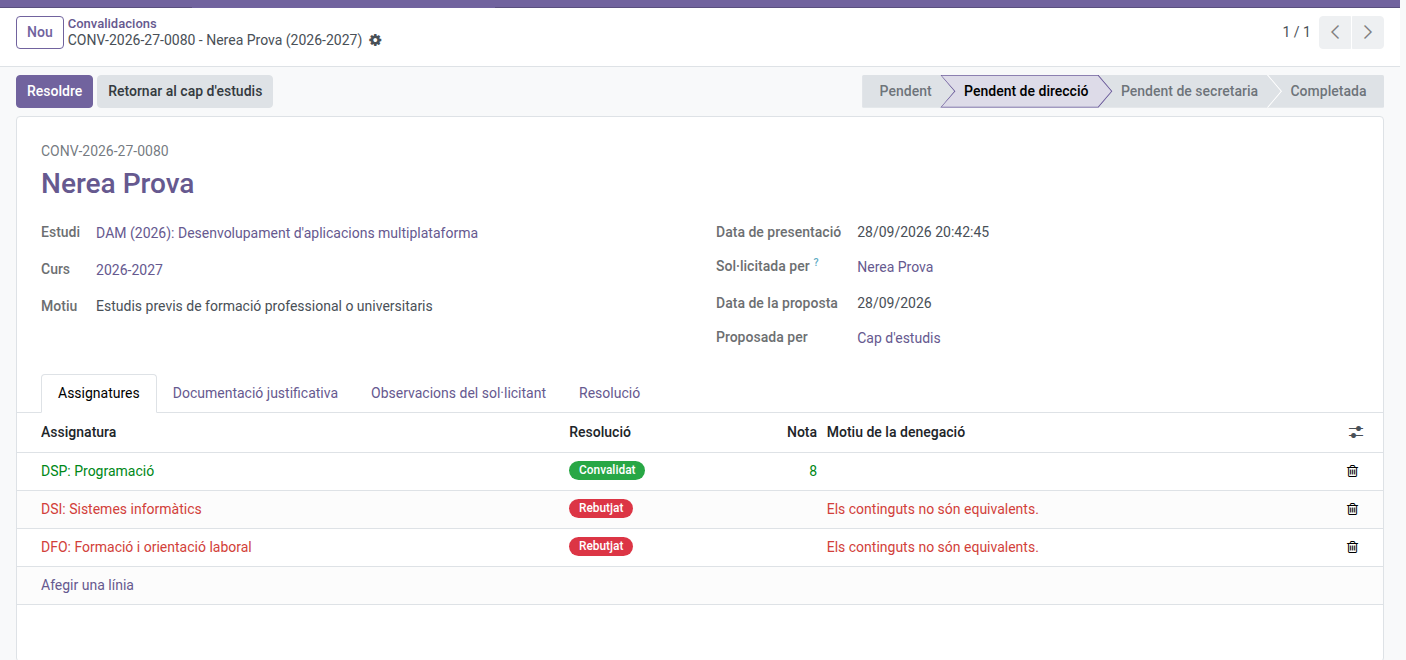
- Resolve: issues the official resolution as proposed. The resolution PDF is generated and the request moves to Pending the secretariat. The PDF appears in the form’s Resolution field: click the file name to open it.
- Return to the Head of Studies: write the reason and click Return. The request goes back to Pending, with the reason in a yellow notice at the top of the form, and the Head of Studies gets the task again. The student does not see the reason. When the Head of Studies sends the proposal again, the notice disappears.
The resolution PDF
The resolution is issued in Catalan and contains:
- The registration number, the request date, the student and, for a minor, the family member who represents them, the study and the course.
- The grounds of law: Royal Decree 1085/2020, article 8, and the text for the request’s grounds.
- One line per module: code, name, outcome (favourable or unfavourable), grade (Convalidat or the grade) and reason when unfavourable.
- Place and date, the Director’s signature with the Validat a l’EMS stamp, and the appeal footer.
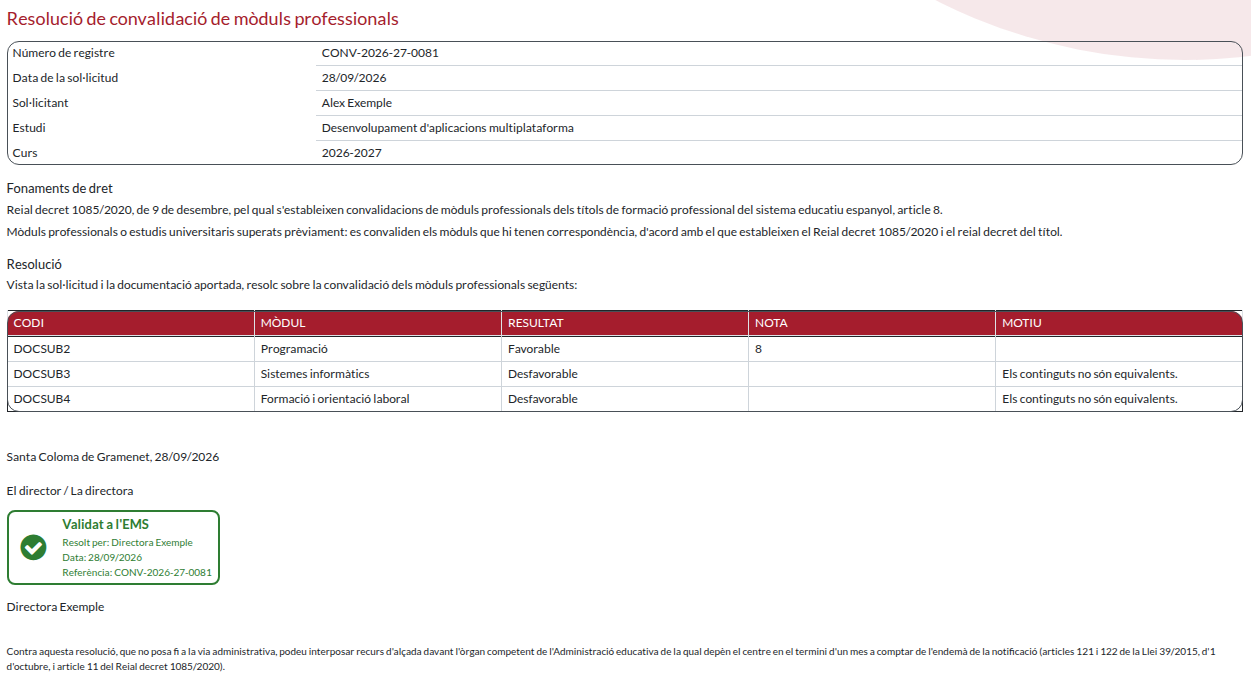
The grounds-of-law and appeal texts, and signing by delegation, are configured in Convalidation settings.
Resolving it through the Ministry
- File the request with the Ministry.
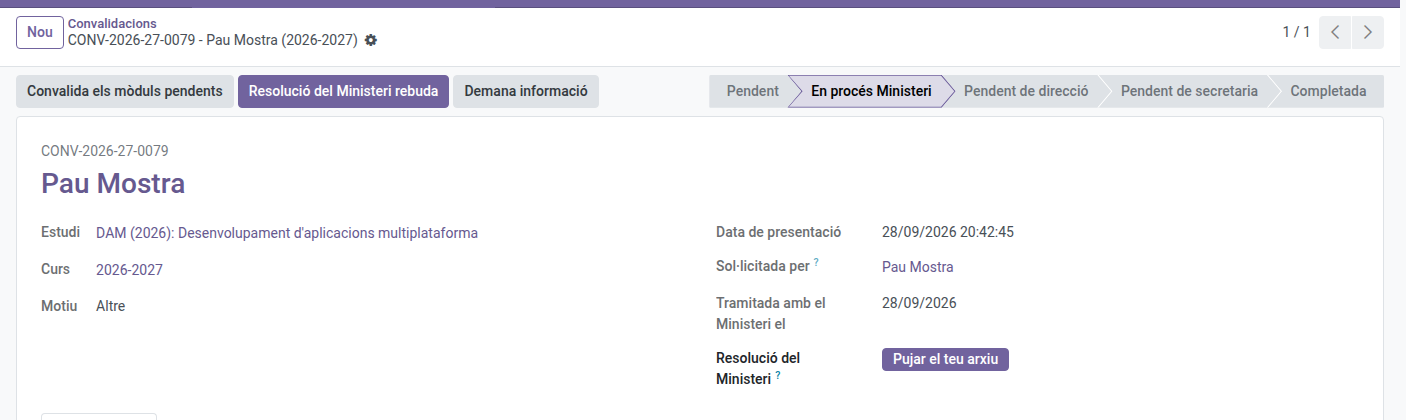
- On the form, click In process at the Ministry and confirm. The request stays in your hands: the student can no longer cancel it, but you can still ask them for documentation.
- When the Ministry’s answer arrives, decide each module as it resolved, with the reason for the rejected ones.
- If you have the Ministry’s resolution, upload it to the Ministry resolution field. It is optional.
- Click Ministry resolution received.
The request moves straight to Pending the secretariat, without going through the Director. If you uploaded the Ministry’s resolution, that is the one the student receives.
What happens next
The secretariat registers the resolution in Esfera (see Convalidations: registering resolutions). At that moment:
- The request becomes Completed (if any module is convalidated) or Rejected.
- The student receives the resolution by email, with the PDF attached. So does the family if the student is a minor or has authorized sharing information with it.
- The grades reach the student’s grades: the student stops taking each convalidated module, the module’s teachers and the tutor are notified, and the academic history records it as passed with the grade, the CV mark and the registration number.
Registering a paper request
- Click New.
- Choose the Student, Study, Course and Grounds, and write the applicant’s comments if there are any.
- On the Subjects tab, click Add a line and choose each module.
- On the Supporting documents tab, upload the documents.
- Click Save.
Once saved, the student, study, course, grounds and comments can no longer be changed.
You can register a request, and process any request, at any time: the portal’s request period (see Convalidation settings) only limits new requests from students and families.
Cancelling and reopening
- Cancel request is available while the request is Pending.
- Reopen takes a cancelled request back to Pending.
Studies that allow convalidations
Only studies whose level has Allows convalidations checked (by default, CFGM and CFGS) can receive requests. See Levels.